![How to Fix Packet Loss in CS2: Full Guide [2026] Background](https://community.skin.club/wp-content/uploads/2026/01/Background-1.jpg)

Has it ever happened to you during a long CS2 match that an enemy suddenly teleports across your screen? You’re holding an angle, your crosshair is perfect, but the game hitches for a split second. Suddenly, you’re dead, your character slides across the floor, and your team is left wondering what happened. This isn’t about bad aim – it’s packet loss. Every action depends on a flawless conversation between your PC and the server. When data packets go missing, that conversation breaks, turning a smooth match into a nightmare. Let’s fix that. This guide will explain what’s happening and show you how to banish packet loss for good.
What Is Packet Loss in CS2?
To understand how to fix the problem, we first need to look at what’s actually happening when you play. Imagine you’re sending a series of letters to a friend. Each letter contains a tiny instruction: “I moved left,” “I threw a smoke,” or “I fired my AK-47.” In a perfect world, your friend receives every single letter in the order you sent them. In the world of packet loss, some of those letters just disappear into the void.
When you experience packet loss in CS2, your game client is sending data to the server, but the server is only getting pieces of the story. Because the server is the ultimate source of truth, it has to guess what happened during the gaps. If the server misses the packet where you told it you stopped moving, it assumes you’re still running, which leads to that annoying rubberbanding effect where you get snapped back to a previous position.
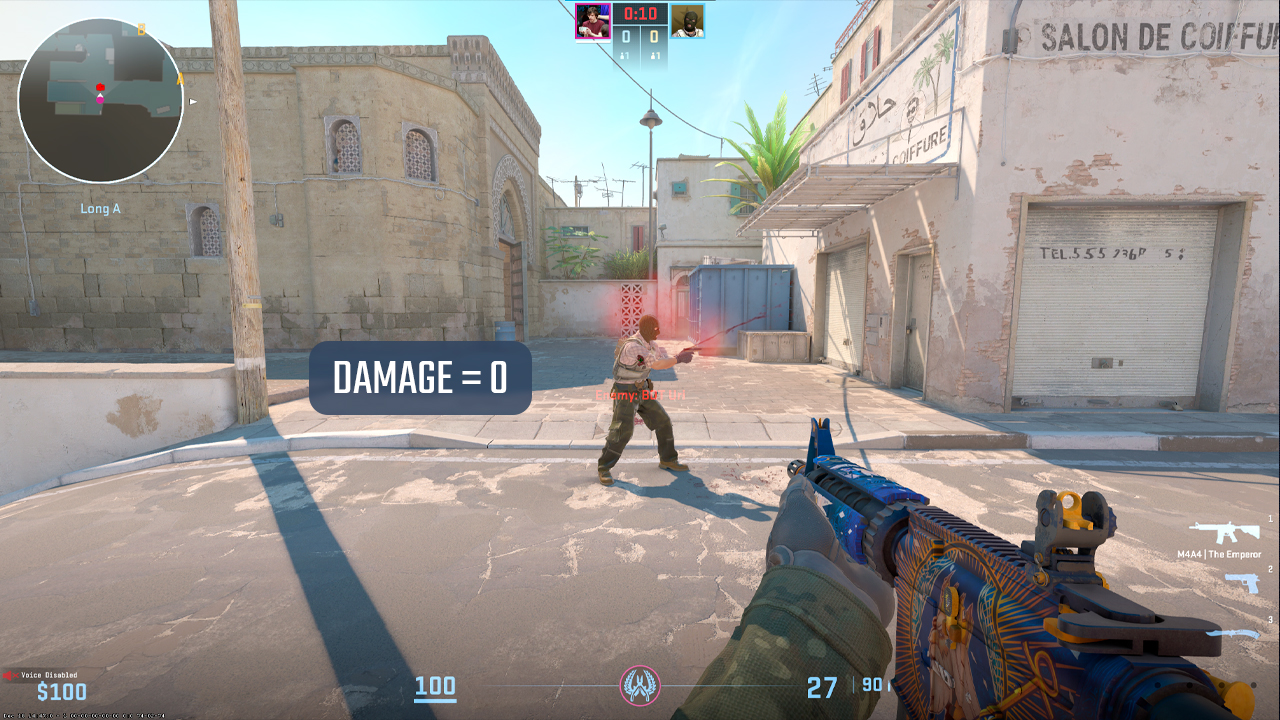
This issue isn’t just about your movement, though. If the data packet containing your “mouse 1” click never reaches the server, then as far as the match is concerned, you never pulled the trigger. You can see the blood splatter on your screen because your computer thinks you hit the shot, but the server never got the memo, so the enemy walks away with 100 HP. It’s frustrating, it’s unfair, and it’s a total competitive dealbreaker.
How to Check Packet Loss in CS2?
Valve made some big changes to how we monitor our connection when they moved from CS:GO to CS2. Gone are the days of the old, reliable net_graph 1 that sat at the bottom of our screen. Now, we have a more modern (though sometimes more confusing) telemetry system. If you want to see if packet loss is the reason you’re losing duels, you need to know where to look. The easiest way to check is through the in-game settings menu:
- Navigate to Settings, then Game, and finally Telemetry.
- Here, you can set Display Network Connection Issues to Always or Automatically.
- When your connection starts acting up, a small graph will appear in the top right corner of your screen.
- If you see red or yellow squares ticking across that graph, you are officially dealing with packet loss. Red squares are the worst-case scenario, indicating that a significant amount of data is being dropped.
For the gamers who prefer the old-school way, you can still use developer commands to get this info. By hitting the tilde key (~) and typing cq_netgraph 1, you’ll enable the “Command Queue” graph. This visual aid is a real-time representation of how your packets are being processed. If the line is flat and smooth, you’re fine. If it looks like a mountain range with jagged peaks and red bars, you’ve got a packet loss problem that needs immediate attention.
How to Fix Packet Loss in CS2?
Fixing packet loss usually involves a bit of trial and error because the problem could be anywhere from your Ethernet port to a server rack three states away. However, by following a logical troubleshooting path, you can usually narrow it down and find a solution that works for your specific setup.
Use a Wired Connection
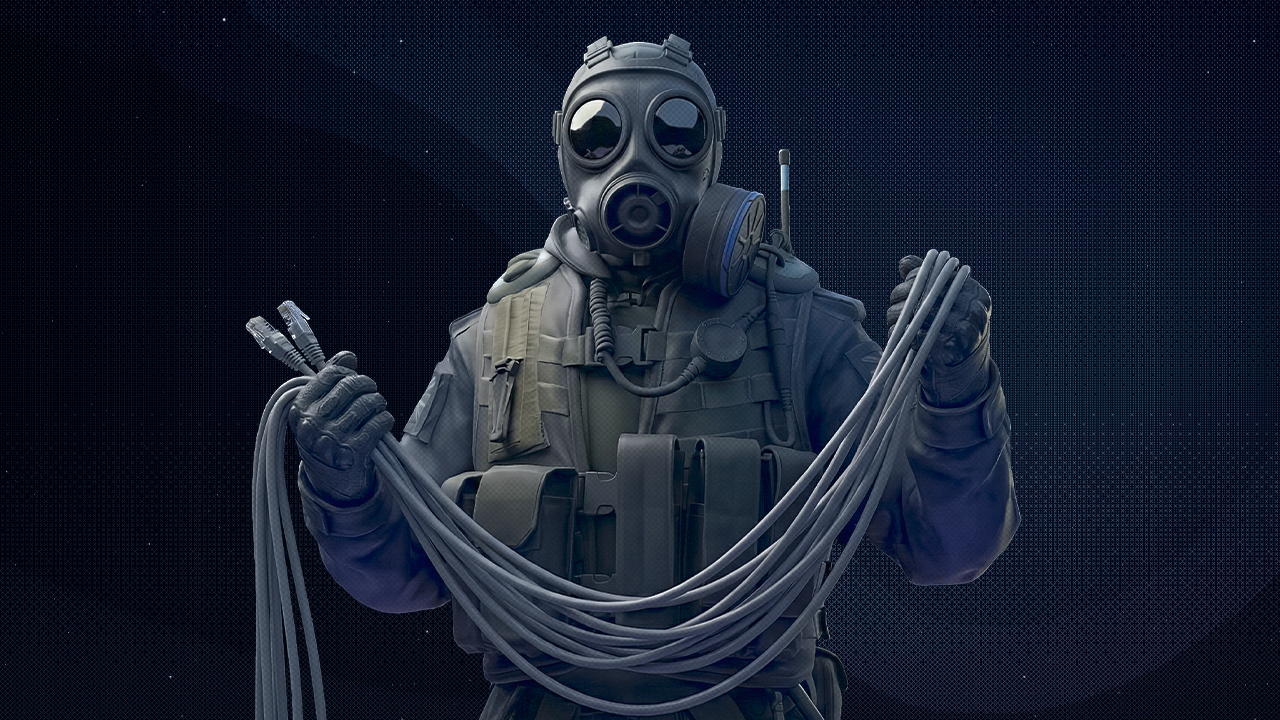
It’s 2026 and everyone wants to use Wi-Fi. But if you are serious about CS2 and you’re struggling with packet loss, you absolutely must plug in an Ethernet cable. Wi-Fi signals are prone to interference from everything: your microwave, your neighbor’s router, even the walls of your house. Every time that signal gets interrupted, a packet dies. A physical copper cable is the only way to ensure that your data has a shielded path from your PC to the router. Even “Gaming Wi-Fi” isn’t a match for a Cat6 cable when it comes to preventing packet loss.
Adjust the “Buffering” Setting
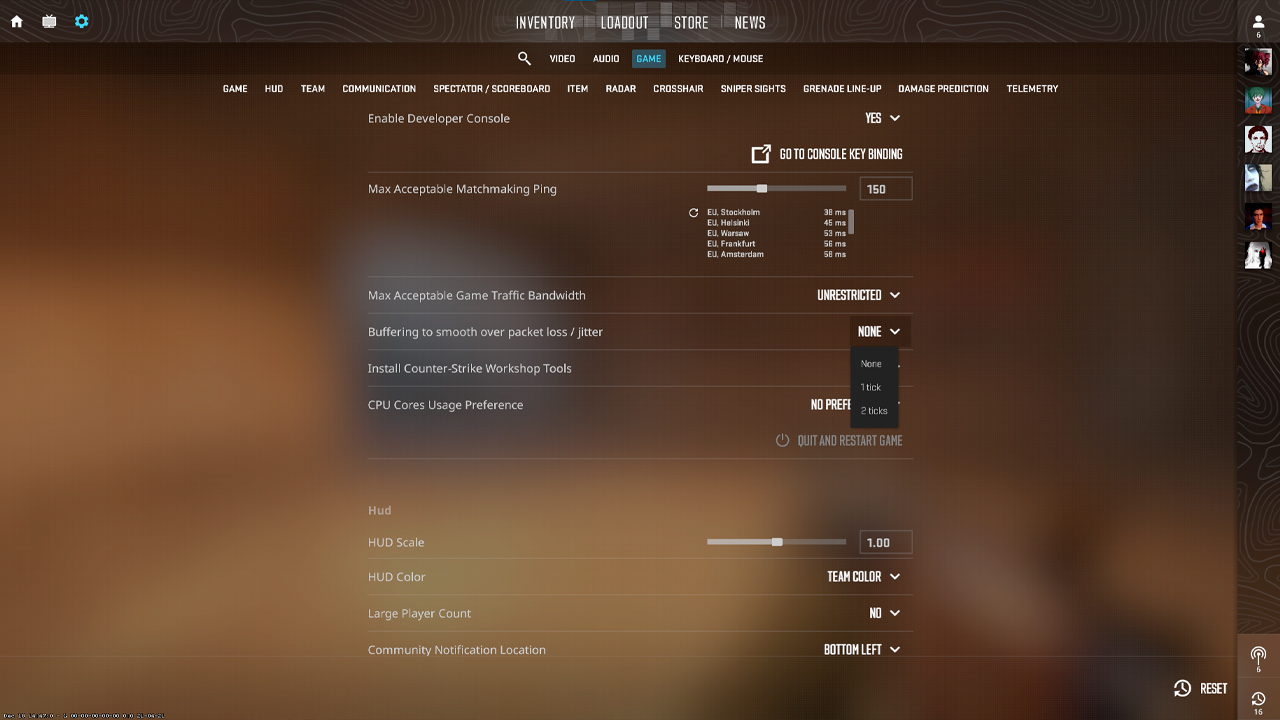
If your CS2 matches feel choppy despite decent FPS, your connection may be dropping the occasional packet. Valve introduced an easy feature that can hide minor interruptions without altering your entire configuration.
- Go to Settings, then Game and find Buffering to smooth over packet loss.
- None (default): Lowest latency, but one missing packet can cause harsh stutters.
- 1 Packet: Adds a tiny input delay while letting the game wait for an extra packet before rendering.
- 2 Packets: A slightly stronger safety net if you see frequent micro-freezes, at the cost of a bit more delay.
Try 1 Packet first, then bump to 2 if the stutter persists. You’re trading a touch of responsiveness for steadier frames and fewer rubber moments. If it feels sluggish, drop it back down.
Flush Your DNS and Reset IP
Sometimes the pipes of your internet get a bit clogged up with old data or bad routing paths. You can manually reset your connection parameters using the Windows Command Prompt. Open CMD as an admin and run the following commands in order:
- ipconfig /release
- ipconfig /renew
- ipconfig /flushdns
This forces your computer to forget its current pathing and find a fresh connection to your ISP. Often, this simple way is enough to clear up persistent packet loss that’s been hanging around for a few days. It’s a packet loss fix that every CS2 player should remember.
Check for Background Bandwidth Hogs
You’d be surprised how many players complain about packet loss while their Steam client is silently downloading a 50GB update for another game in the background. Or maybe you have a browser tab open that’s auto-playing a 4K stream. CS2 doesn’t actually use that much total bandwidth, but it needs priority. If your pipe is full of other data, your game packets will get queued up or dropped entirely. Before you start your next Premier match, open your Task Manager (Ctrl+Shift+Esc) and check the Network column. If anything other than CS2 is using more than 0.1 Mbps, shut it down.
Update Your Network Drivers
If you’re running a motherboard or a network card from three years ago and you’ve never updated the drivers, you’re asking for trouble. Manufacturers constantly release updates that improve how these cards handle high-frequency data (like a CS2 sub-tick stream). Go to the website of your motherboard manufacturer, find your specific model, and download the latest “LAN” or “Ethernet” drivers. This ensures that your hardware isn’t the bottleneck causing the packet loss.
Use a VPN for Better Routing
This sounds counter-intuitive – adding another stop on the journey should make things slower, right? Not always. Sometimes, your ISP has terrible routing to Valve’s specific servers. Your data might be taking a scenic route through five different states before reaching the game. A gaming-focused VPN can sometimes force your data onto a more direct path, bypassing the congested or broken nodes that are causing the packet loss. If you only experience issues on Valve servers but your internet works fine everywhere else, a VPN might be your best bet.
Game On, Lag Gone
Packet loss might be a modern gaming nuisance, but you don’t have to just accept it. From choosing a wired connection to adjusting a simple in-game setting, most fixes just require a bit of patience. Don’t forget, CS2 is all about aim and accuracy, and a dropped connection during a spray will definitely ruin a good match. Start with your hardware, check your game settings, and tidy up your software. When those red squares finally vanish from your net graph and your shots start landing true, you’ll feel the difference immediately. Don’t let your connection be the reason you’re stuck. Fix your net, and trust that the headshots will follow.
FAQ
-
Is 20% packet loss high?
Yes, 20% is very high. It means roughly 1 out of every 5 packets doesn’t reach the server, which is huge for a shooter. In CS2 that often shows up as delayed actions, shots not registering, rubber-banding, or stuttering. Anything above a couple percent can feel bad, so 20% is usually close to unplayable.
-
How to check packet loss in CS2?
Open Settings, Game, then Telemetry and enable the network stats, setting them to Always if you want them visible during matches. Look for the packet loss/misdelivery indicators and watch if they spike during gameplay. You can also use console commands to force network telemetry to show on the HUD if you prefer that approach.
-
What causes packet loss in CS2?
Common causes are Wi-Fi interference/weak signal, network congestion (someone streaming/downloading), or overloaded/unstable router equipment. Faulty Ethernet cables, poor modem/router settings, or ISP routing issues can also lead to loss. Sometimes it’s tied to the route to a specific server region, so the problem may only happen on certain servers or at peak hours.


![Desert Eagle Heat Treated CS2 Guide & Patterns [2026]](https://community.skin.club/wp-content/uploads/2026/09/Main-x-Name-11-768x432.jpg)