![Best CS2 Crosshair Codes & Pro Players Settings [2025] Background](https://community.skin.club/wp-content/uploads/2023/09/Background-10.jpg)

Crosshair choice affects target acquisition, recoil control, angle holding, and spray transfers in Counter-Strike 2. A crosshair code defines variables such as size, gap, thickness, outline, color, alpha, and dot behavior. A single gap adjustment can change how the crosshair frames an enemy’s head, while a shift in color affects visibility against map textures. However, the best CS2 crosshair settings are not universal, because every player relies on different resolutions, sensitivity settings, weapon preferences, and playstyles. Pro player codes provide an excellent starting point for match play, scrims, and tournaments. They also speed up testing, as each setup can be instantly imported and then adjusted through the settings menu.
What Is the Best Crosshair in CS2 in 2026?
As of 2026, the best crosshair settings continue to center on a classic static format with a short length, thin lines, and a tight gap. It gives enough reference for spray control and doesn’t take much space around the head.
- Style: Classic static
- Length: 1
- Thickness: 1
- Gap: -2
- Outline: No
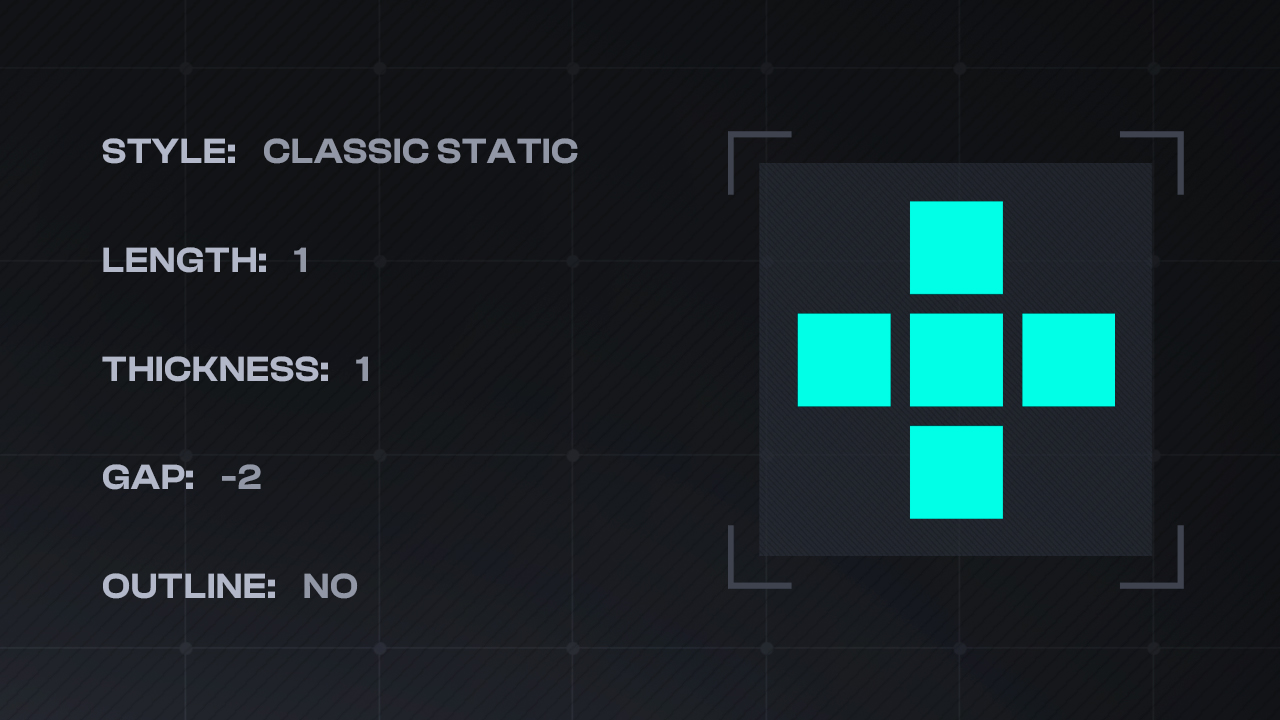
The crosshair is small, but it still has visible lines, which is ideal for rifles and pistols. However, many players still prefer larger crosshairs. Habit matters in CS2, as a player who has used the same style for years may perform much better with it than with a newer trend. Some people prefer a crosshair with a center dot. Others use only a dot. Standard line crosshairs also remain common. Switching between different crosshairs during testing is standard practice for competitive players.
What Is the Best Crosshair Color in CS2?
The best crosshair color in CS2 depends on contrast. White, cyan, and green are widely used because they stay visible across many maps. Green is often the best color to test first since it shows up clearly against typical backgrounds. Mirage, Dust 2, and Ancient use a lot of gray, brown, beige, and stone textures, making green unlikely to blend into the scene. Cyan can also contrast well on warm-toned maps, while white is useful when paired with an outline. That means if a chosen color fades into the background during matches, it’s better to change it.
Best CS2 Crosshair Codes Used By Pros
donk
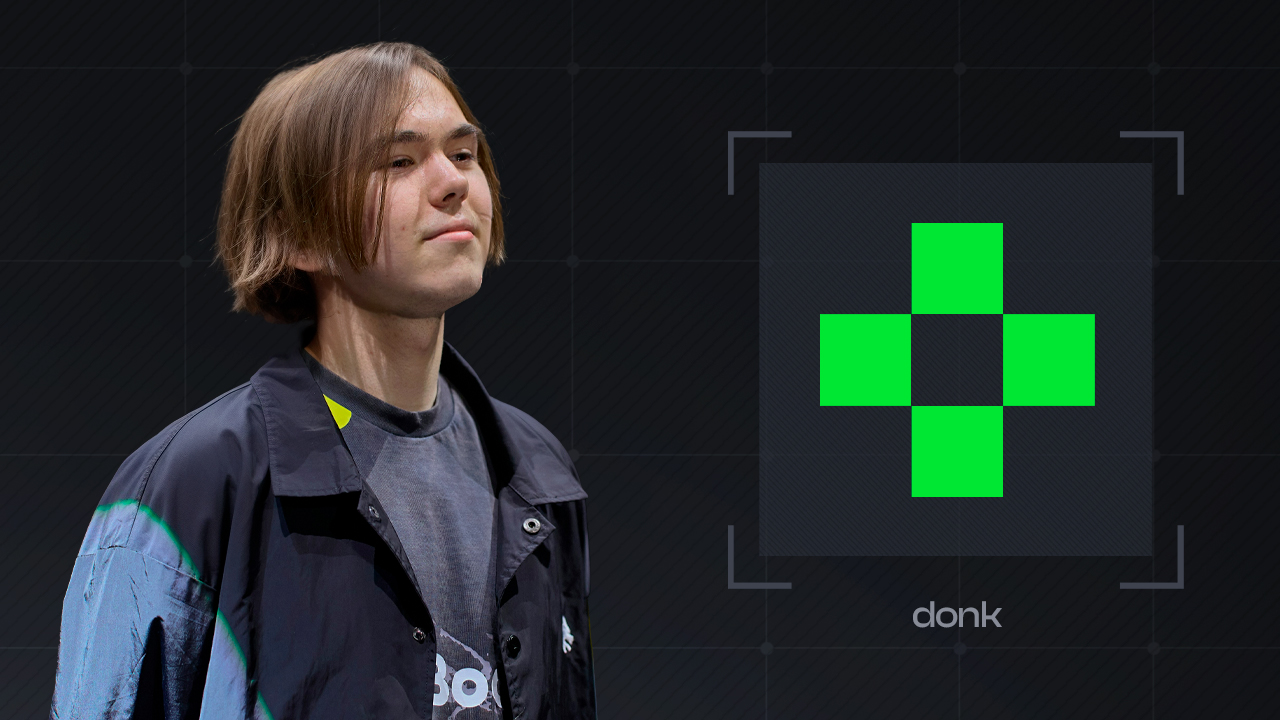
- Crosshair Code: CSGO-O36iX-6VGeQ-pnJLm-UWkab-osuWK
Since donk plays as a rifler, his settings use a small crosshair with a tight center. It doesn’t take much space on the screen, so the target stays visible. The gap helps maintain focus on the enemy’s head, which makes single taps easier. This crosshair is also fine for short bursts because the lines don’t cover the enemy at the start of a spray. It suits riflers who want a small crosshair for accurate shooting.
s1mple
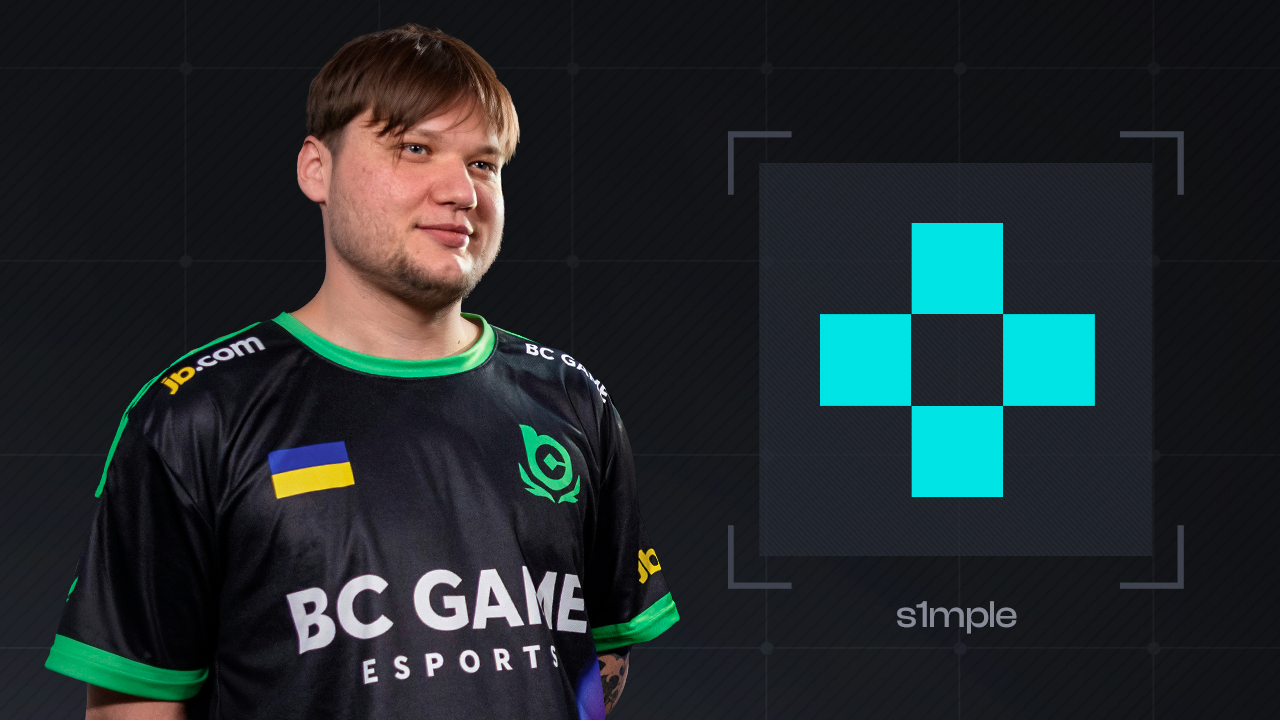
- Crosshair Code: CSGO-UseJt-3oTvn-47wPX-hEyER-WZfiK
s1mple’s setup is very close to donk’s, but he uses cyan instead of green. The shape stays small, with a tight center and no extra details around it. Since s1mple plays both rifle and AWP roles, the crosshair has to work for more than one type of fight. Cyan is easy to see on many CS2 maps, yet it’s less versatile than green. It can easily get lost against bright skies or light blue textures on maps like Nuke.
ZywOo
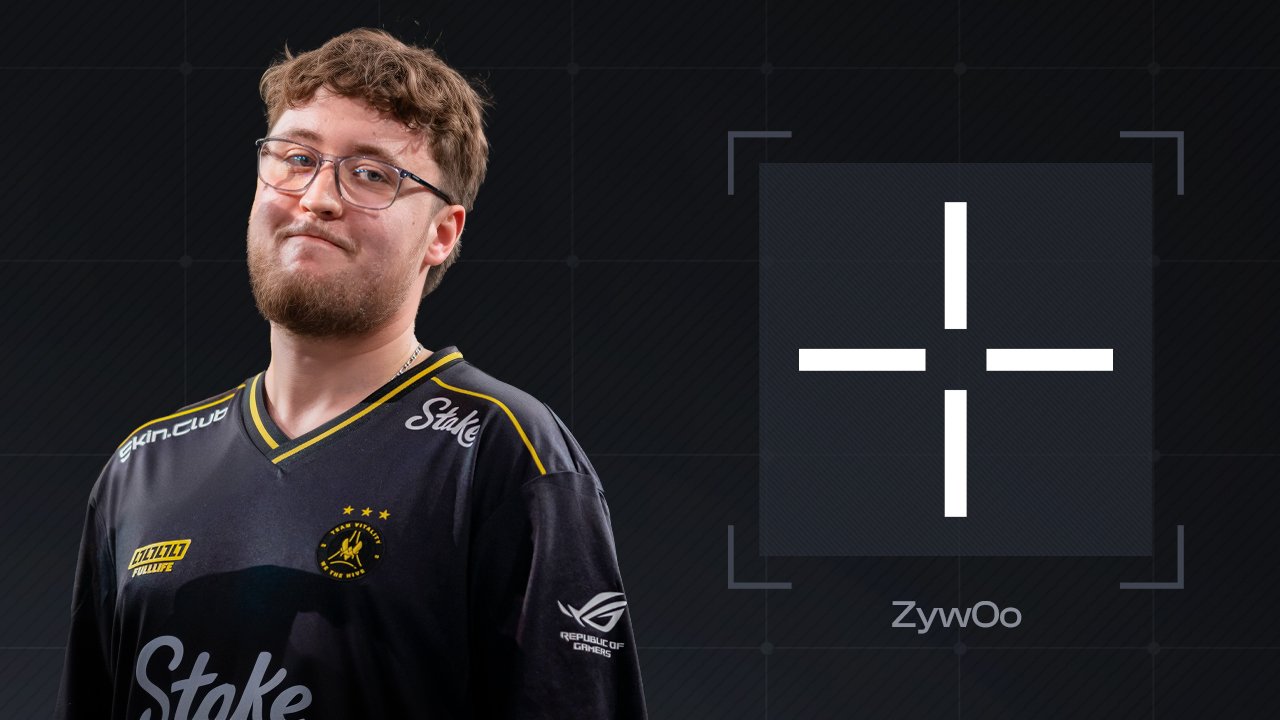
- Crosshair Code: CSGO-FNOLG-fQcPX-V8P7K-VqtAf-ZbJaA
ZywOo uses a white, thin crosshair without an outline. Since ZywOo plays as both an AWPer and rifler, his settings have to work for rifle taps, short bursts, and quick aim correction after switching weapons. However, omitting the outline makes this a risky choice, as white lines can easily get lost against bright walls, utility effects, or light map textures. It can work well for players with strong crosshair control, but it isn’t the best option for every map.
NiKo
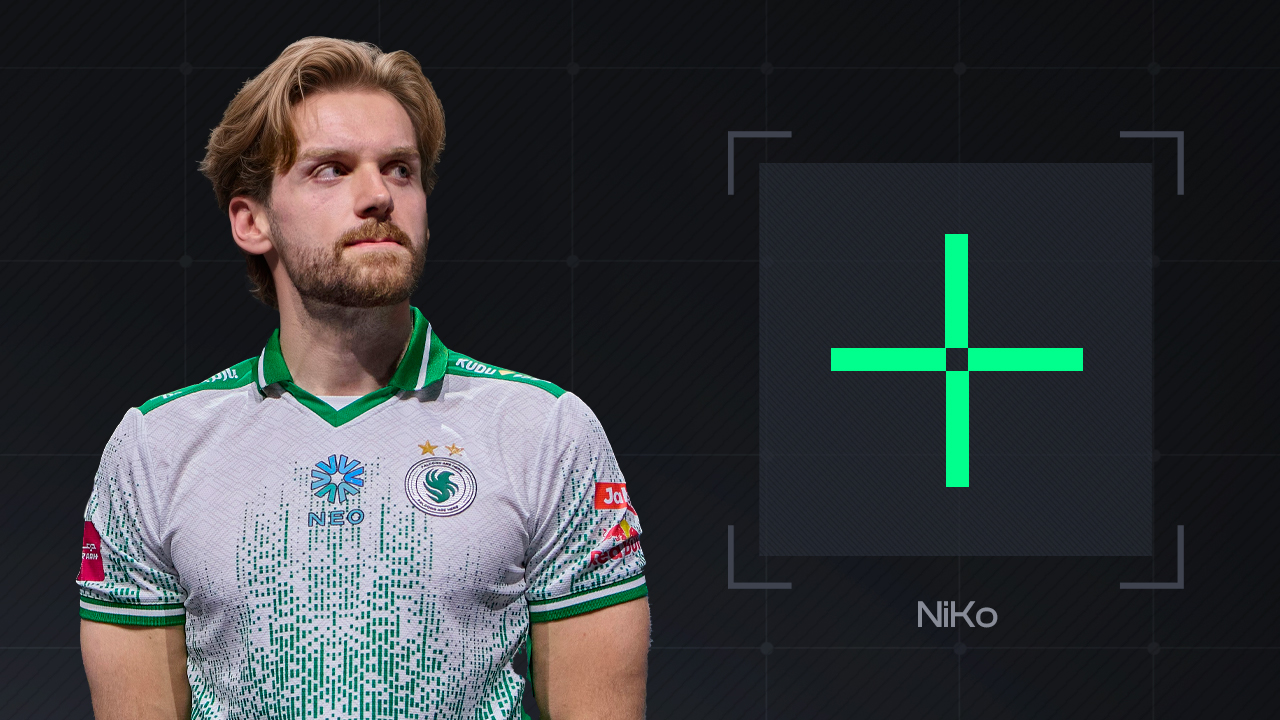
- Crosshair Code: CSGO-RJ5NF-nRqHU-eUDOm-9k24O-uhmwG
NiKo’s settings fit his role as an aggressive entry fragger. His crosshair is very small and thin, though it remains green for better visibility. Since NiKo often fights first, the crosshair must assist with crosshair placement while keeping the target unobstructed. The thin lines also work well for taps and short bursts. They reduce the chance of blocking the exact head pixel in distant fights.
shroud
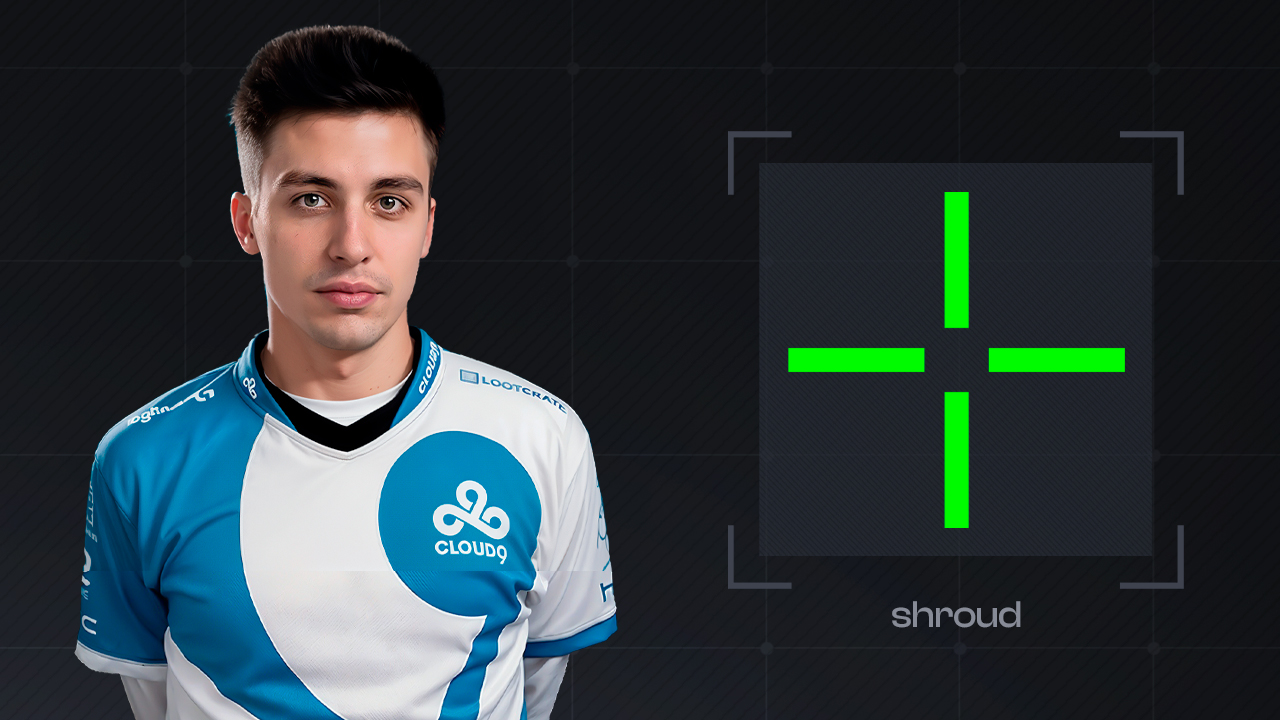
- Crosshair Code: CSGO-oWwnn-Keks9-w8fEW-LnBEY-pYOAK
shroud’s setup is an example of a larger crosshair, featuring a length of 5 and thicker lines. It provides a larger point of reference on the screen, which helps players who dislike tiny crosshairs. Green makes it easy to see across many maps, while the lack of an outline keeps the shape simple. This crosshair is not as compact as the setups used by donk, s1mple, or NiKo, meaning it can obstruct more of the target in certain fights. At the same time, the size makes it much easier to track during sprays and fast movements.
m0NESY
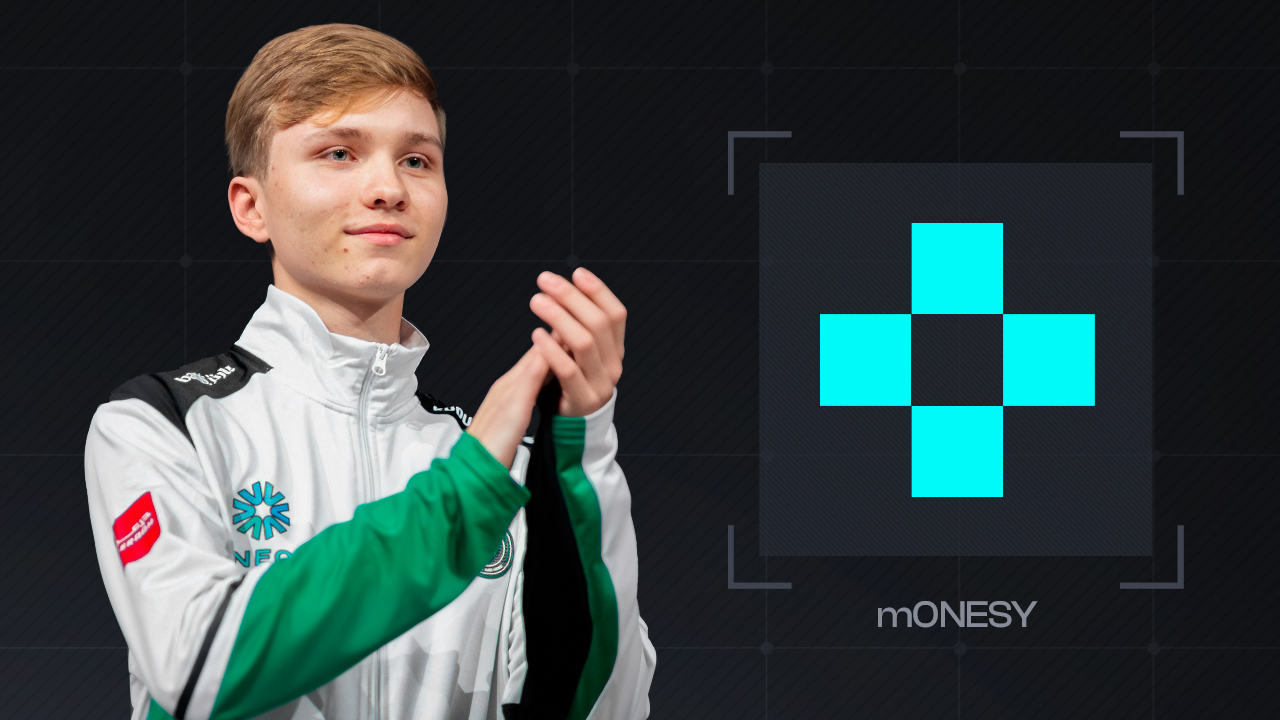
- Crosshair Code: CSGO-j5PN3-m5jw8-avYUO-YEDRy-8bBAA
m0NESY’s crosshair is very close to s1mple’s, but his settings use a higher alpha value, making the color look brighter on the screen. The setup is small, featuring short lines and no outline. Since m0NESY is mainly an AWPer, his configuration must remain practical during pistol rounds. A brighter look is often easier to track during fast fights, especially in darker map areas. At the same time, the lack of an outline means it can still blend into some bright surfaces.
ropz
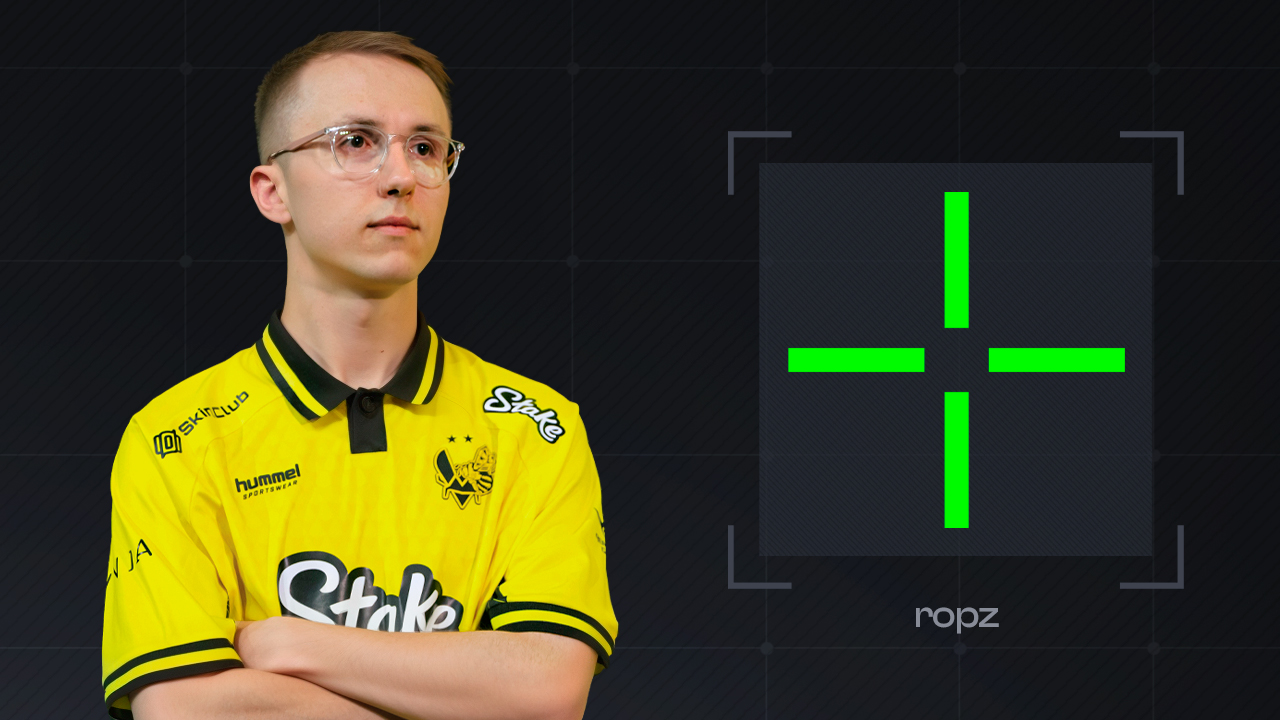
- Crosshair Code: CSGO-5UHEt-3RFCY-4Nu8t-4UYGQ-vJN2G
ropz’s setup is a standard choice for CS2. The crosshair is relatively large compared to the smallest pro settings, but it doesn’t obstruct head pixels the way shroud’s setup can. It features thin, green lines with no dot and no outline. There are no extraordinary settings here. For rifle fights, this design provides enough structure for taps and short bursts while keeping the enemy model perfectly visible at range.
ScreaM
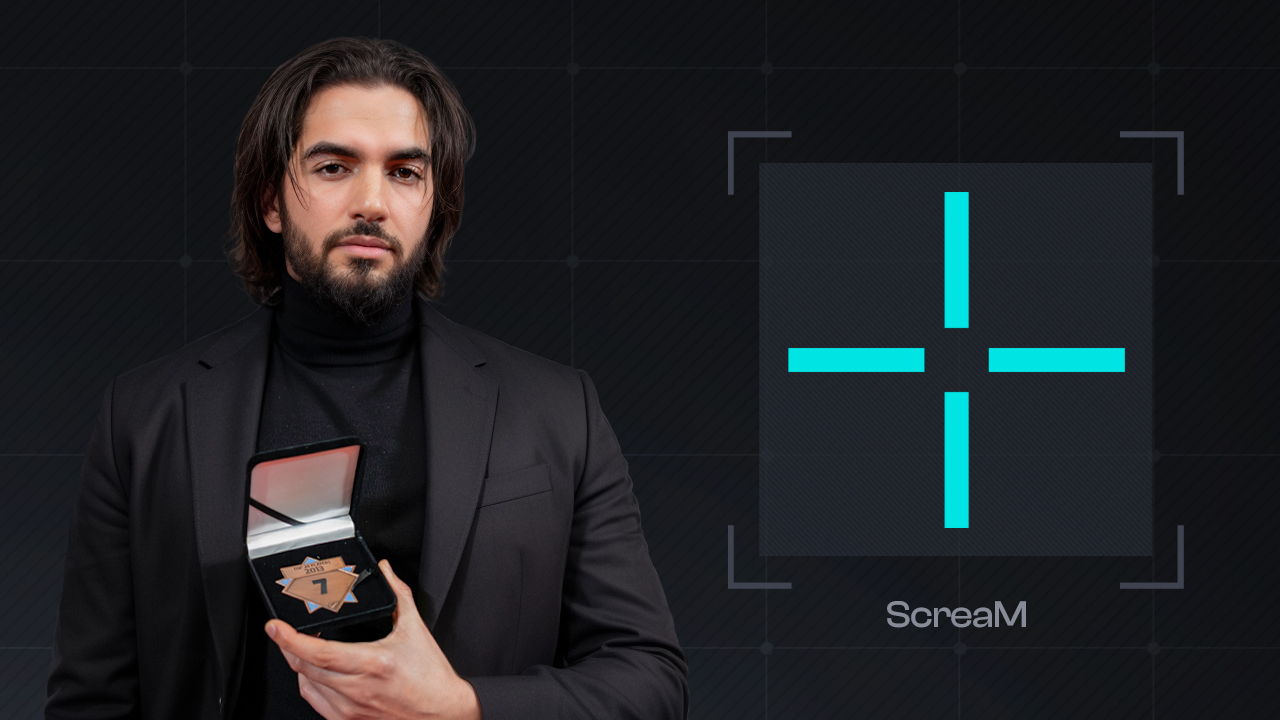
- Crosshair Code: CSGO-oCRnG-iSPDN-vJrcP-mdnHU-85hWA
ScreaM’s settings are another example of a larger crosshair, taking up more screen space than most pro setups. It features no dot and no outline. While larger crosshairs are often linked to spraying, ScreaM is famous for using this size for one-taps, finding it easier to track targets with highly visible lines.
XANTARES
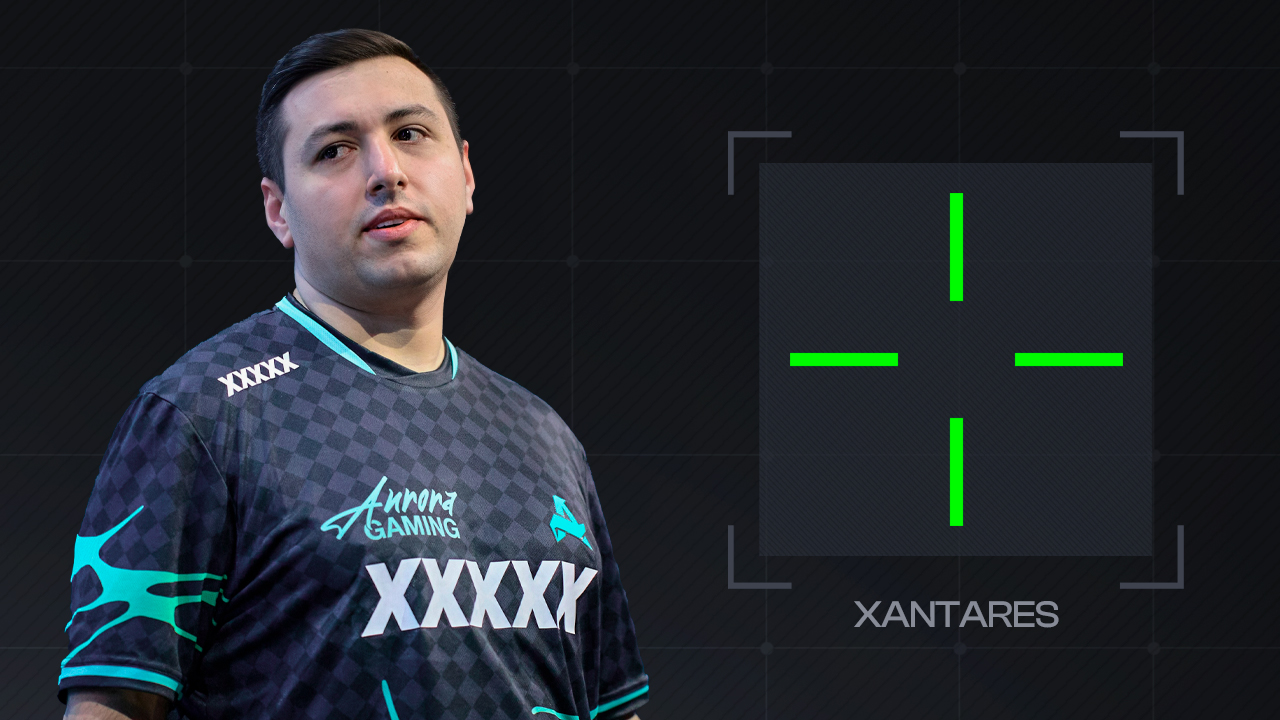
- Crosshair Code: CSGO-xbpe2-E24RJ-YXNuO-pQvt8-ppNAK
XANTARES uses a very thin crosshair with a big gap. His settings leave more space in the center, which helps during spray control because the target stays visible between the lines. As an entry fragger, he needs a setup that suits fast rushes. Green helps keep the crosshair readable on many CS2 maps. This setup may feel too open for players who prefer a tight center, but it suits rifle aim and controlled sprays.
kyousuke
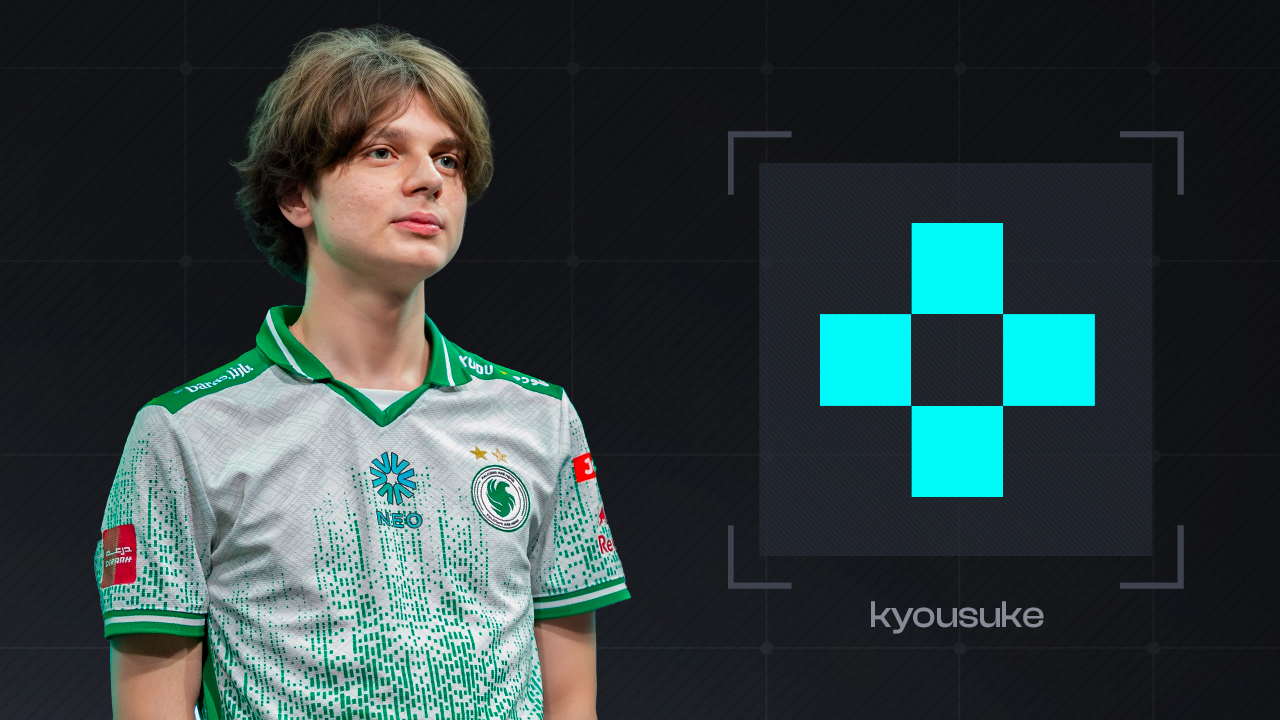
- Crosshair Code: CSGO-wAD3c-ykt5L-zvZ98-vBisR-6sWPA
kyousuke’s crosshair is similar to m0NESY’s, but it’s a little thicker. It keeps the same small shape, with short lines and a tight center. However, like XANTARES, kyousuke is an entry fragger, yet his setup is very different. This shows that role matters, but it doesn’t decide the whole crosshair. Personal comfort and visual preference are far more important.
FAQ
-
How to copy a crosshair in CS2?
To copy a CS2 crosshair, open Settings, then Game, then Crosshair. Click Share or Import, and paste a valid share code into the import field. Alternatively, during a live match, open the scoreboard with TAB, right-click to free the cursor, select a teammate, and click Copy Crosshair to apply their settings instantly.
-
How to change a CS2 crosshair?
CS2 crosshairs can be adjusted either through the in-game menu or by importing a code. In the menu, navigate to Settings, Game, and Crosshair to tweak sliders for style, center dot, length, thickness, gap, outline, color, alpha, and T-style. For a faster switch, open the Share or Import window and paste a pre-made crosshair code.
-
How to save a crosshair in CS2?
The crosshair saves automatically once changes are applied in the settings. However, if a custom config or autoexec file executes at startup, the crosshair will reset to the parameters written there. Removing all crosshair-related commands from the custom .cfg file prevents this reset from happening.
-
How to get dot crosshair in CS2?
In-game, a dot crosshair can be created by opening Settings, then Game, then Crosshair, switching Center Dot on, and reducing Length until only the dot remains. A player’s dot crosshair code can also be copied from the CS2 crosshair database or created via the crosshair generator, then imported directly into the game.
-
How to copy someone's crosshair in CS2?
For professional setups, the direct method is finding the specific share code online and importing it. To duplicate a teammate’s crosshair mid-game, opening the scoreboard with TAB, right-clicking their name, and selecting Copy Crosshair will instantly overwrite the current profile with their exact configuration.
![Newest CS2 Cases: List & Release Dates [2026]](https://community.skin.club/wp-content/uploads/2026/05/Main-x-Name-768x432.jpg)
![M4A1-S Fade Pattern Guide: All Seeds & Full Fade [2026]](https://community.skin.club/wp-content/uploads/2024/10/Main-x-Name-1-4-768x432.jpg)