

The developer console is an in-game interface for entering commands that control CS2 settings and functions. It provides direct access to options that may be unavailable or slower to adjust through the standard menus. The best CS2 console commands can improve practice sessions, simplify repetitive actions, adjust the HUD and viewmodel, manage bots, and display useful technical data. Some commands also help identify performance or connection problems. Every command included here works in CS2 in 2026, while unsupported CS:GO commands are marked separately.
How to Enable the Developer Console
The developer console must be enabled in the game settings before commands can be entered.
- Open Settings from the main menu.
- Select the Game tab.
- Find Enable Developer Console (~).
- Set the option to Yes.
- Press the ~ key to open or close the console. On some keyboard layouts, the default key may differ.
Rebind Key
The console can be assigned to another key after it has been enabled. Open it and enter: bind F1 toggleconsole. F1 will then open and close the console. The bind command assigns an action to a key, while toggleconsole switches the console between its open and closed states.
Best Practice Commands
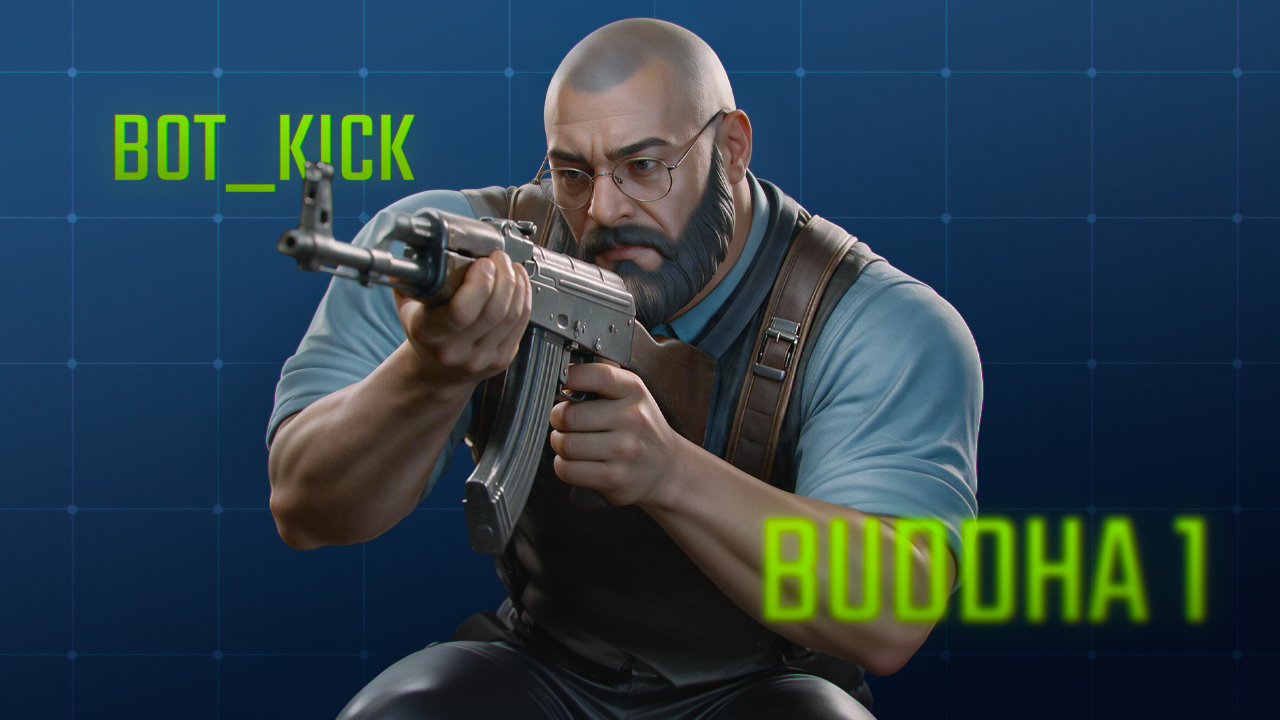
Practice commands change server-side rules and work only in offline matches, private lobbies, or servers where the player has administrator access. They can’t be used in official Matchmaking, Premier, or FACEIT matches because those servers control command permissions and don’t allow sv_cheats.
Command | What It Does |
|---|---|
sv_cheats true |
Enables cheat-protected commands on the local or private server. |
sv_infinite_ammo 1 |
Provides unlimited ammunition without requiring reloads. |
sv_infinite_ammo 2 |
Provides unlimited reserve ammunition but keeps normal reloads. |
mp_buy_anywhere 1 |
Allows purchases outside the standard buy zone. |
bot_kick |
Removes all bots from the server. |
bot_add |
Adds one bot to the match. |
buddha 1 |
Prevents health from dropping below one, while damage still registers. |
mp_maxmoney 1000000 |
Sets the maximum amount of money a player can hold. |
Best sv_cheats Commands
These training commands provide more control over grenade practice, aim testing, bots, and player health. They work in offline matches, private lobbies, or servers with the required permissions.
Command | What It Does |
|---|---|
noclip |
Enables free movement through walls and other solid objects. Enter the command again to disable it. |
sv_grenade_trajectory_prac_pipreview 1 |
Shows a picture-in-picture preview of where a thrown grenade lands. |
sv_grenade_trajectory_prac_trailtime 10 |
Keeps the grenade trajectory trail visible for 10 seconds. |
mp_respawn_on_death_ct 1; mp_respawn_on_death_t 1 |
Enables immediate respawning for both CT and T players. |
sv_rethrow_last_grenade |
Repeats the last grenade throw from the same position and angle. |
sv_showimpacts 1 |
Displays markers at bullet impact points. |
kill |
Kills the player who enters the command. |
sv_regeneration_force_on true |
Restores health automatically after the player takes damage. |
toggle r_aoproxy_show 0 1 |
Toggles a yellow wallhack-style player display for offline or private practice. |
Best FPS & Performance Commands
The console commands below control FPS, latency, buffering, and motion blur. They work in official Matchmaking, Premier and FACEIT.
- fps_max 0: Removes the in-game FPS limit, allowing the system to render as many frames as possible.
- cl_showfps 1: Displays the current frame rate on the screen.
- cl_showfps 2: Displays the current, lowest, and highest frame rates, along with latency.
- engine_low_latency_sleep_after_client_tick true: Moves the low-latency sleep stage after client simulation when the game’s low-latency mode is active.
- cl_net_buffer_ticks 0: Removes additional buffering for server snapshots and user commands. Higher values can provide smoother play during packet loss but add delay.
CS:GO Commands That No Longer Work in CS2
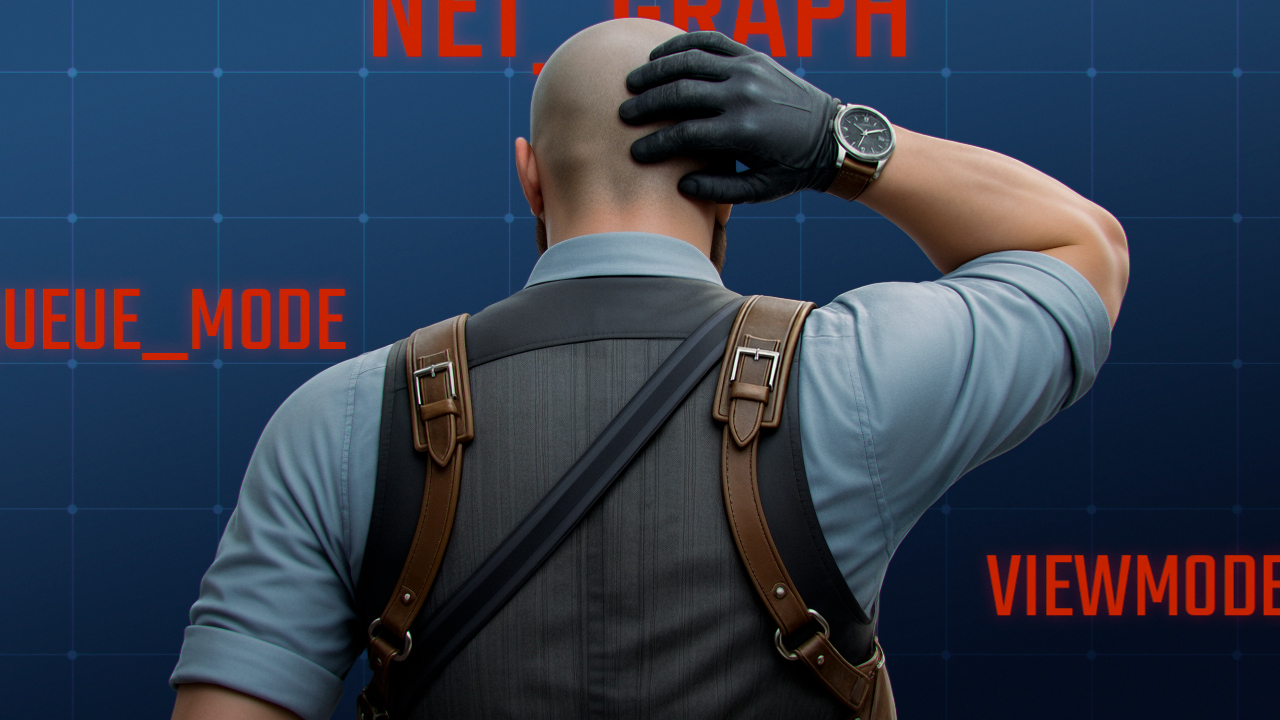
Many CS2 guides still contain commands that no longer work in the current version of CS2. Some are no longer recognized, while others remain available but don’t produce the results described in those guides.
Command | What Other Guides Promise | The Reality |
|---|---|---|
cl_interp / cl_interp_ratio |
Changes client-side interpolation to reduce delay or improve hit registration. |
These interpolation settings aren’t available as normal player-controlled CS2 commands. CS2 handles interpolation through its current networking system. |
cl_cmdrate / cl_updaterate |
Forces a chosen server update rate, commonly 128 updates per second. |
These commands were removed. CS2’s server communication and subtick processing can’t be changed with the old rate values. |
rate |
Increases the server update rate or enables 128-tick networking. |
The command still works, but it only sets the maximum network data rate. |
bind “KEY” “+jump; -attack” |
Performs a perfectly timed jump and grenade release through one multi-action CS bind. |
The old bind format. Manual jumpthrows are supported, and simple jump aliases may still be used. |
cl_bob, cl_bob_lower_amt, cl_bobamt_lat, cl_bobcycle |
Changes the amount and timing of weapon movement while walking. |
The old CS:GO bob commands aren’t available for normal viewmodel customization in CS2. |
viewmodel_recoil |
Reduces or removes visual weapon recoil. |
Removed in CS2. |
weapon_recoil_view_punch_extra |
Reduces the camera movement caused by firing. |
Removed in CS2. |
net_graph |
Displays FPS, ping, loss, choke, server rate, and network information. |
Removed in CS2. Current telemetry settings and commands such as cl_showfps provide only parts of the old display. |
mat_queue_mode |
Changes CPU thread usage and improves FPS. |
The Source-engine command isn’t a valid CS2 performance setting. Source 2 manages rendering threads automatically. |
cl_forcepreload |
Preloads map assets to prevent stuttering during a match. |
Removed in CS2. |
god |
Enables complete invulnerability during training. |
Removed in CS2. Commands such as buddha 1 or sv_regeneration_force_on true can be used instead for damage testing and training. |
r_motionblur 0 |
Disables motion blur and improves visibility or FPS. |
Removed in CS2. |
mat_monitorgamma |
Changes in-game brightness beyond the video menu setting. |
Removed in CS2. Display brightness should be changed through the game or system settings. |
r_dynamic 0 |
Disables dynamic lighting to increase FPS. |
Removed in CS2. |
Best HUD & Radar Commands
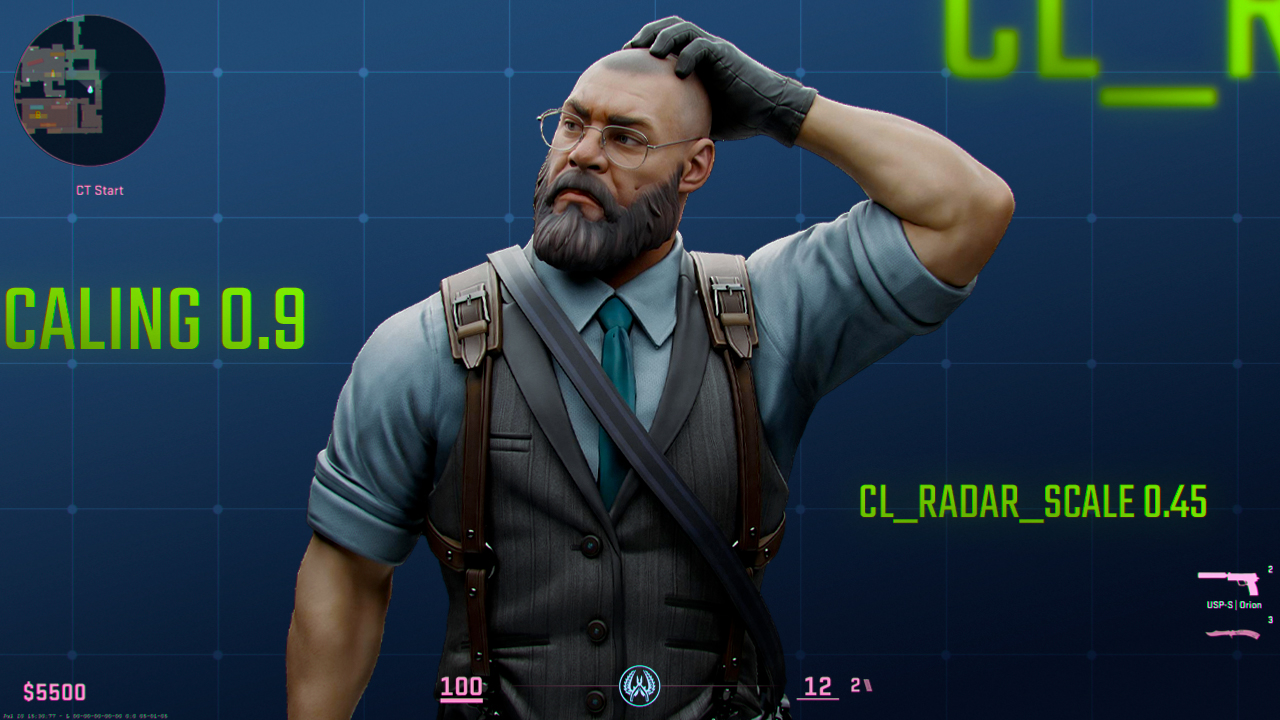
This setup doesn’t lock the player marker to the center of the radar, which displays more relevant map space near the edges. The radar remains large and readable, while the reduced HUD scale limits screen obstruction.
- cl_radar_always_centered 0: Disables constant player centering.
- cl_radar_scale 0.45: Zooms out the radar map.
- cl_hud_radar_scale 1.15: Increases the radar panel size.
- cl_radar_icon_scale_min 0.7: Sets a readable size for radar icons.
- cl_radar_rotate 1: Rotates the radar with the viewing direction.
- cl_radar_square_with_scoreboard 1: Displays a square radar while the scoreboard is open.
- hud_scaling 0.9: Reduces the overall HUD size.
Best Crosshair Commands
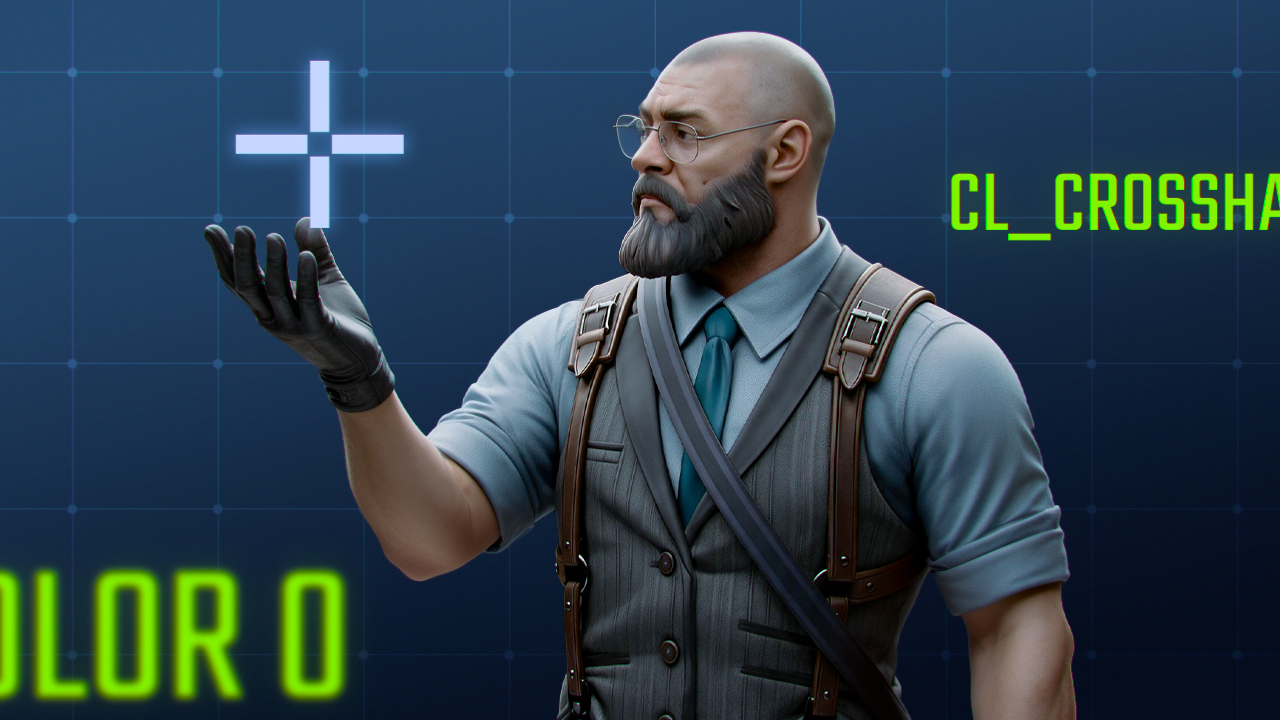
The crosshair commands control its color, shape, size, visibility, and movement behavior. They are client-side settings and work in official matches. Values shown in square brackets, such as [number], must be chosen and entered by the player.
Command | What It Does |
|---|---|
cl_crosshaircolor 0 |
Sets the crosshair color to red. |
cl_crosshaircolor 1 |
Sets the crosshair color to green, the standard preset. |
cl_crosshaircolor 2 |
Sets the crosshair color to yellow. It stands out against dark areas but can be harder to see on light or sandy surfaces. |
cl_crosshaircolor 3 |
Sets the crosshair color to dark blue, which can blend into shadows. |
cl_crosshaircolor 4 |
Sets the crosshair color to cyan or light blue. |
cl_crosshaircolor 5 |
Enables a custom color set through the individual red, green, and blue channels. |
cl_crosshaircolor_r [0-255] |
Controls the red intensity of a custom crosshair color. 0 removes red, while 255 applies the maximum value. |
cl_crosshaircolor_g [0-255] |
Controls the green intensity of a custom crosshair color. 0 removes green, while 255 applies the maximum value. |
cl_crosshaircolor_b [0-255] |
Controls the blue intensity of a custom crosshair color. 0 removes blue, while 255 applies the maximum value. |
cl_crosshairstyle [2-5] |
Selects the crosshair behavior: 2 (Classic Split), 3 (Dynamic), 4 (Static) and 5 (Legacy Dynamic). |
cl_crosshairsize [number] |
Sets the length of the crosshair lines. Higher values produce longer lines. |
cl_crosshairthickness [number] |
Sets the thickness of the crosshair lines. Higher values make them wider. |
cl_crosshairgap [number] |
Sets the space between the center and the crosshair lines. Negative values move the lines inward, while positive values move them outward. |
cl_crosshairdot [0/1] |
Disables or enables the center dot. |
cl_crosshairusealpha [0/1] |
Disables or enables custom crosshair opacity. |
cl_crosshairalpha [0-255] |
Controls opacity. 0 makes the crosshair transparent, while 255 makes it fully opaque. cl_crosshairusealpha 1 must be enabled for this value to apply. |
cl_crosshair_drawoutline [0/1] |
Disables or enables an outline around the crosshair. |
cl_crosshair_outlinethickness [number] |
Sets the thickness of the crosshair outline. |
Useful Binds
Binds assign a console command or action to a chosen key. The key names in these examples can be replaced to match the player’s control setup.
- bind z player_ping: Places a contextual ping at the location under the crosshair.
- bind mwheelup +jump: Assigns jumping to mouse-wheel up, which can make repeated jumpthrows easier.
- bind F10 “exec practice”: Runs the practice.cfg file without entering the command manually. The file must be placed in the CS2 configuration folder first.
- bind ALT noclip: Toggles free movement through walls during offline or private practice. It requires sv_cheats true.
- bind mouse4 switchhands: Moves the weapon viewmodel between the left and right sides of the screen.
- bind mouse5 slot8: Equips a smoke grenade directly. Other grenade slots can be assigned in the same way.
- bind DEL “disconnect”: Leaves the current server without opening the menu.
Server & Lobby Commands
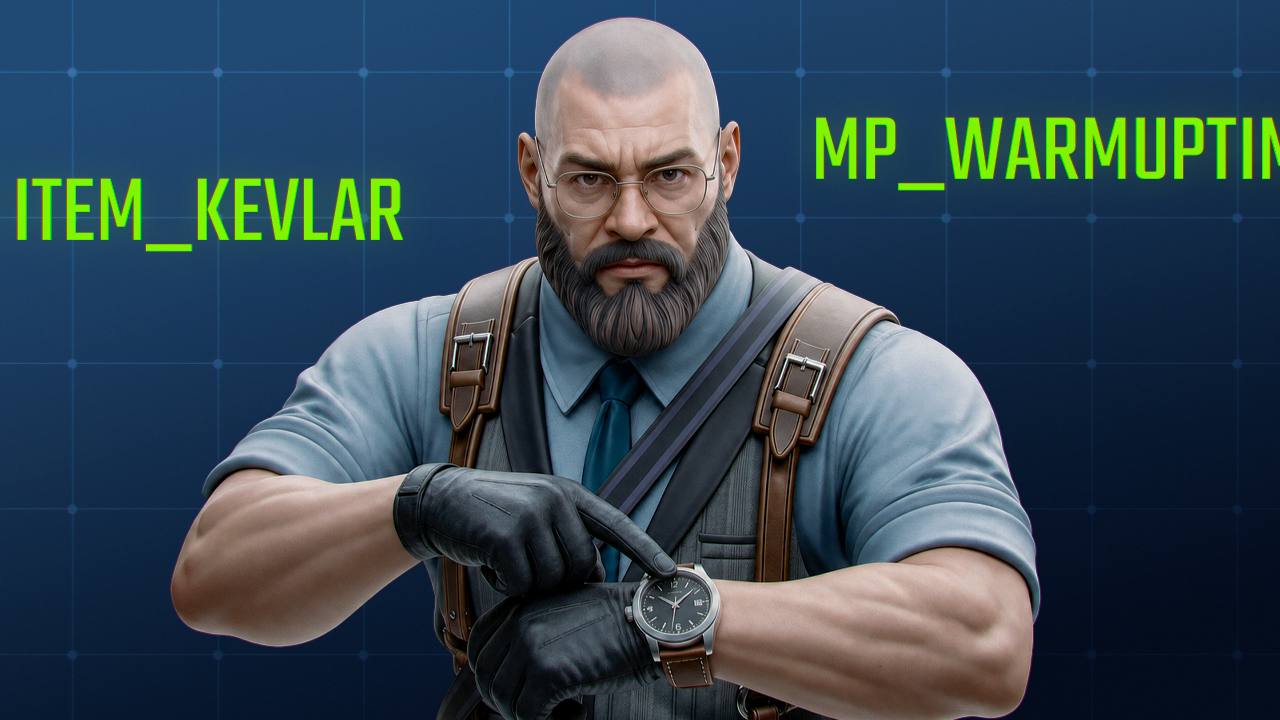
These commands help manage local servers, private lobbies, and practice sessions. They require sv_cheats true or host permissions.
- mp_warmuptime 999999; mp_warmup_start: Sets a long warmup period and starts it immediately.
- mp_restartgame 1: Restarts the match after one second.
- mp_buytime 99999: Extends the available buy period.
- bot_stop 1: Freezes all bots in their current positions. Use 0 to let them move again.
- bot_place: Places a bot at the location marked by the crosshair.
- give weapon_smokegrenade: Gives the player a smoke grenade. The last word can be replaced with another valid weapon or item name.
- give item_kevlar: Gives the player body armor without a helmet.
- give item_assaultsuit: Gives the player body armor and a helmet.
- mp_free_armor 2: Gives every player body armor and a helmet when they spawn. Use 1 for body armor only or 0 to disable free armor.
How to Save Commands: autoexec.cfg
The autoexec.cfg file runs saved commands whenever CS2 starts, so all the necessary settings and binds can be stored there. sv_cheats commands can also be saved, but they work only on offline or private servers where cheats are enabled.
- Navigate to your local files at …\Counter-Strike Global Offensive\game\csgo\cfg.
- If autoexec.cfg already exists, right-click it and open it with Notepad.
- If the file doesn’t exist, create a new text document in the same folder and rename it autoexec.cfg.
- Enable file-name extensions in Windows and make sure the file isn’t saved as autoexec.cfg.txt.
- Add each console command on a separate line and save the file.
FAQ
-
What are CS2 God Mode commands?
The old god command may not work reliably in CS2. After entering sv_cheats true, use buddha 1 to prevent health from falling below one, or sv_regeneration_force_on true to restore lost health automatically.
-
What is the wallhack command in CS2?
CS2 doesn’t use the old r_drawothermodels 2 command, but practice alternatives exist. ent_text PLAYER and ent_skeleton [PLAYER/NUMBER] can display player entities through walls, while toggle r_aoproxy_show 0 1 switches a yellow wallhack-style overlay on and off in supported private or offline sessions.
-
How to show FPS in CS2?
Open the developer console and enter cl_showfps 1 to display the current frame rate. Use cl_showfps 0 to hide it again. cl_showfps 2 can also display additional frame-rate and latency information.
-
Are console commands allowed in Counter-Strike?
Built-in console commands are allowed, including crosshair settings, binds, FPS displays, and other client-side options. Cheat-protected commands require sv_cheats true and work only when the local or private server permits them, so they can’t be activated by players in official matchmaking.


![Desert Eagle Heat Treated CS2 Guide & Patterns [2026]](https://community.skin.club/wp-content/uploads/2024/10/Main-x-Name-9-768x432.jpg)
![How to Get a Service Medal in CS2: Full Guide [2026]](https://community.skin.club/wp-content/uploads/2024/10/Main-x-Name-5-768x432.jpg)