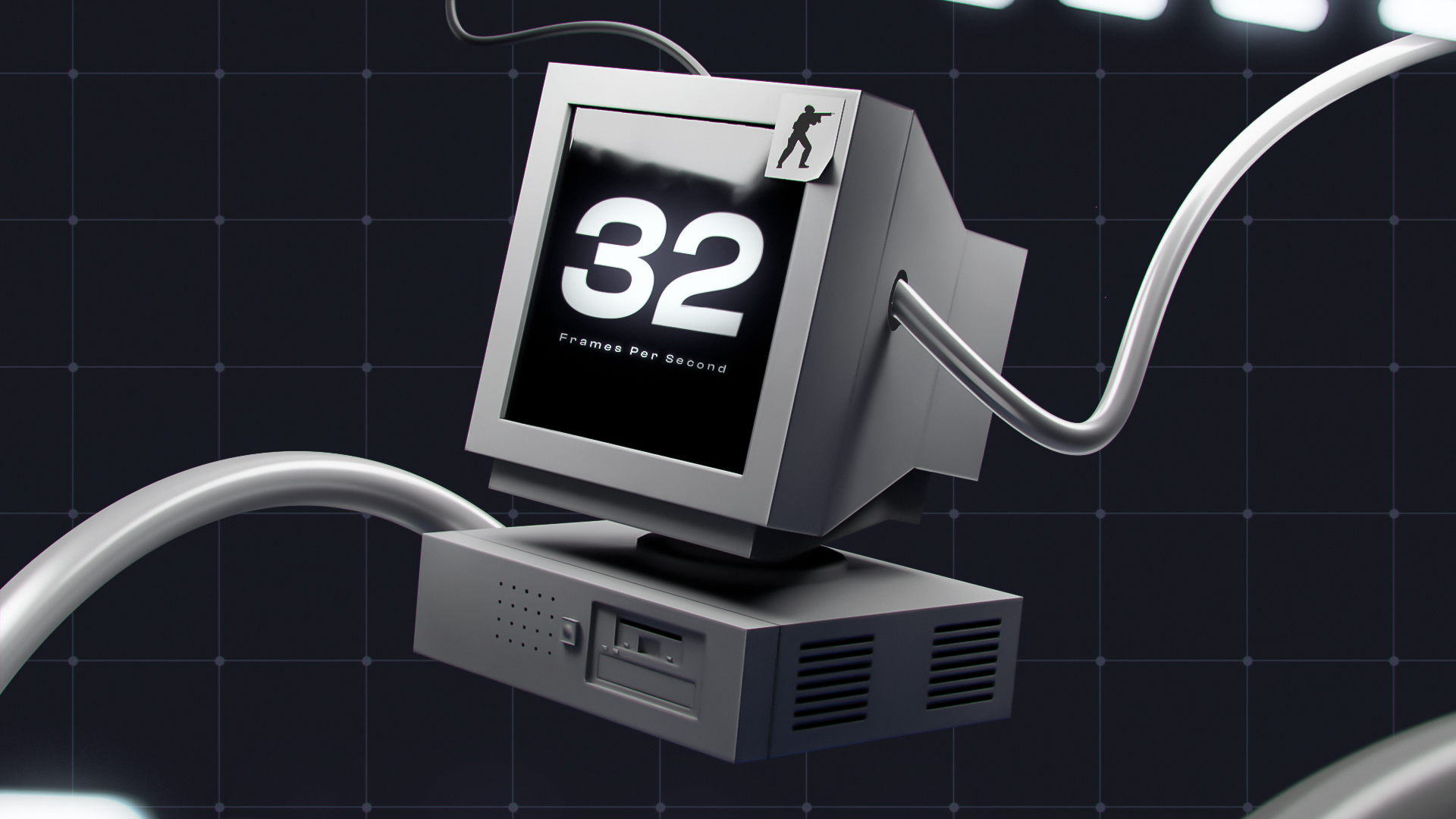

CS2 FPS problems affect every type of player, regardless of setup, with different causes and fixes across systems. Many players experience FPS below 150, and Source 2 puts more load on the CPU, GPU, and memory, especially on laptops, where thermal throttling and single-channel memory often make frametimes worse. Regular Valve updates can also reduce performance after patches, especially on weaker systems. These performance problems lead many players to look for CS2 settings and Windows changes that can raise FPS and make motion smoother.
Why Your CS2 FPS Is Low
Low FPS in CS2 usually comes from several large groups of causes:
- In-game video settings: Resolution, shadows, MSAA, texture detail, shader detail, particle detail, ambient occlusion, V-Sync, and FSR.
- Frame pacing and FPS limits: A wrong FPS cap, unstable frame delivery, or a mismatch between FPS and monitor refresh rate can make the game look uneven even when the average FPS looks high.
- Launch options and console settings: Incorrect launch options, copied commands, or poorly chosen FPS commands can lower performance.
- Windows security features: Core Isolation, VBS, and active Windows Defender checks can add CPU overhead or background scanning during gameplay.
- Windows background load: Startup apps, background processes, overlays, recording tools, and unnecessary services can take CPU time.
- GPU driver and control panel settings: Power management, shader cache, texture filtering, V-Sync behavior, Reflex, and driver-level settings can change FPS stability and input response.
- Hardware limits: Weak CPUs, older GPUs, limited RAM bandwidth, high temperatures, and slow memory.
Quick Wins: Where to Start
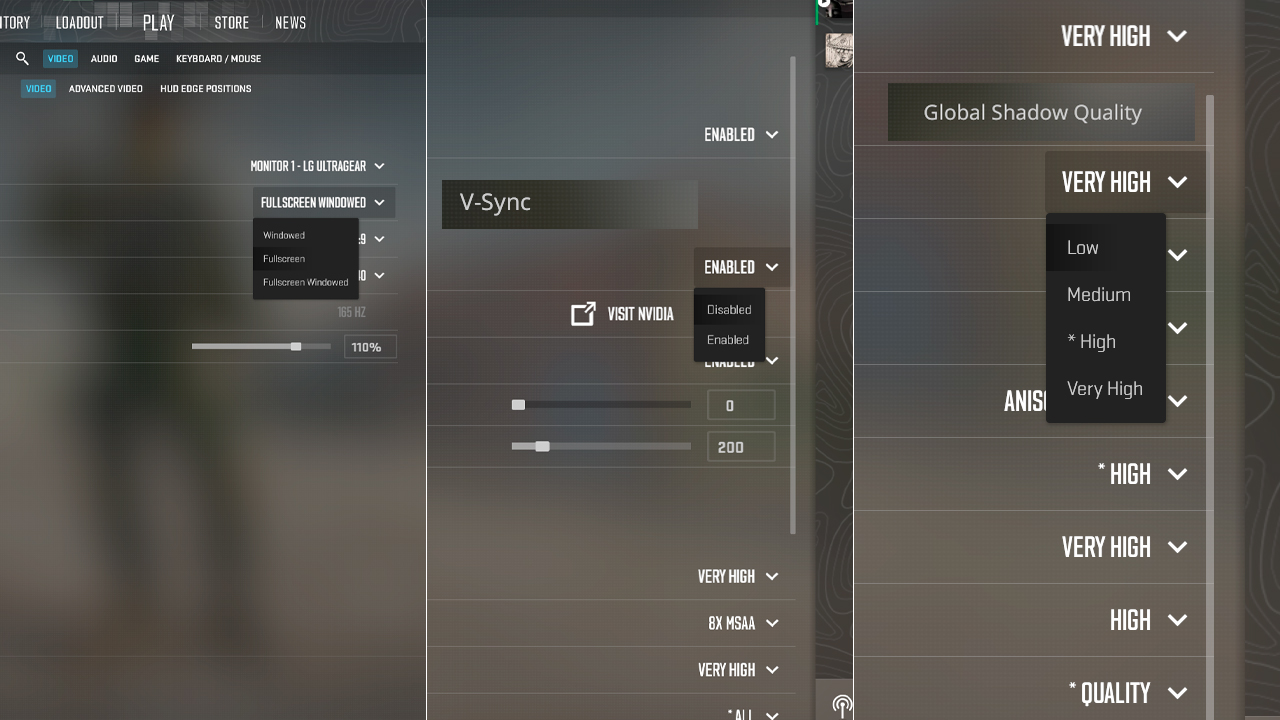
Start with the fastest CS2 FPS fixes first, with full settings and testing details explained in the sections below:
- Set Display Mode to Fullscreen.
- Turn off Vertical Sync in CS2.
- Set Global Shadow Quality to Low if FPS is critical, or Medium if the GPU can handle it.
- Switch to a lower 4:3 resolution, with 1280×960 as a common first option.
- Close browsers, launchers, overlays, recording tools, and other background programs before playing.
- Use a stable NVIDIA or AMD driver instead of installing every new driver blindly.
- Enable NVIDIA Reflex on GeForce cards, or AMD Anti-Lag on Radeon cards.
- Set an FPS limit through the GPU driver or RTSS if frametimes jump with an uncapped frame rate.
Best CS2 Video Settings for FPS
Settings That Matter Most
Start with Fullscreen, because this mode provides CS2 with the best foundation for FPS and input response. V-Sync should stay off, since it can add input delay and limit frame output. Resolution and aspect ratio change FPS quickly, so 4:3 at 1280×960 is a common first test on weak PCs. Global Shadow Quality on Low gives the best FPS gain, while Medium can keep player shadows clearer if the GPU has enough headroom. Shader Detail and Particle Detail should be set to Low, because shaders, smokes, grenade effects, and muzzle effects add load during fights. Ambient Occlusion should be off, and MSAA should be off on very weak PCs or set to 2× when jagged edges make enemy models harder to track.
Settings to Keep Higher
The target is stable FPS with clear enemy visibility. Turning every option to Low can make the image worse. Boost Player Contrast should stay on, as it helps separate player models from map backgrounds. Texture Filtering can stay on Bilinear for the weakest PCs, while Anisotropic Filtering is better tested separately through the GPU driver or the in-game settings if the image looks too blurry at a distance. Model and Texture Detail should be lowered first on weak PCs, then raised only if FPS remains stable.
CS2 Launch Options for FPS
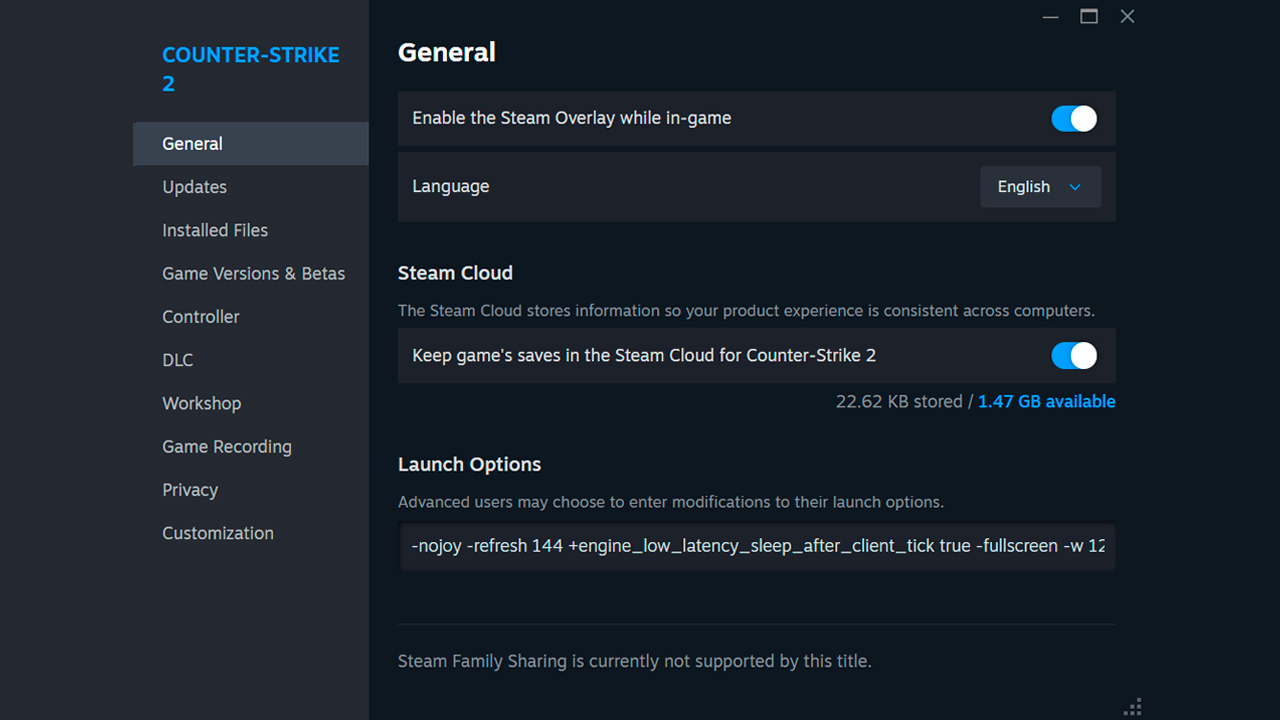
Launch options are set through Steam before CS2 starts, outside the in-game menu. Open Steam, go to Library, right-click Counter-Strike 2, open Properties, stay in the General tab, and enter all commands in the Launch Options field as one line with spaces between commands:
- -nojoy: Disables joystick support and removes unnecessary controller-related startup processing.
- -refresh [value]: Forces CS2 to start with the correct monitor refresh rate, such as -refresh 144 or -refresh 240.
- +engine_low_latency_sleep_after_client_tick true: Can help frame pacing and input latency on some CPU-bound systems.
- -fullscreen: Starts CS2 in fullscreen mode, which is usually better for stable FPS than windowed mode.
- -w [width] -h [height]: Forces a custom resolution at launch, such as -w 1280 -h 960.
- -vulkan: Can help some AMD GPUs, older Intel Arc setups, or unstable DirectX 11 systems, but it needs individual testing.
Use only the options that match the system and test performance commands one by one. Old CS commands such as -tickrate 128, -novid, -nod3d9ex, -d3d9ex, -limitvsconst, -lv, and +mat_queue_mode shouldn’t be used in CS2 because they no longer work with the Source 2 engine.
Useful Console Commands for FPS
These commands can set an FPS limit, display current FPS, or disable specific effects during local testing:
Command | Description | Effect |
|---|---|---|
fps_max 0 |
Removes the FPS cap completely. |
Unlocks maximum FPS. |
fps_max 144 |
Caps FPS at 144. Use a value that matches the monitor’s refresh rate. |
Sets a fixed FPS ceiling. |
cl_disable_ragdolls 1 |
Disables ragdoll physics after sv_cheats 1 is enabled on a local or private server. |
Reduces ragdoll processing during local testing. |
r_drawparticles 0 |
Disables particle rendering after sv_cheats 1 is enabled on a local or private server. |
Removes particle rendering during local testing. |
cl_showfps 1 |
Shows the current FPS in the upper-left corner. |
Has no effect on FPS. |
fps_max is the first command worth testing. fps_max 0 removes the limit and can reduce latency when the system sustains high FPS. A fixed value close to the monitor’s refresh rate can reduce large frame rate swings and produce steadier frame delivery during matches.
Windows & System Optimization
Game Mode, Power Plan, Visual Effects
Turn on Game Mode in Settings > Gaming > Game Mode so Windows applies its gaming optimizations while CS2 is running. Set Windows Power mode to Best performance, or select High Performance or Ultimate Performance in Power Options when available. Disable Xbox Game Bar and background recording when clips aren’t needed. On weaker PCs, reduce Windows animations and transparency through the visual effects settings. These changes prevent power-saving features, recording, and desktop effects from using resources needed by CS2.
Background Apps & Startup
Open Task Manager with Ctrl + Shift + Esc before launching CS2 and check the Processes tab for browsers, launchers, cloud sync tools, recording software, and unused overlays. Close only applications that aren’t required for the match. Then open Startup apps and disable programs that don’t need to start with Windows. Task Manager shows startup impact, which helps identify software that loads automatically and continues using CPU, memory, disk, or network resources in the background.
GPU Drivers
Install a current stable driver for your NVIDIA, AMD, or Intel GPU from the manufacturer’s official app or support page. Game Ready, Adrenalin, and Intel Game On releases include game profiles, fixes, and compatibility updates. Prefer WHQL or Recommended builds for a regular CS2 system. After installation, restart Windows and test the same map and settings. If a new driver introduces stuttering, return to the previous stable version instead of changing several CS2 options at once.
GPU Control Panel Tweaks (NVIDIA / AMD)
Create a separate CS2 profile instead of changing global settings. In NVIDIA Control Panel, set Power Management Mode to Prefer Maximum Performance, Shader Cache Size to Unlimited, Texture Filtering – Quality to High Performance, Vertical Sync to Off, and Triple Buffering to Off. In AMD Software: Adrenalin Edition, enable Radeon Anti-Lag, disable Radeon Chill, leave Surface Format Optimization enabled, set Texture Filtering Quality to Performance or Standard, and keep Wait for Vertical Refresh disabled. Apply the settings only to CS2 and test frametimes after each change.
NVIDIA Reflex, FSR & Frame Generation
Set NVIDIA Reflex to Enabled in CS2 to reduce system latency. Enabled + Boost can lower latency further when the GPU is heavily loaded. It also uses more power and may reduce FPS slightly. FidelityFX Super Resolution renders CS2 at a lower internal resolution and upscales the image. This can raise FPS while softening enemy models and map detail. CS2 currently supports FSR 1 and has no native frame generation option in its video settings.
Myths & Commands That Don’t Work in CS2
Several familiar Counter-Strike commands no longer work in CS2 or have no effect:
- -tickrate 128: CS2 uses sub-tick architecture, so a client launch option can’t force 128-tick servers.
- -novid: The old startup video flow was removed during the transition to CS2, so this option no longer skips anything.
- -d3d9ex and -nod3d9ex: These options controlled DirectX 9 behavior. CS2 uses DirectX 11 or Vulkan, so DX9 parameters have no effect.
- -threads X: CS2 already manages CPU thread allocation. A manually selected value isn’t a general FPS fix and can reduce performance or 0.1% Low FPS.
- -freq 60: This option can force a 60 Hz refresh rate, which limits the display to 60 updates per second. Use the monitor’s actual refresh rate instead.
- +cl_interp, +rate, +cl_cmdrate, and +cl_updaterate: These are network parameters rather than FPS commands. Legacy interpolation, update-rate, and command-rate values are removed or managed by Source 2. +rate can control network bandwidth, but it doesn’t increase FPS.
- -noforcemparms, -noforcemaccel, and -noforcemspd: These mouse parameters came from older Counter-Strike versions and don’t improve mouse input or FPS in CS2.
- -lv: Low violence mode isn’t available in CS2, so the command has no effect.
- net_graph 1: Valve didn’t carry the old net graph into CS2. The command is unavailable, while FPS and connection data are handled through the current telemetry settings.
Weapon skins don’t reduce FPS in CS2.
CS2 FPS Optimization Benchmark Table
Optimization Area | Setting / Action | Expected FPS Impact | Notes |
|---|---|---|---|
Shadow Quality |
Low or Medium |
⭐⭐⭐ |
Low gives more FPS. Medium keeps player shadows clearer. |
Resolution |
Lower resolution or 4:3 at 1280×960 |
⭐⭐⭐⭐ |
Rendering fewer pixels can raise FPS. CPU-limited systems may show a smaller gain. |
Anti-Aliasing |
Disabled or MSAA 2x |
⭐⭐⭐ |
Disabled gives the highest FPS. MSAA 2x reduces jagged edges with a smaller performance cost than higher levels. |
Texture Quality |
Medium or Low |
⭐ |
Medium keeps models and surfaces clearer. Low helps more when VRAM is limited. |
Fullscreen |
Fullscreen |
⭐ |
Can improve frame delivery. Windows 11 reduces the difference between Fullscreen and Borderless on supported systems. |
VSync |
Disabled |
⭐ |
Removes the V-Sync frame cap and additional input delay. |
NVIDIA Reflex |
Enabled or Enabled + Boost |
⭐ |
Reduces system latency. Enabled + Boost can use more power and slightly lower FPS. |
Launch Options |
Use only required commands |
⭐ |
Most launch options provide a small result or no FPS gain. |
Background Apps |
Close browsers, recording tools, launchers, and unused overlays |
⭐⭐ |
The result depends on the amount of background CPU load. |
Game Mode |
Enabled |
⭐ |
Can reduce interference from some background activity. |
Power Plan |
Best performance or High Performance |
⭐⭐ |
Helps prevent power-saving limits during CS2. |
FSR |
Balanced or Performance |
⭐⭐⭐⭐ |
Renders at a lower internal resolution and upscales the image. FPS increases while image clarity decreases. |
GPU Drivers |
Current stable version |
⭐⭐ |
Can fix performance bugs and stutters. A newer driver doesn’t always raise FPS. |
Control Panel Tweaks |
Per-game performance profile |
⭐⭐ |
Helps when power-saving or quality-focused driver settings are active. |
FPS, Refresh Rate & Frametime Stability
FPS should match or exceed the monitor’s refresh rate, since higher frame rates can reduce input lag by presenting newer frames sooner. Average FPS alone doesn’t show frametime stability. A steady 200 FPS can produce smoother motion than repeated jumps between 250 and 350 FPS. Sudden frametime spikes create micro-stutters even when the average FPS remains high. In CS2, input lag depends on frame rate, refresh rate, and consistent frame delivery. The highest value shown by the FPS counter doesn’t describe these conditions.
Hardware Upgrades
GPU
At 1080p with high graphics settings, upgrading from the NVIDIA RTX 3060 to the RTX 4070 can increase CS2 FPS by around 86%. On the AMD side, moving from the RX 6600 to the RX 7700 XT can produce an increase of about 78%. These differences are largest with higher resolution, MSAA, and shadows. At 1280×960 with reduced settings, the increase may be smaller because the CPU can limit the frame rate.
CPU
In CPU-limited CS2 tests, the Intel Core i5-12600K produces around 27% more FPS than the Core i3-13100F. For AMD, the Ryzen 5 7600X produces around 32% more FPS than the Ryzen 5 5600. A CPU upgrade has the largest effect at low resolution and reduced graphics settings. It can also improve 1% Low FPS during smokes, grenade effects, and rounds with several player models on screen.
RAM
8 GB can force Windows to use the page file when CS2 and background applications exceed the available memory. 16 GB is enough for most systems, and a 2×8 GB kit is preferable to a single 16 GB module because dual-channel mode increases memory bandwidth. Moving from 16 GB to 32 GB usually provides little direct FPS improvement, although the extra capacity helps when browsers, recording tools, or other applications remain open.
SSD
Moving CS2 from an HDD to a SATA SSD can significantly reduce map loading times. An SSD doesn’t increase FPS, but it can reduce storage-related stutters and shorten game startup and map loading times. The difference between SATA and NVMe SSDs is smaller in CS2. The main improvement comes from replacing an HDD with any SSD.
FPS Tips for Low-End PCs & Laptops
Weak PCs and laptops require settings that reduce graphics load, background activity, power limits, and thermal throttling:
- Use Low graphics settings: Set shadows, shaders, particles, textures, and ambient occlusion to Low or Off.
- Disable MSAA: Turning it off removes a heavy GPU load on older graphics hardware.
- Lower the resolution: Test 4:3 at 1280×960 or lower in Fullscreen. The FPS increase comes from rendering fewer pixels.
- Close background applications: Shut down browsers, launchers, overlays, and recording tools to free CPU time and RAM.
- Connect laptops to AC power: Select Best performance or the manufacturer’s performance profile to avoid battery power limits.
- Use the discrete GPU: Set CS2 to High performance in Windows Graphics settings.
- Control temperatures: Clean blocked vents, use a hard surface, and add a cooling pad if heat causes clock reductions.
FAQ
-
How do I boost FPS in CS2?
Use Fullscreen, disable V-Sync and MSAA, lower shadows and resolution, close background applications, and select Best performance in Windows. Install a stable GPU driver and test each change separately.
-
What are the best CS2 settings for FPS?
Use Low shadows, shaders, particles, and texture detail, with Ambient Occlusion and V-Sync disabled. Set MSAA to Off or 2x and test a lower 4:3 resolution such as 1280×960.
-
What is a good FPS for CS2?
FPS should match or exceed the monitor’s refresh rate, such as 144 FPS for 144 Hz or 240 FPS for 240 Hz. Stable frametime and 1% Low FPS provide smoother motion than short FPS peaks followed by sharp drops.
-
Do launch options actually increase FPS in CS2?
Most launch options provide little or no direct FPS increase. Commands such as -fullscreen and -refresh [value] control startup settings, while legacy commands from CS:GO shouldn’t be used.
-
How do I increase FPS in CS2 on a low-end PC?
Set graphics to Low, disable MSAA, lower the resolution, and close browsers, launchers, overlays, and recording tools. Use Fullscreen, select Best performance in Windows, and install a stable GPU driver.

![How to Fix Net Jitter in CS2 [2026]](https://community.skin.club/wp-content/uploads/2025/12/Main-x-Name-3-768x432.jpg)
![Newest CS2 Cases: List & Release Dates [2026]](https://community.skin.club/wp-content/uploads/2026/05/Main-x-Name-768x432.jpg)