![CS2 Launch Options: Complete Guide [2026] Background](https://community.skin.club/wp-content/uploads/2023/09/Background-11.jpg)

Most players use console commands in Counter-Strike 2, regardless of experience. CS2 launch options help with FPS limits, input latency, refresh rate, and startup behavior. However, not all launch options actually work. Some that worked in CS:GO are completely broken in CS2 because of the new Source 2 engine. Players need to know the best CS2 launch options still worth using and the conditions where each command gives the best result.
How to Set Launch Options in CS2
Open Steam and go to the Library tab. Find Counter-Strike 2 in the game list. This is where all CS2 startup commands are added, since launch options are managed through Steam, not through the in-game settings menu.
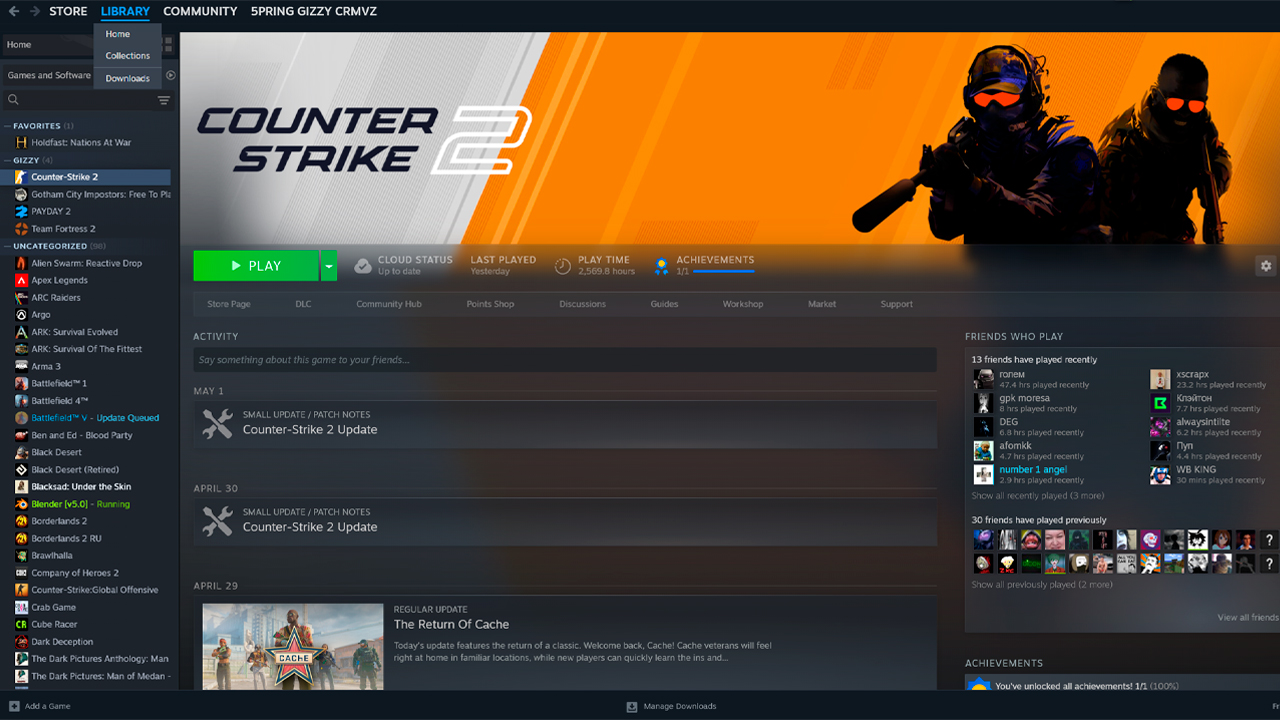
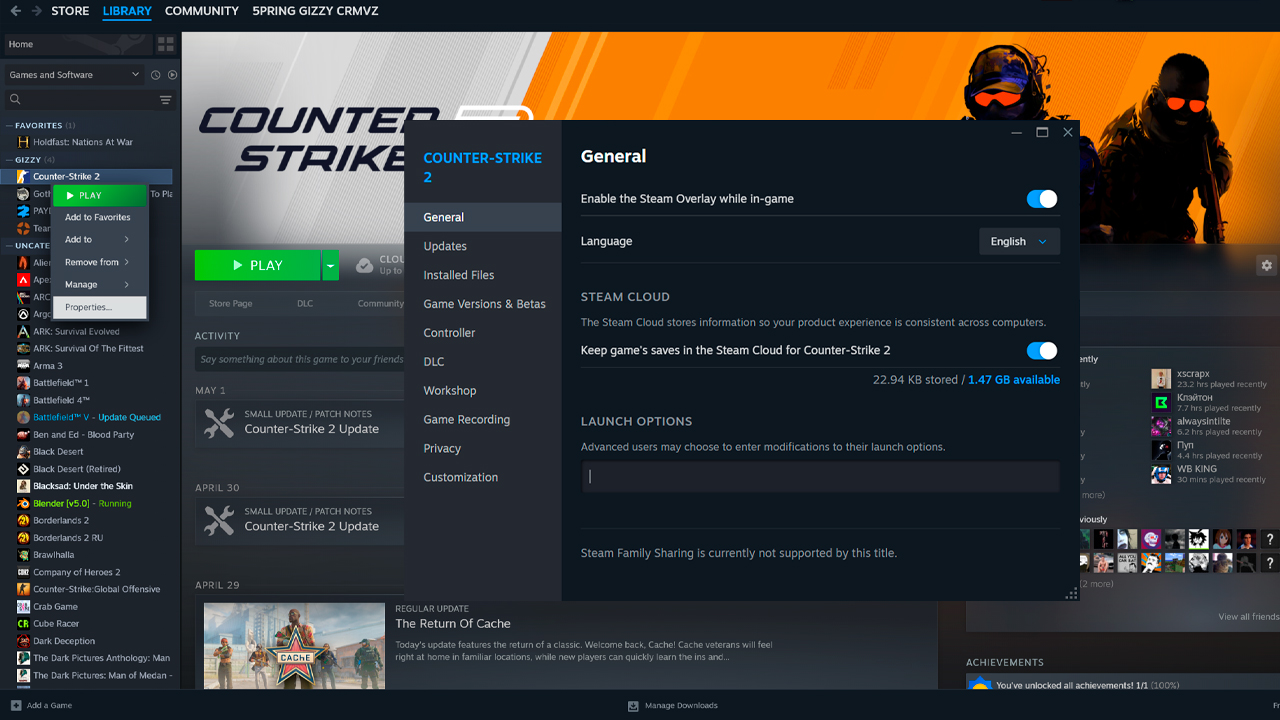
Right-click Counter-Strike 2 and select Properties. A separate settings window will open for CS2. Stay in the General tab, since the Launch Options field is located there by default.
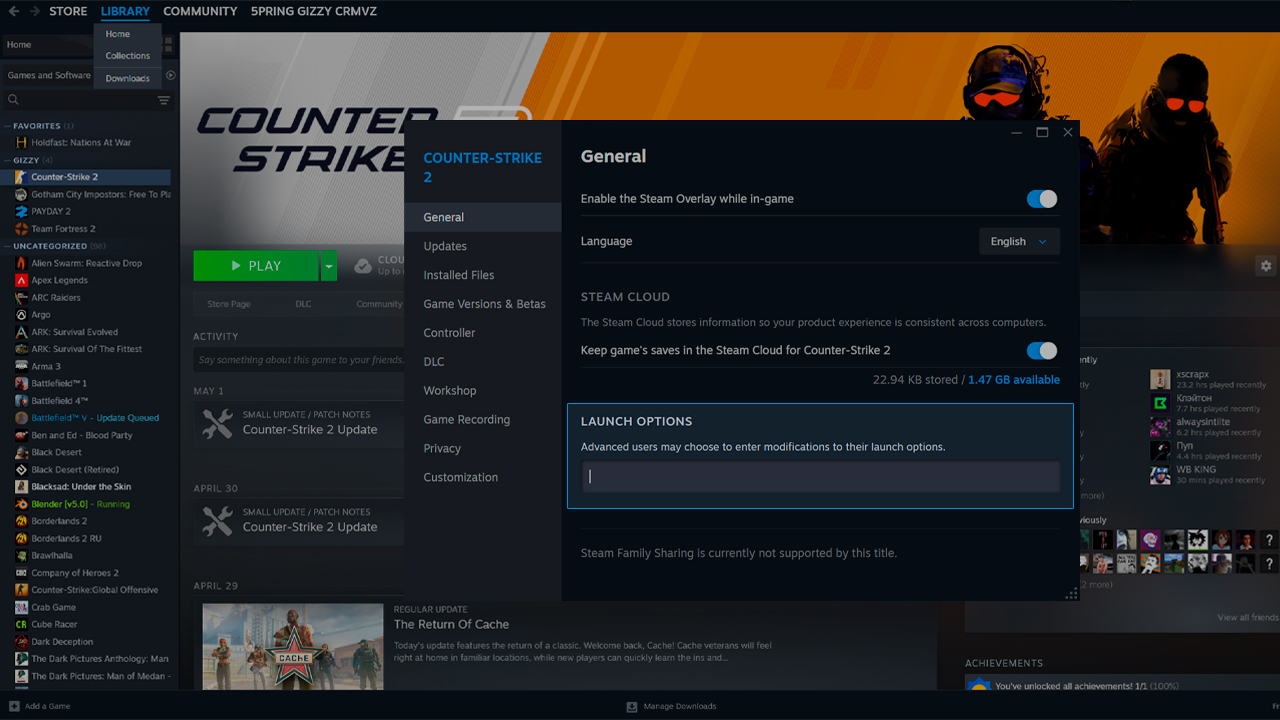
Find the Launch Options field near the bottom of the General tab. This is where CS2 start options are entered. All commands must be written in one line, with a space between each command. Steam saves the field automatically, so there’s no separate save button.
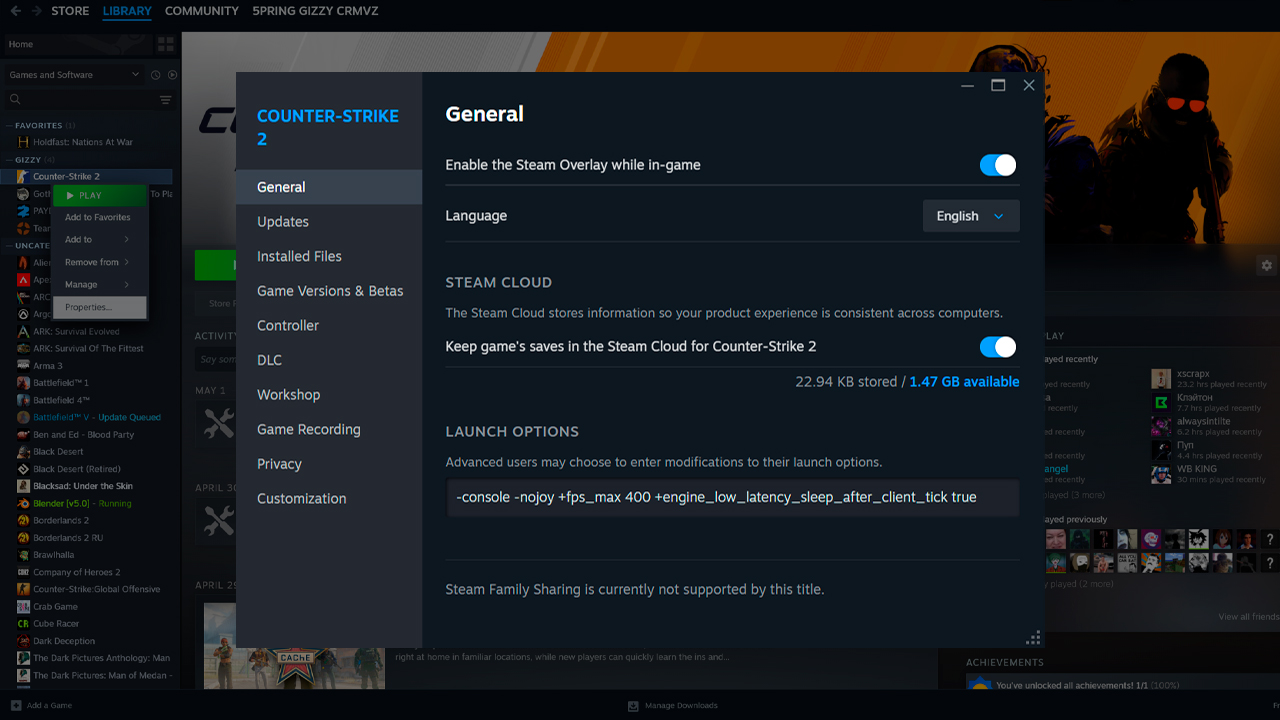
Enter the needed commands into the field. A launch option line can look like this:
-console -nojoy +fps_max 400 +engine_low_latency_sleep_after_client_tick true
After entering the commands, close the Properties window. The next time CS2 starts, Steam will apply the launch options automatically.
If CS2 ignores a command or the game starts with unexpected behavior, the issue is usually caused by formatting. Check the launch option line before changing the commands themselves:
- Commands should be written in one line and separated by spaces.
- All CS2 start options begin with – or +, so a command without one of these symbols is usually the first thing to check.
- Don’t put launch options inside quotation marks.
- Remove brackets, commas, or other extra characters from the field.
- Use only letters, numbers, spaces, +, -, and _ in the Launch Options field.
Launch Options Everyone Should Use
Most players start CS2 launch optimization with a small set of commands that control FPS behavior, console access, refresh rate, and controller input.
+fps_max [value]
This command controls the FPS limit. Setting +fps_max 0 removes the built-in cap and lets CS2 render as many frames as possible with VSync turned off. If using +fps_max 0 causes freezes, lag spikes, or stutters, replace 0 with a fixed cap. Set it 10 FPS above monitor refresh rate, such as +fps_max 70 for 60Hz or +fps_max 154 for 144Hz. If the PC holds much higher FPS than the monitor refresh rate, set the cap about 10 FPS below the stable average FPS, such as +fps_max 230 when the system holds around 240 FPS.
-refresh [value]
This command sets the monitor refresh rate CS2 should use at launch. The value should match the monitor’s refresh rate, such as -refresh 144, -refresh 240 or -refresh 300. It’s useful when CS2 doesn’t apply the correct refresh rate automatically or when the game keeps starting at a lower Hz value than Windows uses.
-console
This command opens the developer console when CS2 starts. It doesn’t increase FPS directly, but it makes testing and changing commands faster. The console is useful for entering fps_max, checking FPS, running exec files, changing viewmodel settings, and testing other CS2 start options without opening extra menus.
-nojoy
This command disables joystick support and removes unnecessary controller-related background processing. It’s a safe cleanup option for mouse and keyboard setups, although the FPS impact is usually minimal. Since CS2 is sensitive to background input polling, removing joystick detection is a standard step for a cleaner startup.
Launch Options for More FPS
These CS2 launch options can help with FPS or frame pacing on specific systems, but they’re risky enough to test one by one before using in matchmaking.
-vulkan
This command launches CS2 through the Vulkan API instead of DirectX 11. It can give a noticeable FPS boost on some AMD GPUs, older Intel Arc cards, and weaker CPU setups where DirectX 11 runs unevenly. The risk is hardware-specific. On NVIDIA GPUs, -vulkan often lowers FPS and can cause stutters when maps load or shaders compile, so it’s not a universal performance option.
-threads [number]
This command forces CS2 to use a specific number of CPU threads. The usual test value is the thread count plus one, such as -threads 9 for an 8-thread setup. It can slightly raise average FPS on some modern low-core CPUs, but the risk is worse 0.1% Low FPS. It’s especially tricky on Intel CPUs with hybrid architecture, where P-cores and E-cores can make manual thread values unpredictable. A wrong value can cause crashes or lower performance.
+engine_low_latency_sleep_after_client_tick true
This command doesn’t raise maximum FPS directly. Its purpose is frame pacing and input latency, so the game can feel more responsive even when the FPS number stays the same. It works best when CS2 is CPU-bound and with a fixed FPS cap, such as +fps_max 300. With +fps_max 0, it can create uneven frame delivery or micro-tearing, so it shouldn’t be used without testing.
Display & Resolution Launch Options
These launch options control how CS2 starts on the monitor, which resolution it uses, and how the game window behaves before in-game settings take over.
-refresh [Hz]
This command sets the refresh rate CS2 should use at launch. For example, -refresh 144 is used for a 144Hz monitor. CS2 usually reads the correct refresh rate from Windows, so this command isn’t needed if the game already starts at the right Hz. It becomes useful when the monitor keeps launching at 60Hz.
Windows 10:
- Open Settings.
- Go to System.
- Open Display.
- Select Advanced display settings.
- Check the selected refresh rate.
Windows 11:
- Open Settings.
- Go to System.
- Open Display.
- Select Advanced display.
- Open Choose a refresh rate.
- Set the correct Hz value.
-fullscreen / -windowed
-fullscreen starts CS2 in fullscreen mode, while -windowed starts it in a window. Fullscreen is usually the better FPS option as Windows has less desktop UI and window compositor work to handle during gameplay. This can reduce overhead and help with input latency. Windowed mode is useful for testing, multitasking, or recording setups, but it’s usually not the first choice for stable FPS in CS2.
-w [width] -h [height]
These commands force a custom resolution at launch. For example, -w 1280 -h 960 starts CS2 at 1280×960. Many CS2 players use non-native resolutions as lower resolutions can increase FPS and stretched 4:3 settings can make player models appear wider. The downside is lower image sharpness, less horizontal detail, and a picture that may look worse on high-resolution monitors.
-x [px] -y [px]
These commands set the window position in windowed mode. For example, -x 0 -y 0 places the CS2 window at the top-left corner of the screen. This option is mainly useful for windowed mode, multi-monitor setups, capture software, or specific desktop layouts. It doesn’t improve FPS directly and isn’t useful for fullscreen gameplay.
-language [language]
This command forces the CS2 interface language at launch. For example, -language english forces the English interface. It’s useful when Steam language settings and CS2 language behavior don’t match or when the same language should stay active after every launch. This doesn’t affect FPS, input latency, or refresh rate. It’s a startup command for interface language control.
Launch Options That Don’t Work in CS2
Several old startup commands from CS:GO and earlier CS2 builds no longer do anything useful, even though they still appear in outdated launch-option lists.
Command | What it used to do | Why it doesn’t work in CS2 |
|---|---|---|
-tickrate 128 |
Tried to force 128-tick local servers or practice lobbies. |
CS2 uses sub-tick architecture, so tickrate is no longer controlled by a client launch option. Valve describes sub-tick updates as the core of CS2’s movement, shooting, and throwing system. |
-novid |
Skipped the intro video during game startup. |
The old startup video flow was removed during the CS:GO to CS2 transition, so the command no longer has any function. |
-nod3d9ex / -d3d9ex |
Controlled DirectX 9Ex behavior in older Counter-Strike builds. |
CS2 runs on Source 2 with a modern rendering path, so DX9 launch options don’t apply. |
-limitvsconst |
Limited vertex shader constants and was copied into old FPS configs. |
This option doesn’t work in CS2 and shouldn’t be used as a performance command. |
-lv |
Enabled low violence mode in older Counter-Strike versions. |
Low violence mode isn’t available in CS2, so this command has no effect. |
+mat_queue_mode |
Set the material system multi-threading mode in CS’s old Source rendering config. |
CS2 no longer uses the old CS DirectX 9 rendering path. It runs on Source 2 with DirectX 11 or Vulkan, so this command has no FPS effect. |
Many sites still copy these commands from old CS:GO launch options guides without checking their current status. This guide is verified and updated for CS2.
Ready-Made Launch Option Configs
These ready-made configs can be copied into Steam as one line.
Balanced
Suitable for most players:
-console -nojoy +fps_max 240 +engine_low_latency_sleep_after_client_tick true
This is a clean launch setup. It keeps the console, disables joystick polling as a safe extra step, and adds the main frame-sync command for smoother CS2 frame pacing.
High-end
Powerful PC, 240Hz+ monitor:
-console -nojoy -refresh 240 +fps_max 400 +engine_low_latency_sleep_after_client_tick true
On powerful PCs, a fixed cap like +fps_max 400 can give smoother frame time than 0. The low-latency sleep command works better in this setup, making shooting feel more responsive.
Low-end
Budget PC:
-console -nojoy +fps_max 120 -vulkan
+fps_max 120 or +fps_max 144 is important for weak PCs as it helps stop the CPU from sitting at 100% load and causing freezes. -vulkan can help some old AMD GPUs, Intel Arc setups, or unstable DX11 systems, but it must be tested personally.
Autoexec and Advanced Setup
autoexec.cfg is a custom CS2 config file that stores console commands and applies them every time the game starts. It’s useful because many console commands reset after restart, while autoexec keeps repeated settings in one place. CS2 config files are stored in the game’s cfg folder, and custom configs can be executed through the console or launch options.
- File Path: …\Steam\steamapps\common\Counter-Strike Global Offensive\game\csgo\cfg\autoexec.cfg
- Activation: +exec autoexec.cfg
- Note: Ensure the file is saved as autoexec.cfg, not autoexec.cfg.txt.
Commands like fps_max 400, cl_radar_scale 0.35 and viewmodel_fov 68 make more sense in autoexec than in launch options because they’re regular console settings, not startup parameters. An autoexec can also include host_writeconfig at the end to make sure the saved configuration is written properly.
FAQ
-
What are the best CS2 launch options?
The best CS2 launch options depend on hardware, monitor refresh rate, and FPS stability. A basic starting line is -console -nojoy. For better stability, add +engine_low_latency_sleep_after_client_tick true and a stable +fps_max limit, such as +fps_max 400. Ready-made configs are listed in the section above.
-
How do I open launch options in CS2?
Open Steam, go to Library, right-click Counter-Strike 2, then open Properties. Stay in the General tab and find the Launch Options field. Enter all commands in one line with spaces between them. Steam saves the field automatically.
-
Does -tickrate 128 work in CS2?
No, -tickrate 128 doesn’t work in CS2. The game uses a sub-tick system, so tickrate isn’t controlled by a client launch option anymore. This command is an outdated leftover from older Counter-Strike setup guides.
-
How do I reduce input lag in CS2?
Use +engine_low_latency_sleep_after_client_tick true with a stable FPS cap, such as +fps_max 400. For better results outside launch options, play in fullscreen mode, disable VSync in-game, and enable NVIDIA Reflex if it’s available on the system.
-
What is -refresh in CS2 launch options?
-refresh sets the monitor refresh rate CS2 should use at launch. For example, -refresh 144 is used for a 144Hz monitor. CS2 usually reads this from Windows, but the command can help when the game keeps starting at 60Hz.



![Newest CS2 Cases: List & Release Dates [2026]](https://community.skin.club/wp-content/uploads/2026/05/Main-x-Name-768x432.jpg)
![M4A1-S Fade Pattern Guide: All Seeds & Full Fade [2026]](https://community.skin.club/wp-content/uploads/2024/10/Main-x-Name-1-4-768x432.jpg)