
![How to Show FPS in CS2: Commands and Binds [2026] Background](https://community.skin.club/wp-content/uploads/2023/09/Background-18.jpg)

FPS (frames per second) is a critical performance metric in video games. A high FPS makes motion smoother, reduces input lag, and improves overall responsiveness. The fastest way to check CS2 performance is to use CS2 console commands such as cl_showfps. This article covers several methods for showing FPS in CS2, such as console commands, Steam settings, GPU software overlays, and key binds. It also includes useful commands for boosting FPS and simple optimization tips for more stable gameplay. Monitoring frame rate helps you understand how stable the game is, so many players use a CS2 show FPS command to keep an eye on it.
How to Show FPS in CS2
Method 1: Developer Console (cl_showfps)
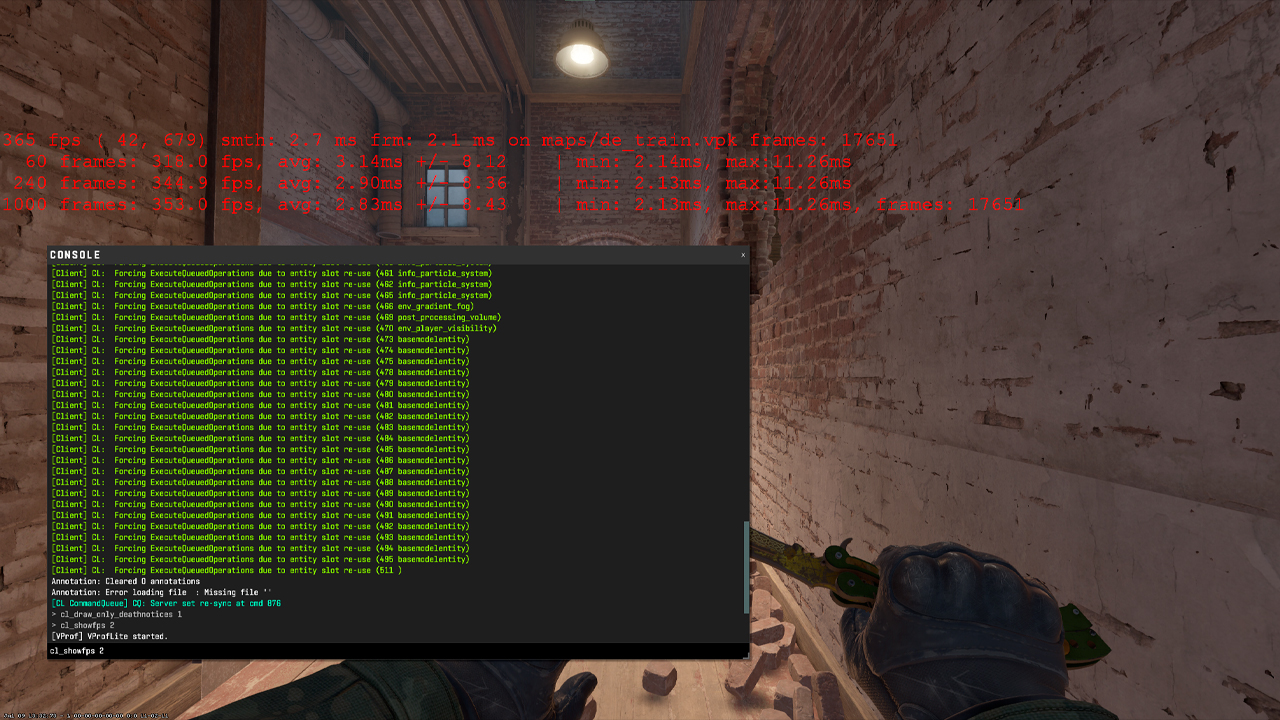
The standard way to show FPS in CS2 is the Developer Console.
- Open Settings and go to the Game tab.
- Set Enable Developer Console to Yes.
- Press ~ to open the console.
- Enter cl_showfps 1 to turn on the FPS counter.
- Enter cl_showfps 0 to turn it off.
The FPS counter appears in the upper-left corner of the screen. It helps track CS2 performance during a match and spot possible PC-related issues.
There are several useful cl_showfps commands:
- cl_showfps 1 – turns on the FPS counter as a red line on the left side of the screen.
- cl_showfps 2 – shows more detailed performance information, similar to the old net_graph command from CS:GO.
- cl_showfps 0 – turns the FPS counter off.
If the console does not open with the ~ key, add -console to the CS2 launch options in Steam:
Steam → CS2 → Properties → Launch Options → -console
Method 2: Steam Overlay
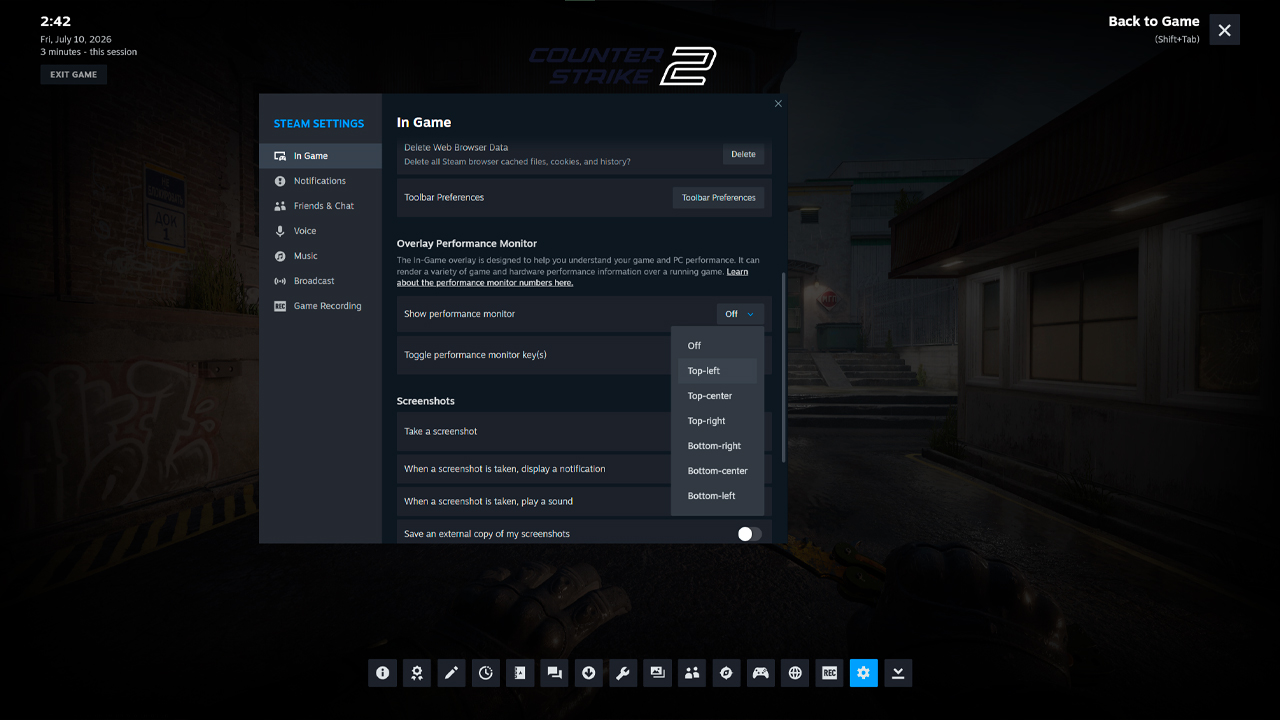
Steam Overlay is a simple way to show FPS in CS2 without using console commands. It works through Steam settings and can be used in any Steam game.
- Open Steam.
- Go to Settings → In Game.
- Find In-game FPS Counter.
- Choose the counter position: top-left, top-right, bottom-left, bottom-right.
- Launch CS2 and check the selected corner of the screen.
This method is useful for basic FPS tracking. The counter shows the current frame rate during gameplay, which helps identify performance drops, freezes, or unstable moments in a match.
The main downside is limited information. Steam Overlay shows only FPS and does not include CS2-specific performance metrics such as server data, frame timing, or detailed network information. For more detailed CS2 performance tracking, console commands provide more control.
Method 3: NVIDIA / AMD Software Overlay
GPU software can also display FPS in CS2. This method is useful for players who want a single performance overlay for all games, not only CS2. NVIDIA App and AMD Adrenalin tools can display FPS directly on the screen and often include extra performance data such as GPU load, temperature, and frame timing.
NVIDIA App
Steps:
- Open NVIDIA App.
- Go to Settings.
- Turn on NVIDIA Overlay.
- Press Alt+Z to open the overlay.
- Go to the Statistics/HUD section.
- Choose the counter position on the screen.
After setup, the FPS counter appears in the selected corner during CS2 matches.
AMD Adrenalin
Steps:
- Press Alt+R or Alt+Z (depending on AMD Adrenalin hotkey settings).
- Go to the Performance tab.
- Enable FPS monitoring.
- Adjust the overlay position and metrics if needed.
After this, the FPS will appear on the screen. The advantage is that players can view FPS directly over CS2. With AMD Adrenalin, FPS appears directly over CS2 alongside GPU load, temperature, and other metrics – useful for identifying what causes lag, stuttering, or frame drops.
How to Bind FPS Display to a Key
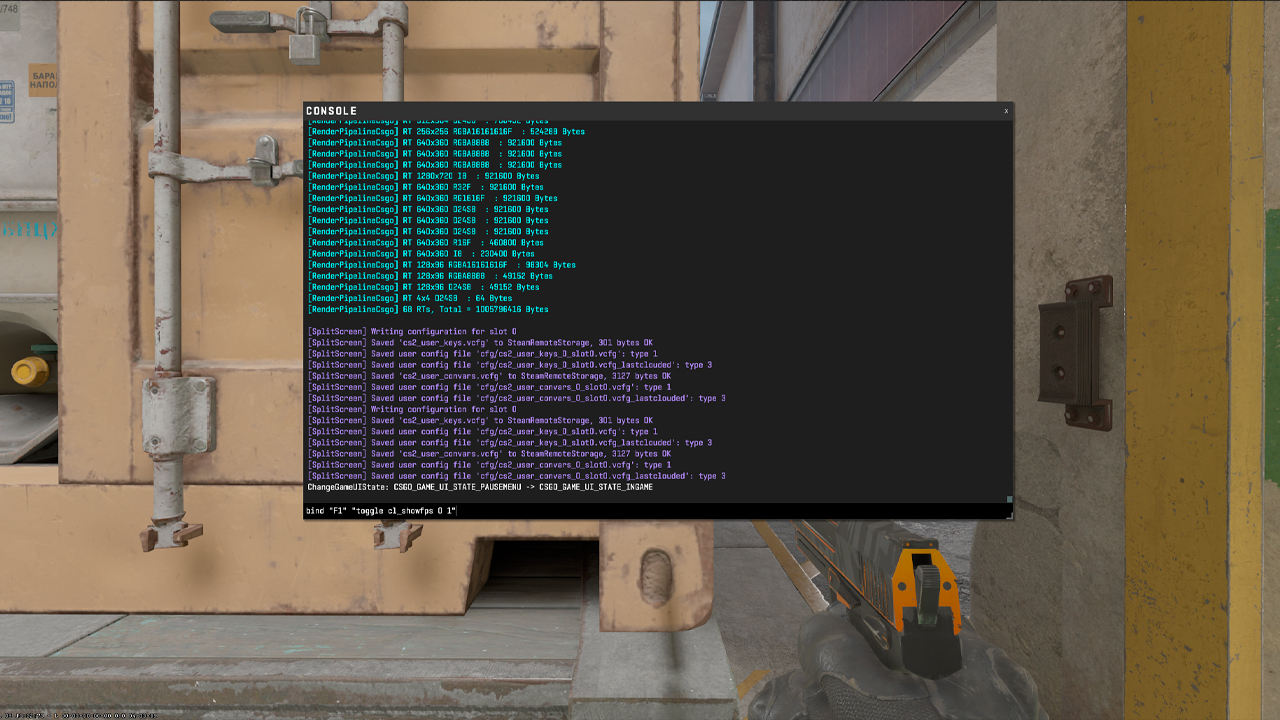
CS2 also allows binding the FPS counter to a key. This makes it easy to turn the display on or off during a match without typing the command every time.
To use separate keys for turning FPS on and off, enter these commands in the console:
- bind “F1” “cl_showfps 1“
- bind “F2” “cl_showfps 0“
“F1” turns the FPS counter on, while “F2” turns it off.
A toggle bind can also switch the FPS display on and off with a single key:
- bind “F1” “toggle cl_showfps 0 1“
Pressing F1 once enables the FPS counter with this bind. Pressing it again disables the counter.
The bind can be added directly through the console while in-game. To keep it saved between sessions, add the command to the autoexec.cfg file in the CS2 config folder:
…\Counter-Strike Global Offensive\game\csgo\cfg\
This setup is convenient for quick checks during matches. The counter can stay hidden most of the time and be enabled only when checking performance.
Why FPS Matters in CS2
Here is why FPS matters:
- Faster visual feedback: higher FPS make enemy movement and peeks easier to read.
- Smoother aim and spray control: stable FPS helps keep crosshair movement and spray control more consistent.
- More responsive input: higher FPS can make mouse movement feel sharper, especially with low-input-lag settings.
- Less screen tearing: a properly configured fps_max can help keep the image more stable.
FPS should match or exceed the monitor’s refresh rate. For example, 60 FPS on a 144Hz monitor means the screen is displaying far fewer frames than it can handle. In practice, this uses only about 40% of the monitor’s rate potential. For a 144Hz display, aim for at least 144 FPS. For a 240Hz display, aim for at least 240 FPS.
Ideal FPS Targets by Monitor Type
Optimal FPS depends on the monitor’s refresh rate. The higher the screen’s refresh rate, the more frames per second it can display. As a result, CS2 feels smoother and more responsive when FPS matches or exceeds that number.
Setup
|
Target FPS
|
|---|---|
Basic (60Hz monitor) |
60+ FPS |
Standard competitive (144Hz) |
144+ FPS |
High refresh rate (240Hz) |
240+ FPS |
Pro setup (360Hz+) |
360+ FPS |
Pro players usually use monitors with at least 240Hz and, more commonly, 360Hz. For a 60Hz monitor, anything above 60 FPS can still improve responsiveness in some cases, but the screen itself can display only 60 frames per second. Because of that, the visible advantage is limited. A player using a 144Hz, 240Hz, or 360Hz monitor can actually see more frames and get a smoother image during fast movement.
How to Increase FPS in CS2
Low FPS in CS2 can come from video settings, unstable frame delivery, background processes, driver configuration, or hardware limits. The main areas to check include:
- Video settings: Use Fullscreen, disable V-Sync, and reduce resolution, shadows, MSAA, shaders, and particle detail.
- Background processes: Close browsers, launchers, overlays, recording tools, and other unnecessary applications.
- System configuration: Enable a performance power mode, use a stable GPU driver, and adjust NVIDIA or AMD settings for CS2.
- Hardware limits: Check CPU and GPU load, temperatures, RAM configuration, and storage performance.
A separate guide explains how to increase FPS in CS2 with detailed settings, commands, Windows changes, and hardware recommendations.
FAQ
-
What is the command to show FPS in CS2?
Use cl_showfps 1 in the developer console to enable a basic FPS counter. The console is enabled in Settings → Game → Enable Developer Console (set to Yes). This will display the current FPS in the upper-left corner of the screen. To turn it off, use cl_showfps 0.
-
How do I cap FPS in CS2?
Use fps_max with your preferred FPS limit. For example, fps_max 144 caps CS2 at 144FPS, which works well for a 144Hz monitor. Setting the cap close to your monitor’s refresh rate can make performance feel smoother and help reduce screen tearing. To remove the cap, use fps_max 0.
-
How do I unlock max FPS in CS2?
This can be done using the command fps_max 0. You should also disable Vertical Sync in the video settings, as it can limit FPS and add input lag. To do this, go to:
Settings → Video → Advanced video settings→ Disable Vertical Sync.
-
What's a good FPS for competitive CS2?
As a rule, a good FPS matches the monitor’s refresh rate or is slightly higher. For a 144Hz monitor, aim for at least 144+ FPS. For a 240Hz monitor, aim for 240+ FPS. For a 360Hz monitor, aim for 360+ FPS. Higher FPS make the game feel more responsive, but it is better to have stable FPS without drops. This makes it easier to shoot, move, and react to opponents.
-
How to fix low FPS in CS2?
There are several ways to increase FPS. First, change the video settings. Go to Settings → Video and set Display Mode to Fullscreen. It’s also recommended to change the advanced settings such as Global Shadow Quality, Shader Detail, Texture Detail and other demanding settings. Second, use the console. Use fps_max to limit the maximum FPS. Use cl_showfps 1 to show FPS on the screen. cl_disable_ragdolls 1 turns off ragdoll physics. The last command may give a small boost in fights.



![Desert Eagle Heat Treated CS2 Guide & Patterns [2026]](https://community.skin.club/wp-content/uploads/2026/09/Main-x-Name-11-768x432.jpg)
![How to Get a Service Medal in CS2: Full Guide [2026]](https://community.skin.club/wp-content/uploads/2024/10/Main-x-Name-5-768x432.jpg)