![FOV and Viewmodel Commands in CS2: Full Guide [2025] Background](https://community.skin.club/wp-content/uploads/2023/10/Background-14.jpg)

In CS2, viewmodel and FOV settings affect how much screen space the weapon occupies and how clearly angles, utility, and movement cues remain visible. Default positioning keeps the gun large, high, and close to the center, which can cover key information near the lower-right area during fights. The best viewmodel CS2 config reduces unnecessary screen obstruction. It gives the crosshair area more clarity and supports better angle awareness. Correct settings improve the readability of spray control and shoulder peeks. The weapon model no longer covers as much of the player’s visual field. These settings are commonly adjusted through CS2 viewmodel commands, with position, offset, and field of view selected according to role, resolution, and personal preference.
What Is the Viewmodel in CS2?
The viewmodel in CS2 is the on-screen position of the weapon, hands, and arms. It affects screen space, visibility, and angle reading during rounds.
Viewmodel & FOV: What’s the Difference?
FOV (Field of View) refers to the camera’s viewing angle in CS2. In regular play, this value is locked at 90 degrees and can’t be changed without sv_cheats, which means a player can’t adjust it in competitive matches such as Matchmaking, Premier, or FACEIT. Resolution can affect how the image is displayed on the monitor, especially with stretched or non-native formats, but it doesn’t give direct control over the actual camera FOV.
The command viewmodel_fov works differently as it applies only to the weapon model, not the camera. Its range is 54 to 68, with 60 as the default value, and it changes how close or far the gun appears on the screen. A higher value makes the weapon look smaller and farther away, while a lower value makes it appear larger and closer. It can reduce visual interference from the weapon model, but it doesn’t increase the player’s actual viewing angle.
How to Change Viewmodel Settings in CS2
Viewmodel settings in CS2 can be changed in two ways: through the in-game settings menu or through console commands. The menu is useful for simple changes, while the console gives access to precise values and deeper configuration.
Via the Game Settings Menu
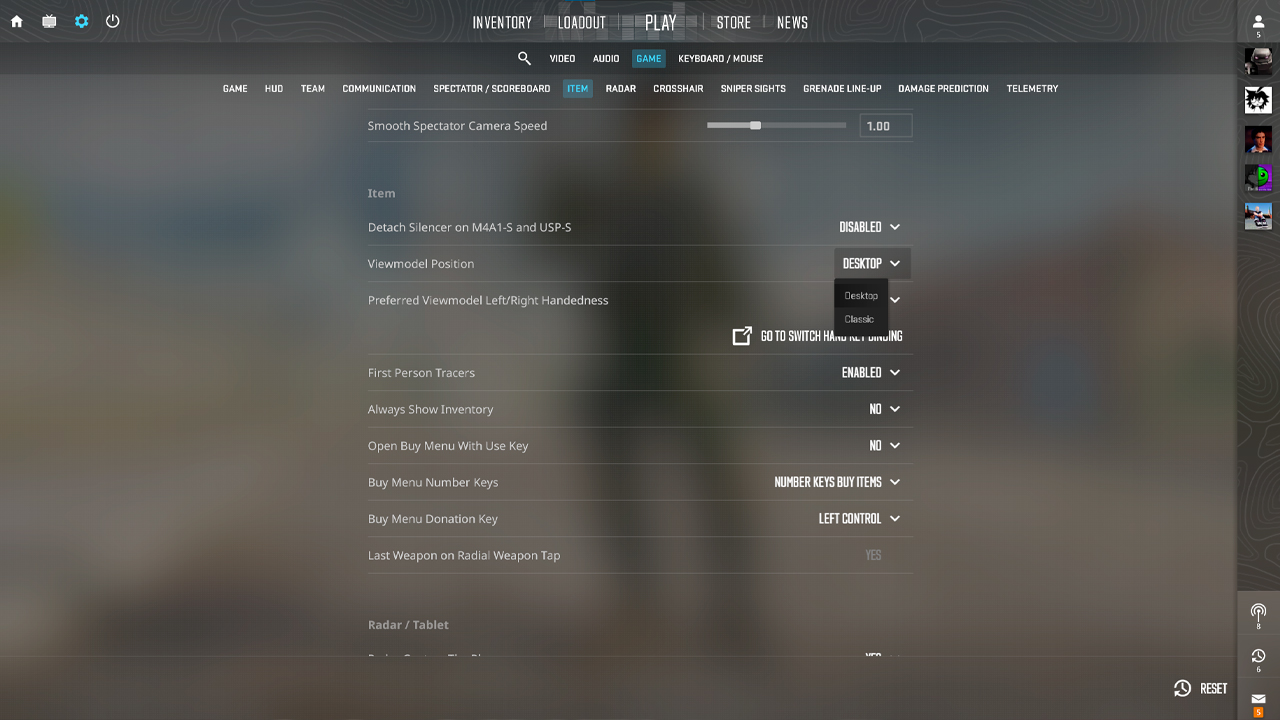
- Open Settings.
- In the Game settings, open Item and choose Viewmodel Position.
- Select one of the two available Viewmodel Position presets: Desktop or Classic.
- Use Preferred Viewmodel Left/Right Handedness to choose which hand the weapon appears in.
Via Console Commands
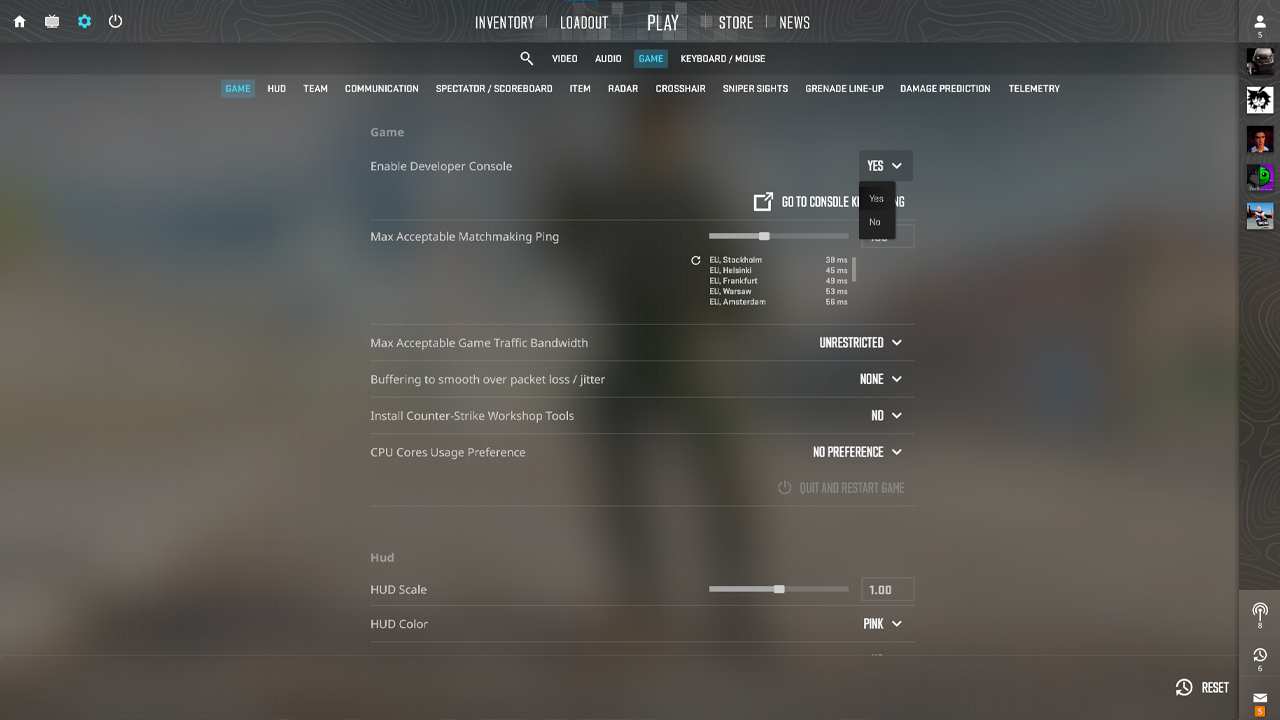
- Open Settings and go to the Game section.
- Find Enable Developer Console and select Yes.
- Press the tilde key (~) to open the console.
- Type the needed viewmodel commands directly into the console during a match.
Console changes can reset after closing the game, so permanent settings should be added to autoexec.cfg. The file can be found in the CS2 directory: “…\Steam\steamapps\common\Counter-Strike 2\game\csgo\cfg.” Adding viewmodel commands to autoexec.cfg makes the setup load automatically when CS2 starts.
All CS2 Viewmodel Commands Explained
CS2 kept only part of the old CS viewmodel command system, so several familiar commands no longer work or have been replaced.
Command | What It Does | Range | Default |
|---|---|---|---|
viewmodel_fov |
Adjusts how large the weapon appears |
54-68 |
60 |
viewmodel_offset_x |
Horizontal position (left/right) |
-2.5 to 2.5 |
varies by preset |
viewmodel_offset_y |
Forward/backward position |
-2 to 2 |
varies by preset |
viewmodel_offset_z |
Vertical position (up/down) |
-2 to 2 |
varies by preset |
viewmodel_presetpos |
Switches between presets |
1 (Desktop), 2 (Classic) |
1 |
switchhands |
Switches the weapon to the opposite hand (default key: H) |
– |
right hand |
switchhandsright |
Switches the weapon to the right hand |
– |
right hand |
switchhandsleft |
Switches the weapon to the left hand |
– |
right hand |
Best Viewmodel Settings in CS2
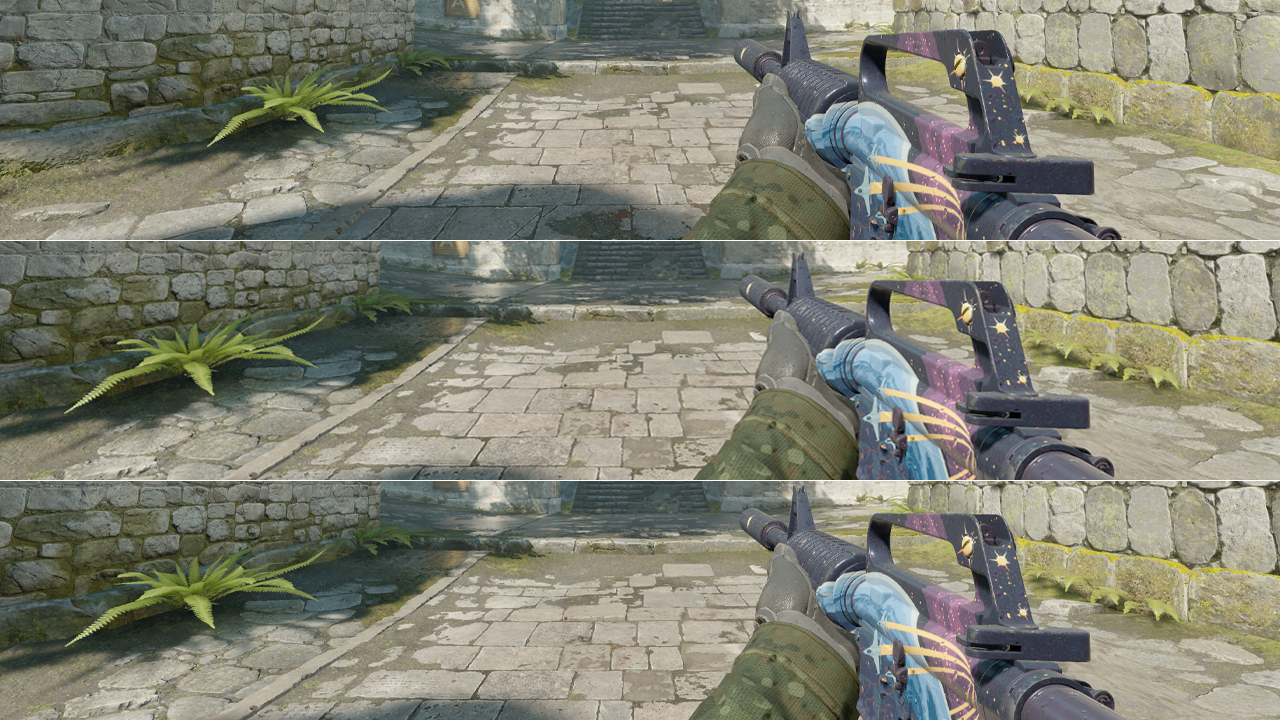
These configs use active CS2 viewmodel commands and stay within the allowed command ranges. The values don’t change the real camera FOV, but they affect how much space the weapon model takes on screen.
Universal (Default-Friendly)
- viewmodel_fov 60
- viewmodel_offset_x 1
- viewmodel_offset_y 1
- viewmodel_offset_z -1
This setup fits players who prefer a viewmodel close to the standard CS2 configuration. It keeps the weapon in a controlled position, avoids aggressive offsets, and provides a more centered layout without making the model sit too far away.
Aggressive Playstyle
- viewmodel_fov 65
- viewmodel_offset_x 2
- viewmodel_offset_y 1.5
- viewmodel_offset_z -1.5
This setup works for entry fraggers, riflers, and players who take frequent fights at short range. It shifts the weapon away from the center, reduces its vertical presence, and creates more room for angle checks during peeks and trades.
Maximum Visibility
- viewmodel_fov 68
- viewmodel_offset_x 2.5
- viewmodel_offset_y 2
- viewmodel_offset_z -2
This setup suits players who want the weapon model to take up as little screen space as possible within standard CS2 viewmodel limits. It keeps the model compact, frees more screen space, and places the weapon at the farthest practical distance from the crosshair area.
Pro Players’ Viewmodel Settings
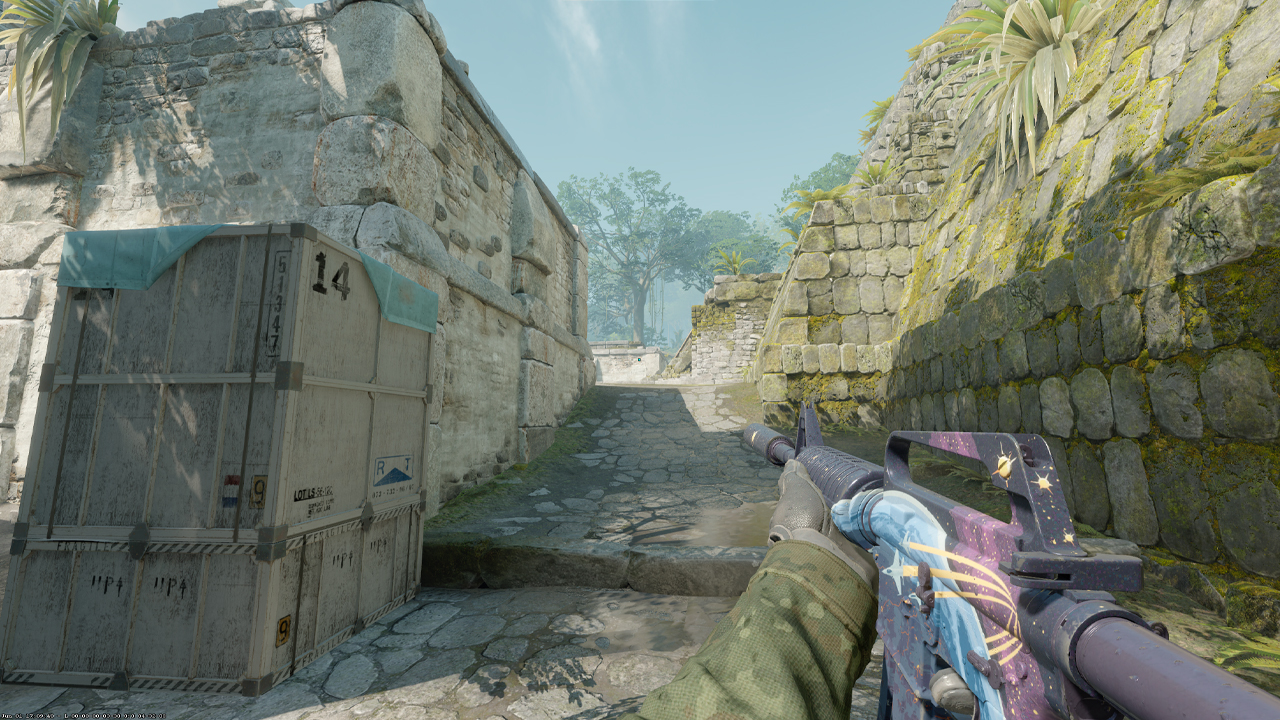
Pro viewmodel settings are useful as reference points, but they shouldn’t be copied blindly. ZywOo uses viewmodel_fov 68, viewmodel_offset_x 2.5, viewmodel_offset_y 0, and viewmodel_offset_z -1.5, which shifts the weapon to the right and keeps it clear of the main aiming zone. For an AWPer, this kind of setup makes sense. The right-side offset helps maintain crosshair placement and keeps sightlines cleaner during zoom transitions. To compare setups beyond ZywOo, more pro players’ viewmodels can show how riflers, AWPers, and anchors adjust their screen layout.
FOV in CS2: The Competitive Range
In CS2, the camera FOV is locked in competitive play, and the game doesn’t provide a standard settings slider for changing it. This means FOV CS2 adjustments can’t be used in official Matchmaking, Premier, or on FACEIT, because true camera FOV changes require sv_cheats access. The command fov_cs_debug can change the field of view, but it only works in offline practice, friend lobbies, training maps, or custom servers where sv_cheats true is enabled.
For testing, fov_cs_debug 0 resets the field of view to the standard default value, which can depend on the resolution. fov_cs_debug 90 works as the base FOV value for the 4:3 setup, while fov_cs_debug 110 widens the camera view and creates noticeable distortion by pushing the perspective farther from the weapon and hands. Values at 130 or above push the camera very far from the weapon and hands, which makes them more suitable for visibility tests, screenshots, or practice sessions than competitive matches.
Tips for Building Your Own Viewmodel
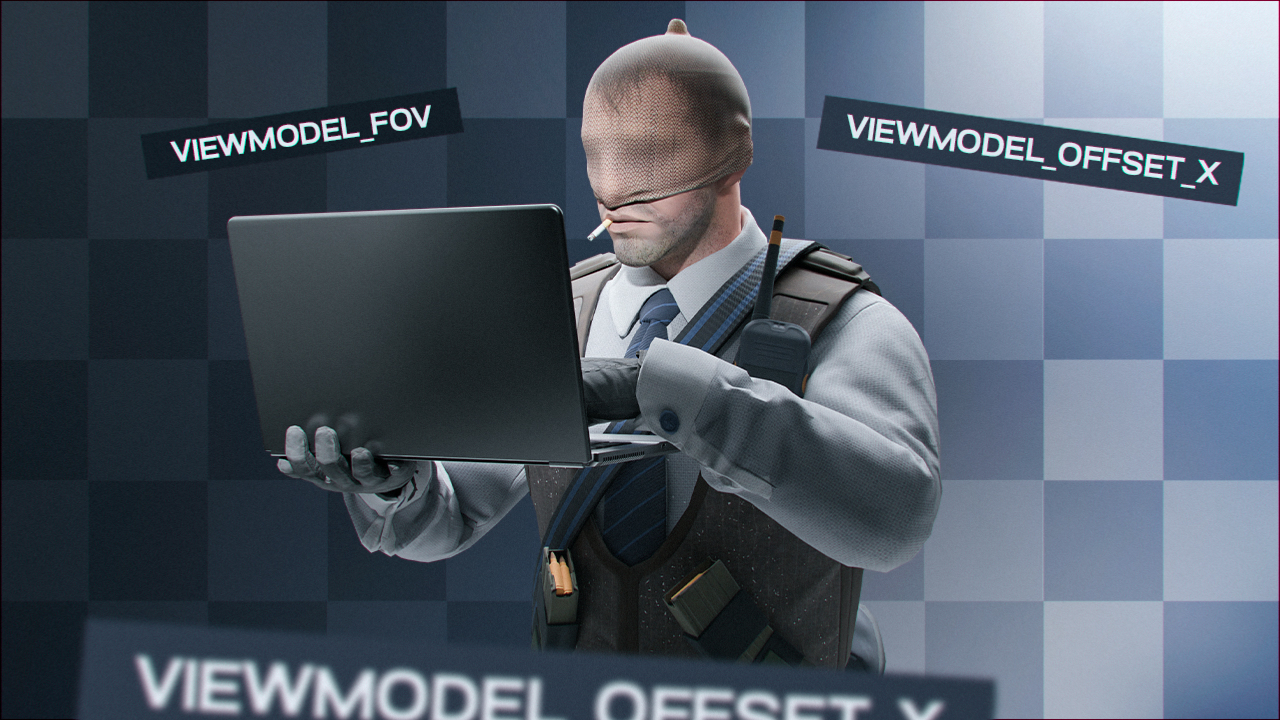
First, change one setting at a time to understand its effect. Start with viewmodel_fov, then adjust viewmodel_offset_x, viewmodel_offset_y, and viewmodel_offset_z separately so each change is easy to evaluate. Once the values are changed, test them in bot practice rather than ranked matches. This makes it possible to review shoulder peeks, spray control, utility throws, and angle visibility without affecting a live match. Before experimenting, record the current settings or save them in an autoexec.cfg file, so the previous setup can be restored if the new one doesn’t work.
At the same time, don’t blindly copy pro players’ settings. Their viewmodels can be built around a specific role, resolution, monitor position, hand preference, or years of muscle memory, so the same values won’t always translate well to another setup. It’s also important to understand that viewmodel settings don’t affect FPS, since they only change the position and scale of the weapon model on the screen. For certain angles on specific maps, a keybind to switch hands can still be useful, as moving the weapon from one side to the other can clear space near the angle being held or cleared.
Viewmodel That Works
Viewmodel and FOV settings in CS2 should support aim, movement, and clear vision during matches. A good baseline for most configs is viewmodel_fov 68, viewmodel_offset_x 2.5, viewmodel_offset_y 0, and viewmodel_offset_z -1.5. This layout lowers and widens the weapon position, reducing overlap with the crosshair area during sprays, peeks, and utility lineups. However, personal adjustments may still be needed depending on your resolution, crosshair size, and monitor distance. While pro configs serve as good reference points for high-level play, copying a professional setup should only be the first step, as practice is more important than theory. Keeping the same setup across several matches provides a more accurate assessment than changing settings after every bad round.
FAQ
-
What is the best viewmodel FOV in CS2?
The best viewmodel FOV in CS2 for most players is viewmodel_fov 68. It gives a wider weapon position on the screen, opens more visual space, and keeps the model from sitting too close to the center of the view.
-
Does viewmodel affect FPS in CS2?
No, viewmodel settings do not have a real impact on FPS in CS2. They only change how the hands and weapon appear on the screen, so performance drops are usually tied to video settings, resolution, shaders, shadows, or system load.
-
How do I reset viewmodel to default?
To reset the viewmodel to the default preset, use viewmodel_presetpos 1 in the console. This returns the weapon position to the standard CS2 layout and removes the need to adjust each offset command manually.
-
What is the FOV command in CS2?
The camera FOV command in CS2 is fov_cs_debug. However, this command is locked behind sv_cheats true, so it cannot be used in official Matchmaking, Premier, or FACEIT matches.
-
How do I change my FOV in CS2?
In standard CS2 matches, the actual camera FOV cannot be changed because it’s locked for competitive play. The legal way to adjust the view is through viewmodel_fov for weapon placement or by changing aspect ratio, such as switching between 16:9 and 4:3. In offline practice or private servers with cheats enabled, open the console and enter sv_cheats true. After that, use fov_cs_debug 110 or another value to test a different camera FOV.
-
How do I switch hands in CS2?
In CS2, weapon hands can be switched during a match with the default H key. The same action can also be triggered through the console by entering switchhands.



![Newest CS2 Cases: List & Release Dates [2026]](https://community.skin.club/wp-content/uploads/2026/05/Main-x-Name-768x432.jpg)
![M4A1-S Fade Pattern Guide: All Seeds & Full Fade [2026]](https://community.skin.club/wp-content/uploads/2024/10/Main-x-Name-1-4-768x432.jpg)