
The Steam disk write error appears when the client can’t save, replace, or update game files on the selected drive. It can interrupt downloads, block patches, prevent updates, or stop games from launching on Windows, macOS, and Linux. Common causes include permission issues, corrupted files, security restrictions, low storage space, and drive errors. In some cases, the issue is linked to a specific Steam library folder rather than the entire drive. The error provides limited detail, so troubleshooting the problem step by step prevents unnecessary changes. The problem may involve Steam’s access to local files, conflicts with security tools, or underlying hardware failure.
What Is a Steam Disk Write Error?
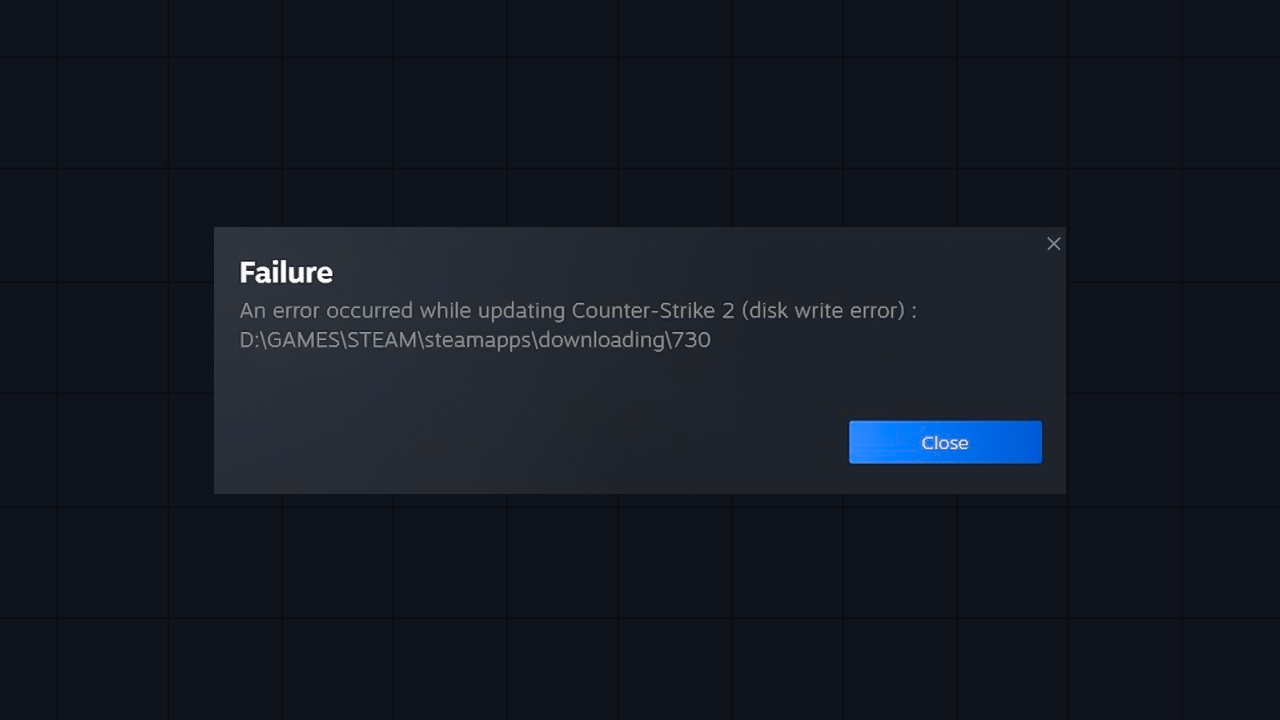
Steam can show this message at different stages, but the wording doesn’t explain what part of the process failed. So what does disk write error mean on Steam? It means the client can’t save new data, replace existing files, or apply required changes to the selected disk because write access is blocked or interrupted. It may appear even when Steam still detects the game folder but can’t write any data to it.
What Causes the Disk Write Error on Steam?
The error often starts with a small local conflict, but the same message can also point to storage damage, blocked access, or platform-specific restrictions.
- Restricted folder access: Standard Windows permissions, ownership issues, or read-only files prevent Steam from modifying the library directory.
- Insufficient storage space: The drive runs out of room to extract and apply heavily compressed update files.
- Corrupted download cache: Damaged temporary Steam data can interfere with downloads, updates, or game startup.
- Antivirus or security software interference: Security tools can misidentify Steam activity or game update files and block normal file changes.
- Broken download files: Interrupted downloads can leave incomplete or unreadable file fragments in the downloading folder.
- Drive issues and bad sectors: Physical or logical degradation of the storage device prevents data from being written reliably.
- NVMe thermal throttling: Heavy sustained downloads can overheat some M.2 SSDs and reduce write performance until temperatures drop.
- Windows protected folder settings: Controlled Folder Access can block Steam from changing files in protected locations, even when normal folder permissions appear correct.
- Linux Flatpak sandbox restrictions: A sandboxed Steam installation may lack permission to access external or custom library drives without the correct filesystem overrides.
Before You Start: Quick Checks
Begin with the simplest checks first. They can identify temporary Steam issues, system conflicts, or a drive with insufficient free space.
- Restart Steam: Fully close the client, including any background processes, then open it again and retry the download or update.
- Reboot the computer: The system restart can clear locked files, unfinished background tasks, and temporary conflicts that prevent Steam from writing data.
- Check available disk space: Make sure the selected drive has enough free space for the game, update files, and temporary unpacking data.
How to Fix the Steam Disk Write Error on Windows
On Windows, this issue stems from a breakdown between the client and the operating system’s storage management. When figuring out how to fix disk write error Steam alerts on Windows, start with permission and cache fixes before deeper system changes.
Run Steam as Administrator
Steam may fail to update or install a game if Windows limits access to the library folder. Running the client as administrator can show whether the problem is connected to permissions.
- Close Steam completely through Steam > Exit.
- Check the system tray and close Steam there if it’s still running.
- Right-click the Steam shortcut or Steam.exe.
- Select Run as administrator.
Check Steam Folder Permissions
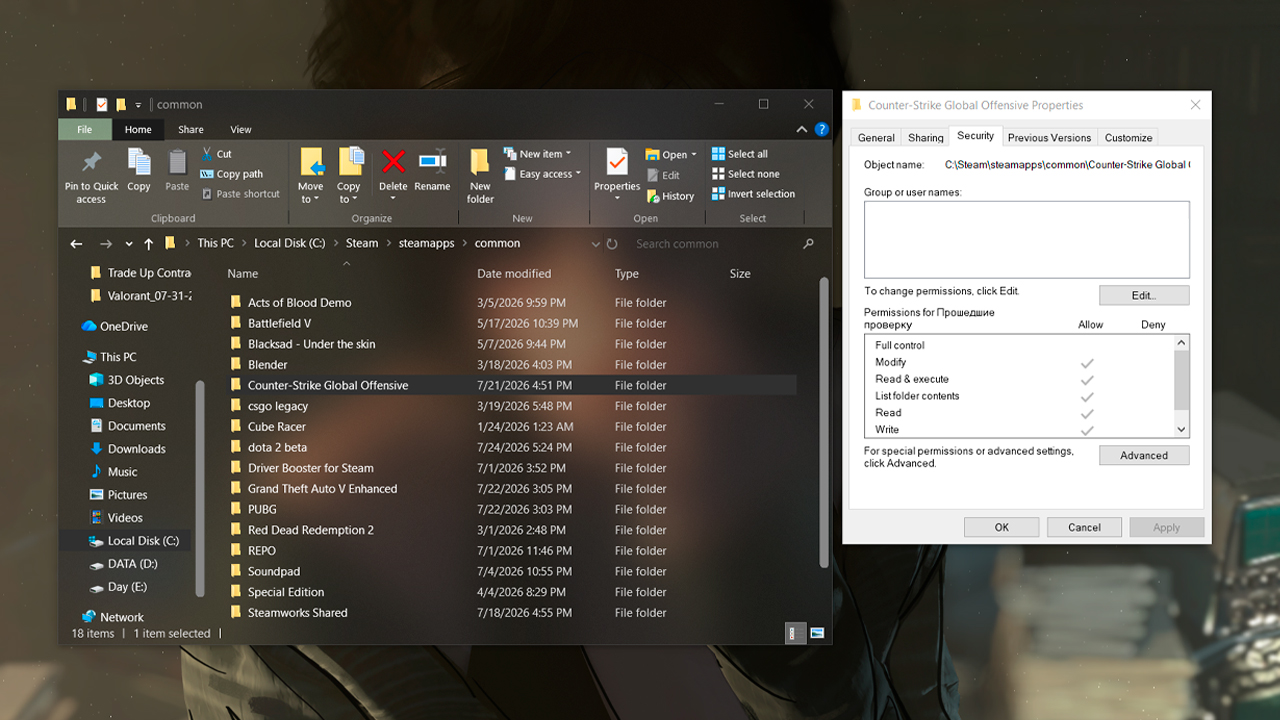
A Steam folder or library folder with restricted permissions can stop the client from changing game files. The folder read-only checkbox will always reappear by default, so security permissions matter more.
- Close Steam completely.
- Open the Steam installation folder, usually C:\Program Files (x86)\Steam.
- If the affected game is in another library, open that library folder instead.
- Right-click the folder and select Properties.
- Open the Security tab.
- Make sure the current Windows account has permission to modify files in the folder.
- If needed, apply permissions to subfolders and files.
Clear the Steam Download Cache
Steam uses temporary download data while installing and updating games. If this cache becomes damaged, Steam may fail to complete the download or show a disk write error even when the game files and drive are still usable.
- Open Steam.
- Go to Steam > Settings.
- Select Downloads.
- Click Clear Download Cache.
- Confirm the action.
Clearing the cache doesn’t uninstall games. It resets Steam’s temporary download storage and will require logging into the client again.
Delete Files in the steamapps/downloading Folder
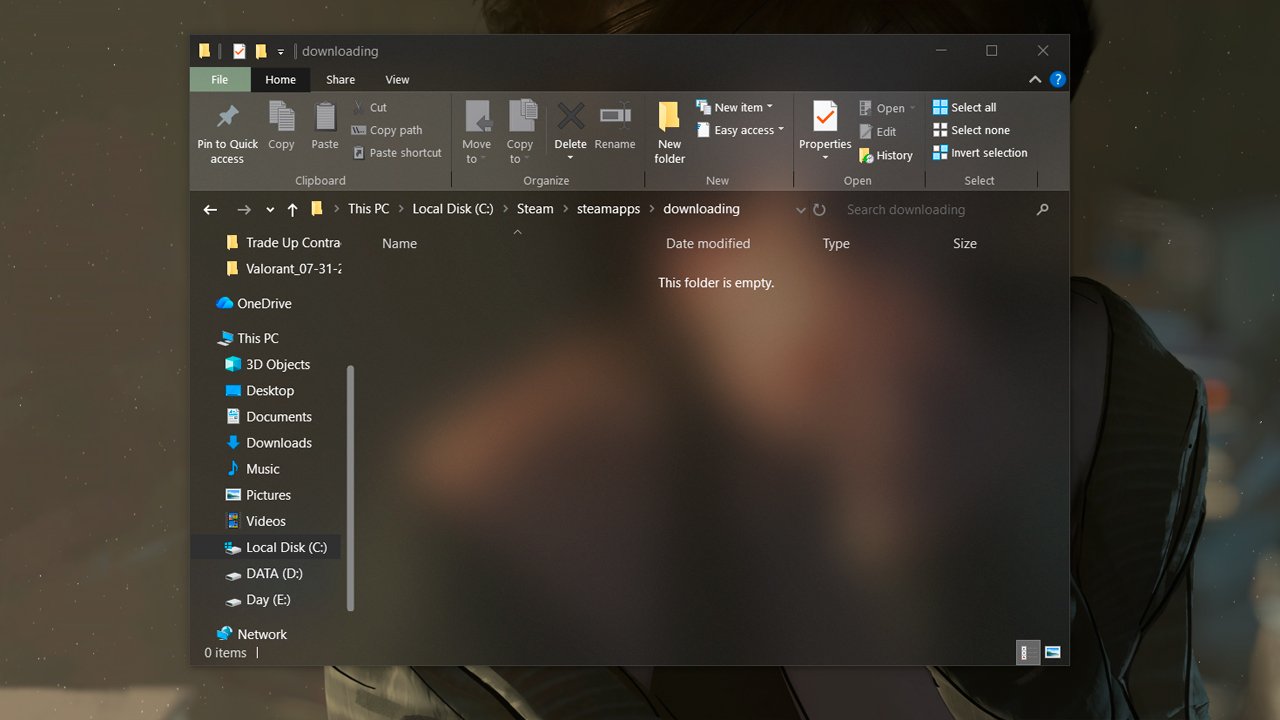
The steamapps\downloading folder stores temporary data for active and unfinished downloads. If a download was interrupted, Steam may keep trying to use incomplete files from this location.
- Exit Steam completely.
- Open the Steam library folder that contains the affected game.
- Go to steamapps\downloading.
- Find the folder named after the game’s AppID (the number found after /app/ in the game’s Steam store URL) connected to the stuck download or update.
- Move that folder to another location as a backup, or delete it if it’s clearly incomplete temporary data.
Verify Integrity of Game Files
If the disk write error affects one game, the local files may be incomplete, damaged, or outdated. File verification checks the installed game data and replaces missing or incorrect files.
- Open the Steam Library.
- Right-click the affected game.
- Select Properties.
- Go to Installed Files.
- Click Verify integrity of game files.
- Wait for Steam to finish the scan.
- Let Steam download any replacement files.
Delete 0 KB / Corrupted Files in steamapps/common
A failed download or update can sometimes leave a broken file in steamapps\common. A 0 KB file associated with the affected game can stop Steam from replacing or rebuilding the correct data.
- Close Steam completely.
- Open the Steam library folder.
- Go to steamapps\common.
- Look for any 0 KB file inside or named after the affected game’s folder.
- Move the file to your Desktop, or delete it if it’s clearly a broken leftover file.
- Restart Steam.
Do not delete the entire game folder unless a reinstall is planned. This step is only for obvious empty or corrupted leftover files, not normal game data.
Add Steam as an Exception in Antivirus & Firewall
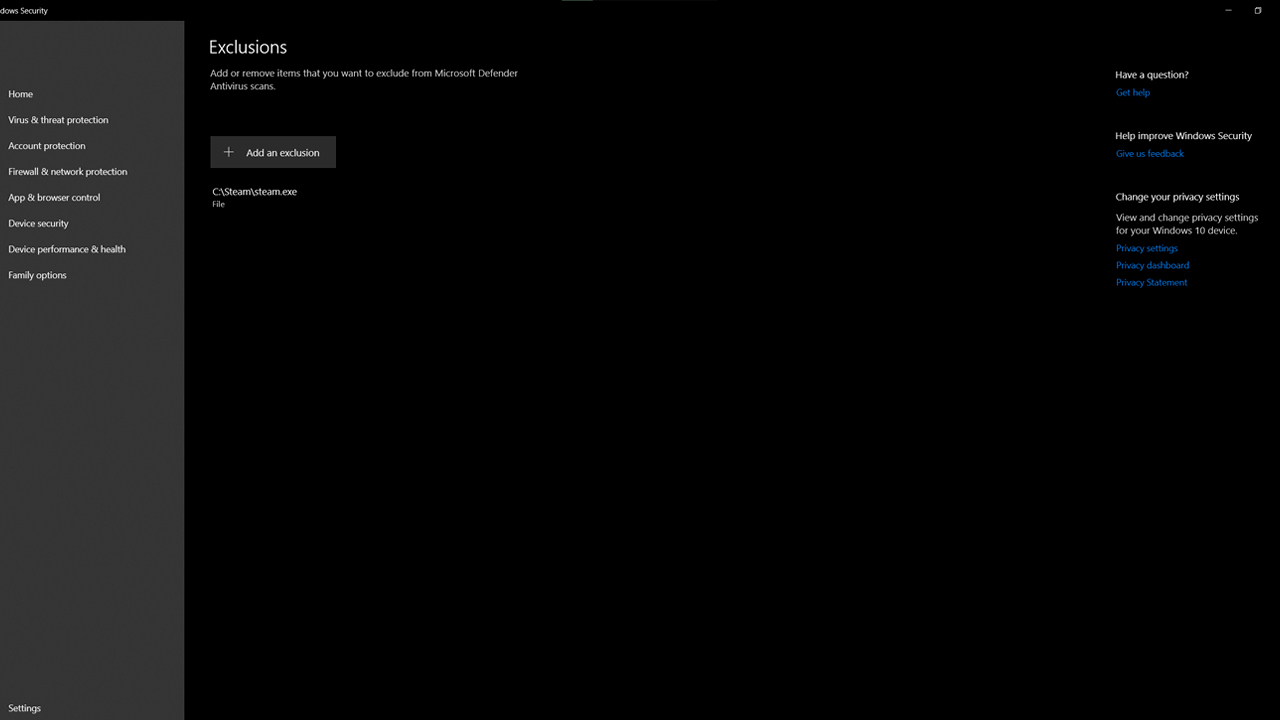
Security tools can interfere with Steam downloads, updates, or server communication. Antivirus software may block file changes if it misreads Steam activity, while a firewall can stop Steam from connecting properly.
- Open the antivirus or security app installed on Windows.
- Add the Steam installation folder as an exclusion or allowed path.
- Add Steam.exe as a trusted app.
- Open Windows Defender Firewall settings.
- Ensure Steam is allowed through the firewall for private networks.
- Avoid disabling antivirus or firewall protection permanently.
Allow Steam Through Controlled Folder Access
Controlled Folder Access can block apps from changing files in protected locations. This matters if Steam is installed in a protected folder or if a Steam library is placed somewhere Windows monitors closely.
- Open Windows Security.
- Go to Virus & threat protection.
- Open Ransomware protection.
- Select Manage ransomware protection.
- Click Allow an app through Controlled folder access.
- Add Steam.exe from the Steam installation folder.
- Restart Steam.
Smart App Control is different. It blocks untrusted apps or files from running, so it should only be checked if Windows clearly reports that a Steam-related executable, installer, updater, or game component was blocked.
Move the Game to a Different Library Folder or Drive
If the error happens only on one drive or one Steam library folder, moving the game can help identify a folder, permission, or storage issue.
- Open Steam.
- Go to Steam > Settings > Storage.
- Add another drive or Steam library folder if needed.
- Select the affected game.
- Choose the option to move it to another library folder.
- Wait for the transfer to finish.
- Retry the update or launch from the new location.
If the game works from another library, the original folder or drive should be checked for free space, permissions, file-system errors, or hardware problems.
Check Disk Health (chkdsk /f /r)
File-system errors, bad sectors, or unstable storage can prevent Steam from writing game data safely.
- Back up important files before running disk repair commands.
- Open Command Prompt as administrator.
- Run the command with the correct drive letter: chkdsk C: /f /r.
- Replace C: with the drive where the Steam library is stored.
- If Windows says the drive is in use, approve the scan for the next restart.
- Restart the computer and let the scan finish.
The /f option fixes file-system errors. The /r option checks for bad sectors and tries to recover readable data. The scan can take a long time, especially on large drives, and it should not be interrupted.
Reinstall Steam (Keeping Your Games)

Reinstalling Steam should come last, after cache, permissions, security settings, game files, and disk health have been checked. It can replace damaged Steam client files, but installed games and local data should be backed up first.
- Exit Steam completely.
- Open the Steam installation folder.
- Copy the steamapps folder to a safe location.
- Copy the userdata folder too if local settings, screenshots, or non-cloud save data need to be preserved.
- Uninstall Steam through Windows settings.
- Download and install Steam again from the official Steam website.
- Close Steam after installation.
- Move the backed-up steamapps folder into the new Steam installation folder.
- Open Steam and let it detect the installed games.
- Verify the affected game if Steam needs to restore missing files.
Alternative Faster Method:
There is also a faster manual method that doesn’t require uninstalling Steam or moving the full game library.
- Close Steam completely.
- Open the Steam installation folder.
- Keep Steam.exe, steamapps, and userdata, then remove all other client files and folders.
- Launch Steam.exe again.
Steam will automatically download fresh client files while the installed games remain in place (steamapps and userdata should still be backed up before doing this just to be safe).
How to Fix the Steam Disk Write Error on Mac
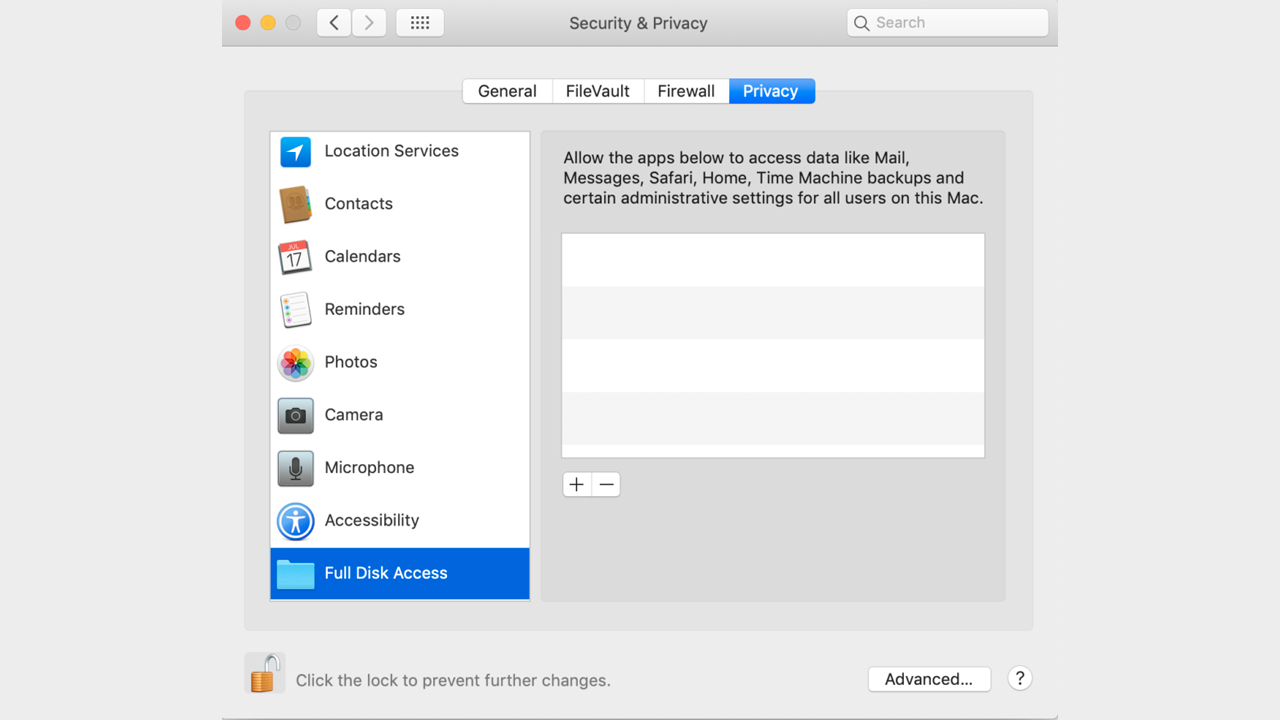
The Steam disk write error Mac users see is usually associated with app access, folder permissions, or disk problems. Start by giving Steam the required system access, then check the library folder and the drive.
- Open System Settings > Privacy & Security > Full Disk Access, then enable Steam. If it isn’t listed, click the “+” button to add Steam from the Applications folder, then restart the client.
- Open the Steam folder in Finder (default path is ~/Library/Application Support/Steam), right-click it, select Get Info, and set the current user to Read & Write under Sharing & Permissions.
- Open Disk Utility, select the drive or volume with the Steam library, then click First Aid to check and repair disk errors.
How to Fix the Steam Disk Write Error on Linux
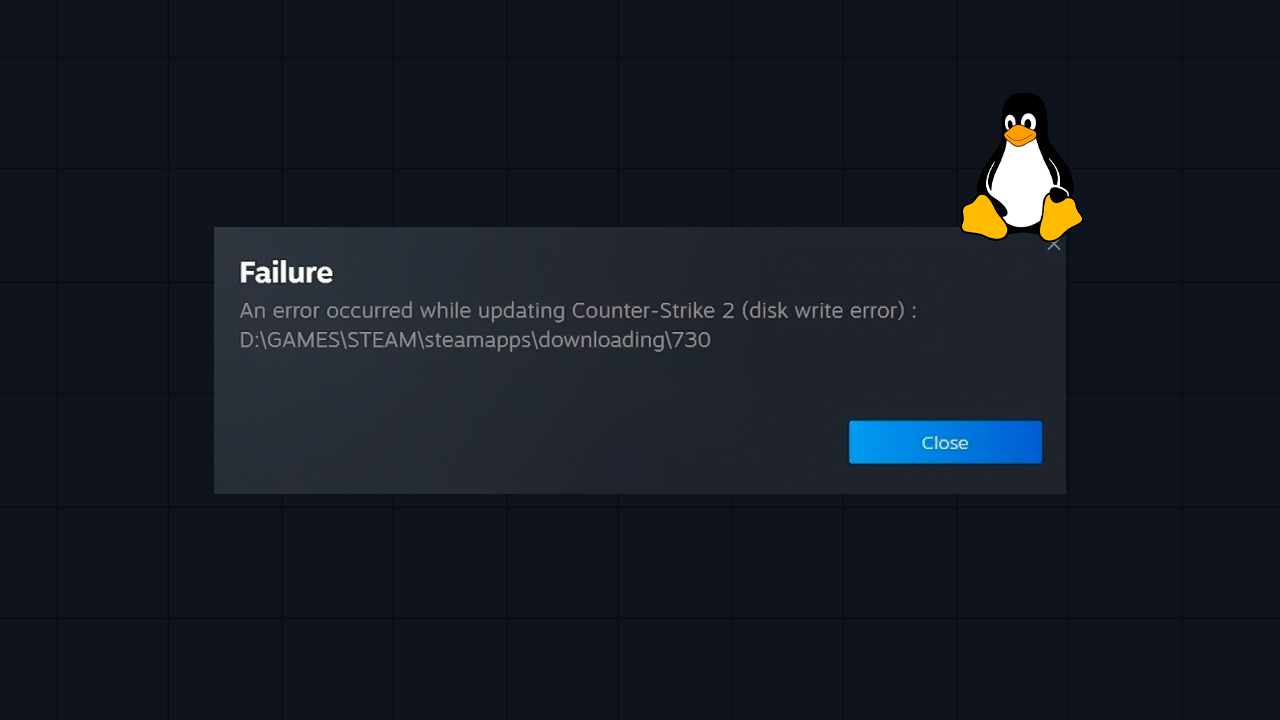
The Steam disk write error Linux users see is usually connected to how Steam was installed, how the game library drive is mounted, or who owns the library folder.
- Check whether Steam is Flatpak or native: Run this command in Terminal: flatpak list –app. If Steam appears in the list, it’s installed as a Flatpak. If it doesn’t, Steam is likely installed as a native package through the distribution package manager or Valve’s installer.
- If Steam is installed as Flatpak: The sandbox can block access to folders outside ~/.var/app/…, including external drives or custom library paths. Install Flatseal, open Steam, and add the full filesystem path to the library. Terminal alternative:
flatpak override –user –filesystem=/path/to/library com.valvesoftware.Steam. - If the library is on another drive: Check that the drive isn’t mounted as read-only. Remount it as rw, and if needed, set the correct owner in /etc/fstab: uid=1000,gid=1000.
- If the library has wrong permissions: Make the current user the owner of the folder: sudo chown -R $USER:$USER /path/to/library.
- Alternative fix: Install the native .deb Steam package instead of Flatpak. This removes the sandbox layer and can completely fix the Steam disk write error on Linux when Flatpak access is the cause.
Disk Write Error on SSD or NVMe Drives
A Steam disk write error SSD problem can occur when a solid-state drive struggles with long periods of heavy writing. SSDs and NVMe drives can come under heavy write load during large Steam downloads, especially 100-200GB+ games, because Steam downloads, unpacks, and writes data at the same time. On some M.2 SSDs, this can raise temperatures enough to cause throttling, pauses, or temporary disconnects.
- Download speed limit: To reduce stress on the drive, limit the download speed in Steam > Settings > Downloads.
- Cooling check: Make sure the M.2 drive has proper airflow, cooling, or a heatsink.
- TRIM and health checks: Use tools such as CrystalDiskInfo or Samsung Magician to check drive health and confirm that TRIM is active.
- Bad sectors or corrupted flash cells: If diagnostics show storage problems, move the game to another Steam library folder on a different drive.
Disk Write Error During Update vs During Download
A Steam update failed disk write error can happen during a new installation or a game update, but the root causes usually differ.
Scenario | What it usually means | Fixes to try first |
|---|---|---|
Update failed |
Steam already has game files installed, but the patch can’t be applied or verified correctly. |
Clear the Steam download cache, delete the affected files in steamapps\downloading, then verify integrity of game files. |
Download failed |
Steam can’t write new game data to the selected library folder or drive. |
Check folder permissions, antivirus restrictions, available disk space, and disk health. |
Why Do You Keep Getting the Disk Write Error?
If the disk write error keeps returning after temporary workarounds, the problem is likely not caused by a single failed download. A recurring error can indicate a failing hard drive or SSD, a security tool that keeps blocking Steam, a Windows Update-related file access issue, or, on Linux, an unresolved Flatpak sandbox conflict. Steam’s content log can help identify where the write process fails, so check Steam\logs\content_log.txt for repeated path, permission, or disk errors. Run a system disk diagnostic as well to rule out storage damage. If the cause still isn’t clear, collect the content_log.txt file and contact Steam Support with the relevant error details.
How to Prevent the Disk Write Error
Disk write errors are less likely to occur when the library drive is healthy, accessible, and not overloaded during updates. Keep at least 15-20% free space on your game drive, as updates often need extra space for temporary files and unpacking. Add Steam and its library folders to antivirus exclusions so security scans don’t block game files during installation or updates. Also use a healthy drive and check its status regularly if Steam errors appear more than once. A stable internet connection also matters, as interrupted downloads can leave incomplete files in the download folder. Finally, keep Steam updated to avoid client-side issues related to downloads, storage management, and compatibility.
FAQ
-
What is a Steam disk write error?
A Steam disk write error means Steam can’t save, replace, or modify game files on the selected drive. It can appear during installation, updates, downloads, or file verification when Steam loses write access or the drive can’t complete the operation.
-
How do I fix a disk write error on Steam?
Start with simple checks: restart Steam, reboot the system, and confirm that the drive has enough free space. Then check folder permissions, clear the download cache, verify game files, review antivirus settings, and test the drive for errors.
-
Why do I keep getting a disk write error on Steam?
A recurring disk write error usually means the first fix removed only the symptom, not the cause. Common reasons include a failing drive, repeated antivirus interference, damaged Steam download data, Windows file-access issues, or unresolved Linux sandbox restrictions.
-
Will clearing the download cache delete my games?
No, clearing the Steam download cache doesn’t delete installed games. It removes temporary download data and may require signing back into Steam afterward.
-
Can a disk write error mean my SSD is failing?
Yes, it can, but it doesn’t prove SSD failure by itself. If the error keeps returning with slow writes, disconnects, bad sectors, or poor health reports, run an SSD diagnostic and move the Steam library to another drive.


![How to Get a Service Medal in CS2: Full Guide [2026]](https://community.skin.club/wp-content/uploads/2024/10/Main-x-Name-19-768x432.jpg)
![CS2 Chicken Eggs Explained: How Pets Work [2026]](https://community.skin.club/wp-content/uploads/2026/10/Main-x-Name-768x432.jpg)
![CS2 Weekly Drop Pool: Cases, Skins & How It Works [2026]](https://community.skin.club/wp-content/uploads/2025/10/Main-x-Name-11-768x432.jpg)