![Best Radar Settings in CS2: Full Guide [2026] Background](https://community.skin.club/wp-content/uploads/2023/10/Background-18.jpg)

The radar is an essential part of CS2 gameplay, and ignoring it can lead to mistakes that cost both rounds and the match itself. It gives you information about teammate positions, spotted enemies, deaths, and the bomb during the round. Proper CS2 radar settings make this information easier to see and understand while playing, helping you follow what is happening on the map and make decisions based on the current situation. The best radar settings CS2 players use usually focus on map visibility, clear icons, and a scale that shows enough of the map without making important details too small.
What the CS2 Radar Shows
The CS2 radar uses several markers to show the main information available during a round:
- Blue/yellow dots: Show teammate positions.
- Red dots: Show enemies spotted by you or your teammates.
- ?: Shows an enemy’s last known position after they leave sight.
- X: Marks where a player died.
- Bomb icon and C4 carrier: Show the bomb position and which T player is carrying it.
No radar setting adds extra enemy information, since enemy positions appear only after you or a teammate spots them. The settings only change how clearly the available information is displayed on the radar.
How to Change Radar Settings in CS2
In-Game Settings Menu
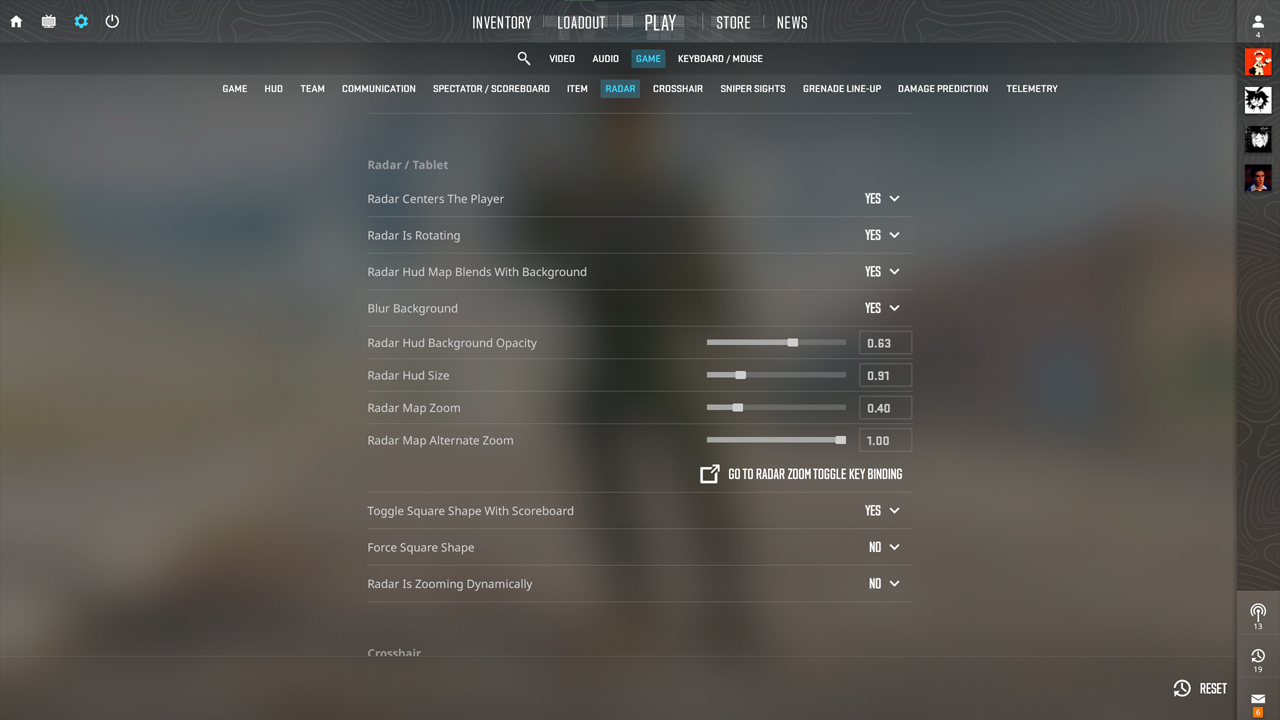
Open Settings > Game > Radar to change options such as radar size, map zoom, rotation, and player centering without using console commands.
Console Commands
Enable the Developer Console in the game settings and use radar commands to set exact values that aren’t always available through the regular menu.
Saving Settings in autoexec
Add radar commands to autoexec.cfg in the CS2 cfg folder to load the selected values automatically whenever the game starts.
All CS2 Radar Commands Explained
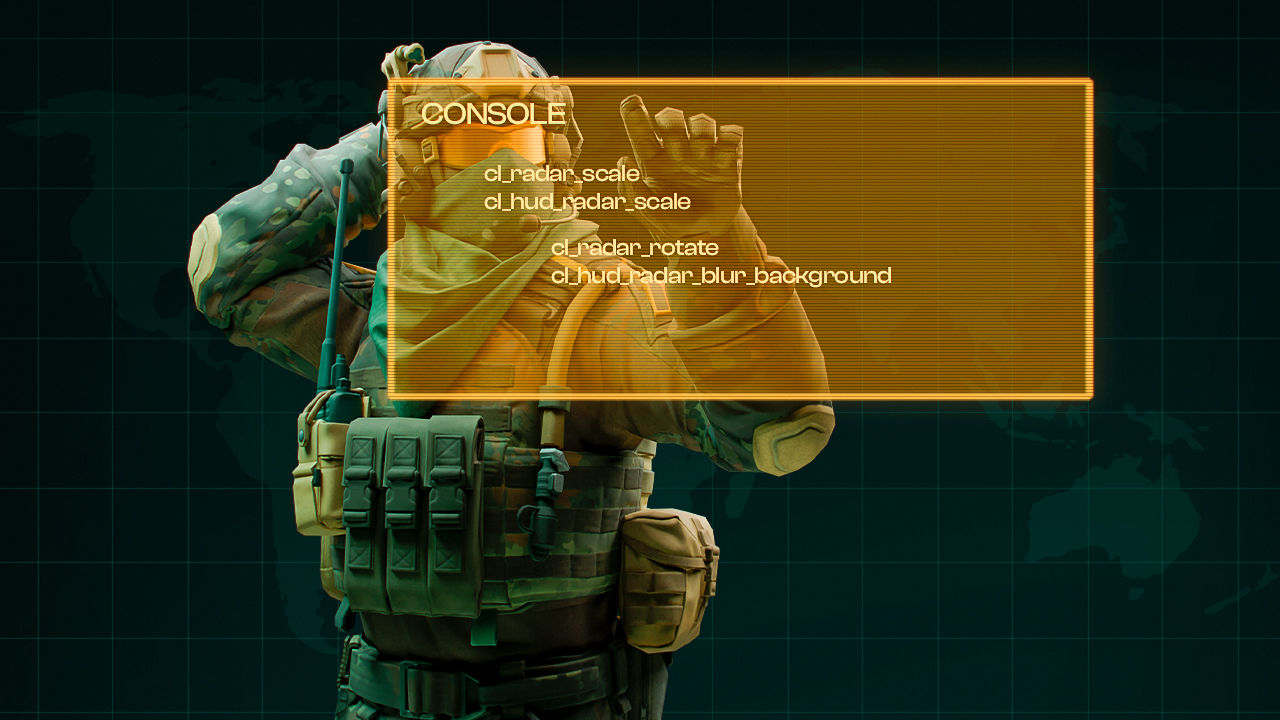
Command | What it does | Range | Default |
|---|---|---|---|
cl_radar_scale |
Changes the map zoom inside the radar |
0.25 to 1.0 |
0.7 |
cl_hud_radar_scale |
Changes the radar size on the HUD |
0.8 to 1.3 |
1.0 |
cl_radar_icon_scale_min |
Changes the minimum size of player icons |
0.4 to 1.25 |
0.6 |
cl_radar_always_centered |
Keeps your position in the center of the radar |
0 or 1 |
1 |
cl_radar_rotate |
Makes the radar rotate with your view direction |
0 or 1 |
1 |
cl_radar_square_with_scoreboard |
Makes the radar square while the scoreboard is open |
0 or 1 |
1 |
cl_hud_radar_blur_background |
Enables or disables the blurred radar background |
0 or 1 |
1 |
cl_hud_radar_background_alpha |
Changes the opacity of the radar background |
0.0 to 1.0 |
0.627 |
cl_radar_scale_alternate |
Changes the alternate radar zoom level |
0.25 to 1.0 |
1.0 |
With cl_radar_scale, lower values zoom the radar out and show more of the map, while higher values zoom it in and reduce the visible area. cl_radar_scale_alternate sets the second zoom level, while toggleradarscale switches between the regular and alternate scales. The scale direction can be counterintuitive at first.
Best CS2 Radar Settings
Balanced Competitive Setup
cl_radar_scale 0.4; cl_hud_radar_scale 1.1; cl_radar_icon_scale_min 0.7; cl_radar_always_centered 0; cl_radar_rotate 0; cl_radar_square_with_scoreboard 1
These CS2 best radar settings show a large part of the map while keeping player icons clearly visible. The static radar keeps the map in the same orientation, which makes positions easier to connect with callouts.
Full-Map View Setup
cl_radar_scale 0.25; cl_hud_radar_scale 1.1; cl_radar_icon_scale_min 0.7; cl_radar_always_centered 0; cl_radar_rotate 0; cl_radar_square_with_scoreboard 1
For players looking for the best CS2 radar settings with maximum map coverage, cl_radar_scale 0.25 shows as much of the map as possible. The radar also stays static, so the map orientation doesn’t change while moving.
Beginner-Friendly Setup
cl_radar_scale 0.5; cl_hud_radar_scale 1.15; cl_radar_icon_scale_min 0.9; cl_radar_always_centered 1; cl_radar_rotate 1; cl_radar_square_with_scoreboard 1
Larger player icons make teammates and spotted enemies easier to notice. With cl_radar_rotate 1, the map rotates with your view, which can feel more intuitive for players who are still learning CS2 maps and positions.
Common CS2 Radar Settings Mistakes
Poor radar settings can hide useful information or make the interface harder to check during a round. The most common mistakes include:
- Using too much radar zoom: A high cl_radar_scale value shows a smaller part of the map. As a result, teammates and spotted enemies farther from the player can fall outside the visible radar area.
- Keeping the radar centered when more map coverage is needed: With cl_radar_always_centered 1, the player remains in the middle of the radar. Disabling centering can use the available radar area more efficiently when a wider overview is preferred.
- Making player icons too small: A low cl_radar_icon_scale_min value reduces the minimum size of player markers. Very small icons can be harder to identify quickly when several players are close together.
- Making the HUD radar unnecessarily large: Increasing cl_hud_radar_scale makes the entire radar larger on the screen. More size can improve visibility, but excessive values take up HUD space without necessarily providing more map information.
- Copying professional settings without testing them: Pro radar configurations are useful reference points, but players use different zoom levels, HUD sizes, centering options, and rotation settings. A professional configuration may therefore require adjustments before it feels comfortable.
- Changing several settings at once: Adjusting zoom, icon size, centering, and rotation simultaneously makes it difficult to identify which setting caused a noticeable difference. Changing one parameter at a time makes each effect easier to evaluate.
Radar settings are easier to evaluate during actual matches than from the settings menu alone. Once a configuration provides the required information without demanding extra attention, keeping it consistent allows the radar layout to become familiar during regular play.
Pro Radar Settings in CS2
CS2 pro radar settings vary by role and by how much of the map each player wants visible. Looking at the pro radar settings CS2 players use, map zoom is the clearest difference, while all five players below keep centering and rotation enabled.
ZywOo, Team Vitality
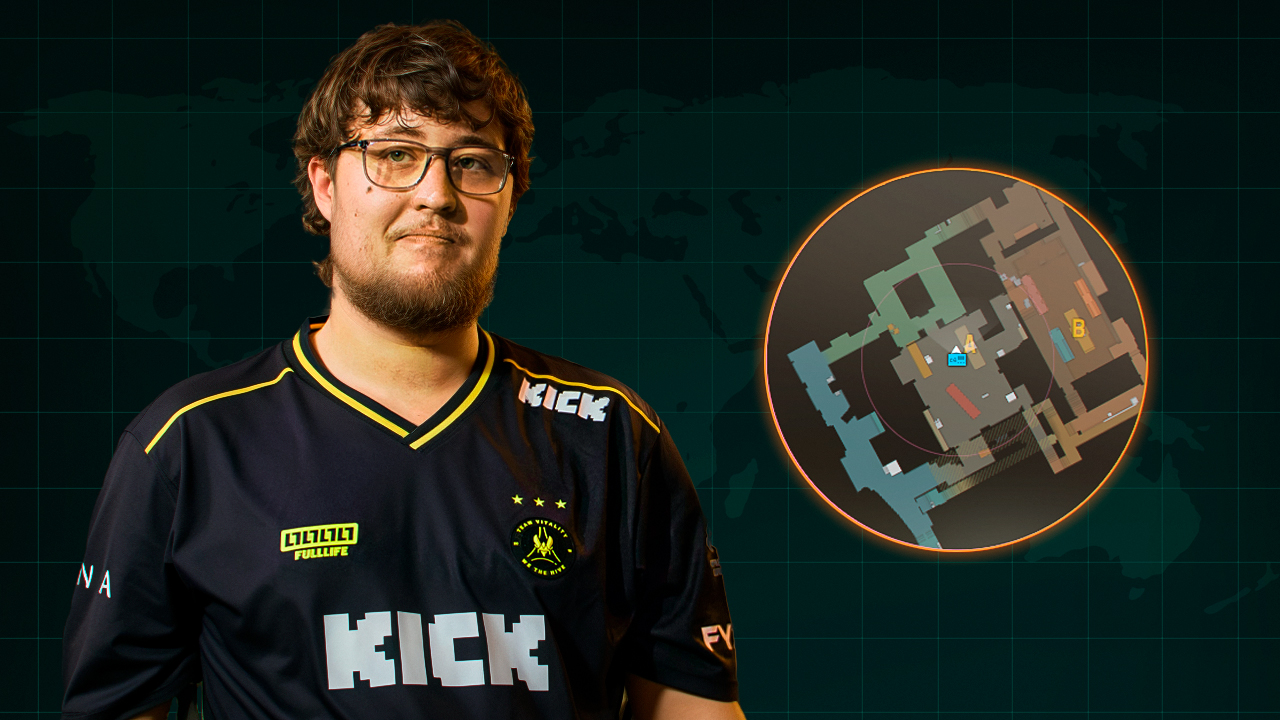
- cl_radar_always_centered 1;
- cl_radar_rotate 1;
- cl_radar_square_with_scoreboard 1;
- cl_hud_radar_scale 1;
- cl_radar_scale 0.4
ZywOo plays as an AWPer, so a wider map view helps him track teammate and enemy positions when changing positions during the round.
ropz, Team Vitality
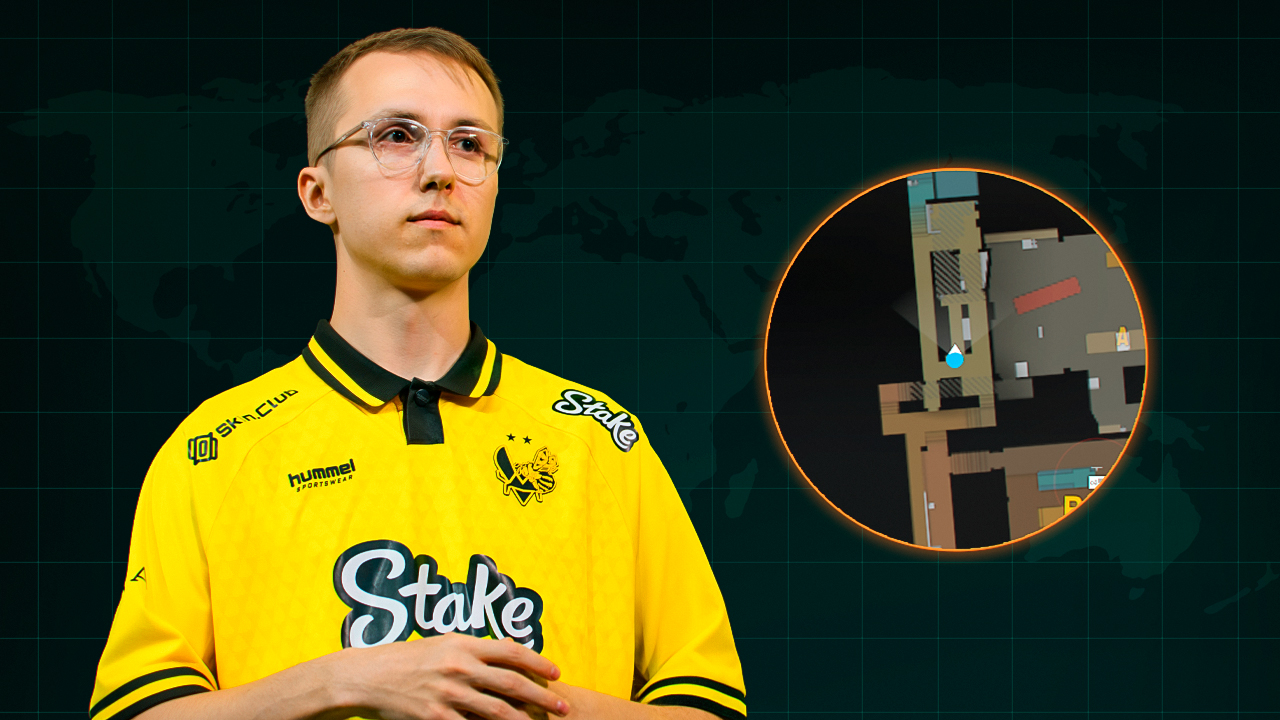
- cl_radar_always_centered 1;
- cl_radar_rotate 1;
- cl_radar_square_with_scoreboard 0;
- cl_hud_radar_scale 1;
- cl_radar_scale 0.65
ropz often plays as a lurker, so clearer information around his current position helps when he works separately from the rest of the team.
donk, Team Spirit
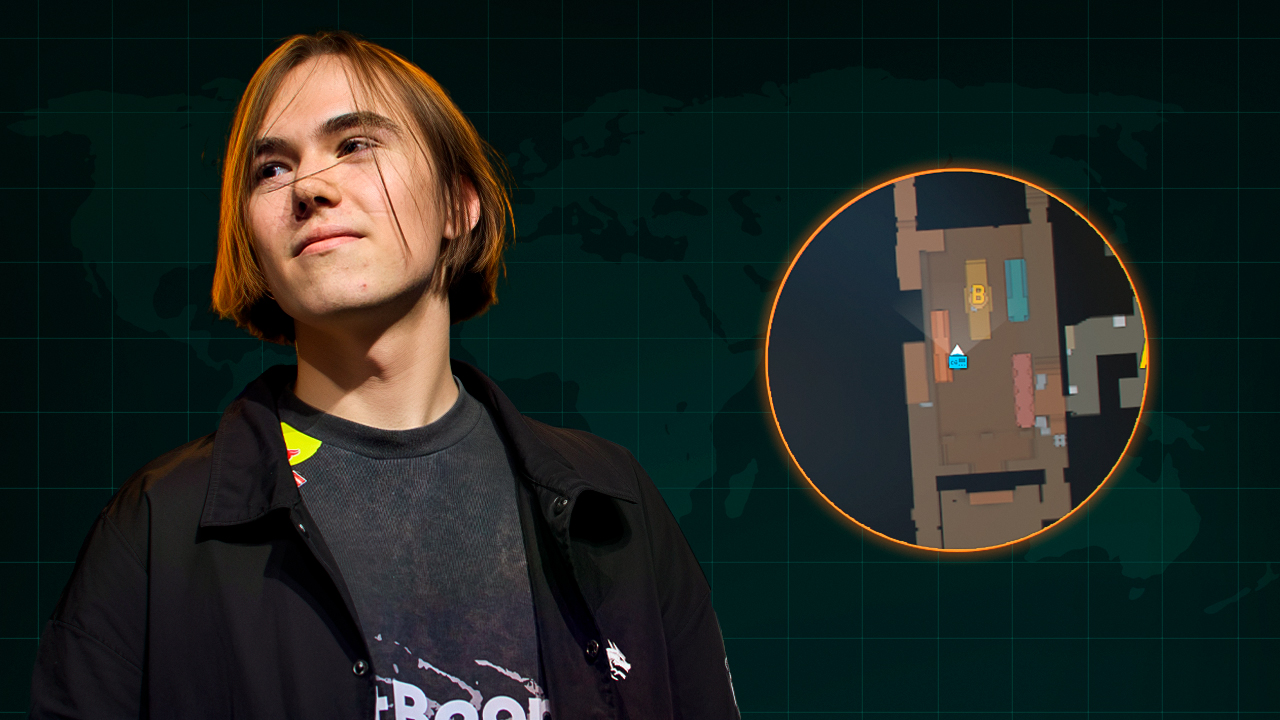
- cl_radar_always_centered 1;
- cl_radar_rotate 1;
- cl_radar_square_with_scoreboard 1;
- cl_hud_radar_scale 1;
- cl_radar_scale 0.7
donk plays an aggressive opener role, so a closer radar view makes nearby teammates and spotted enemies easier to follow during early fights.
m0NESY, Falcons
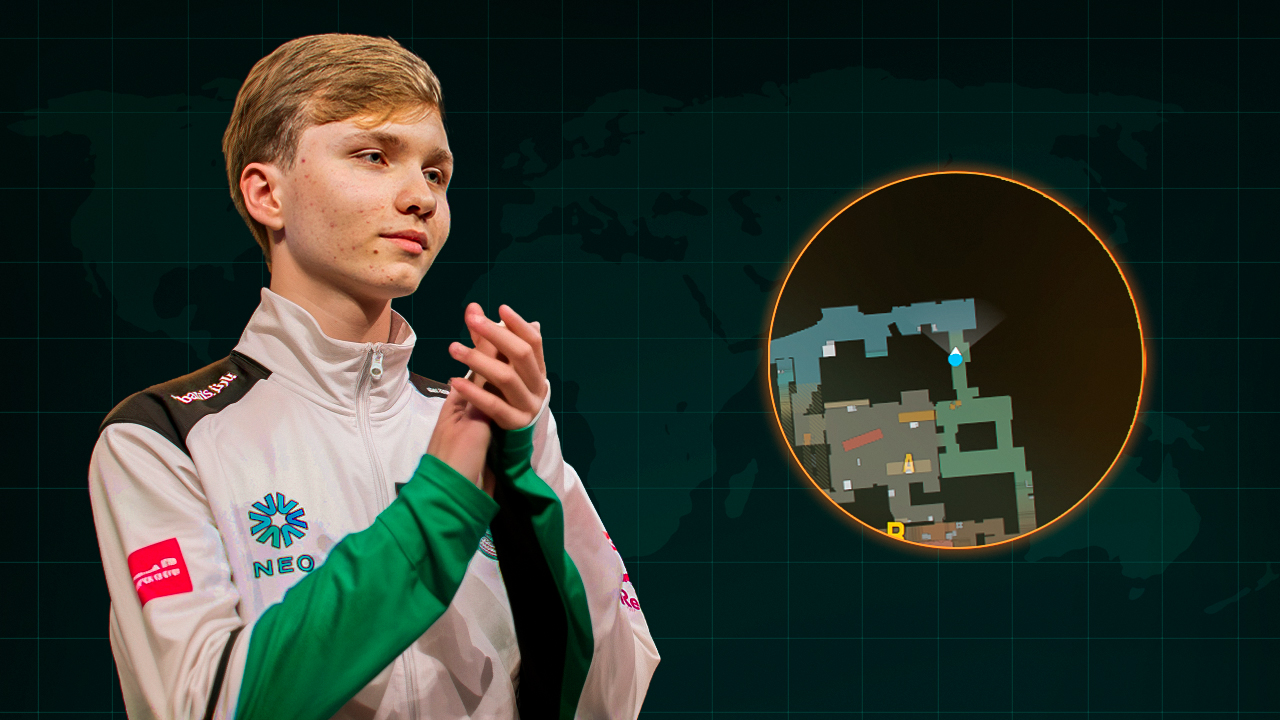
- cl_radar_always_centered 1;
- cl_radar_rotate 1;
- cl_radar_square_with_scoreboard 1;
- cl_hud_radar_scale 0.91;
- cl_radar_scale 0.4
m0NESY frequently moves between different parts of the map with the AWP, so wider radar coverage helps him track rotations and available information during the round.
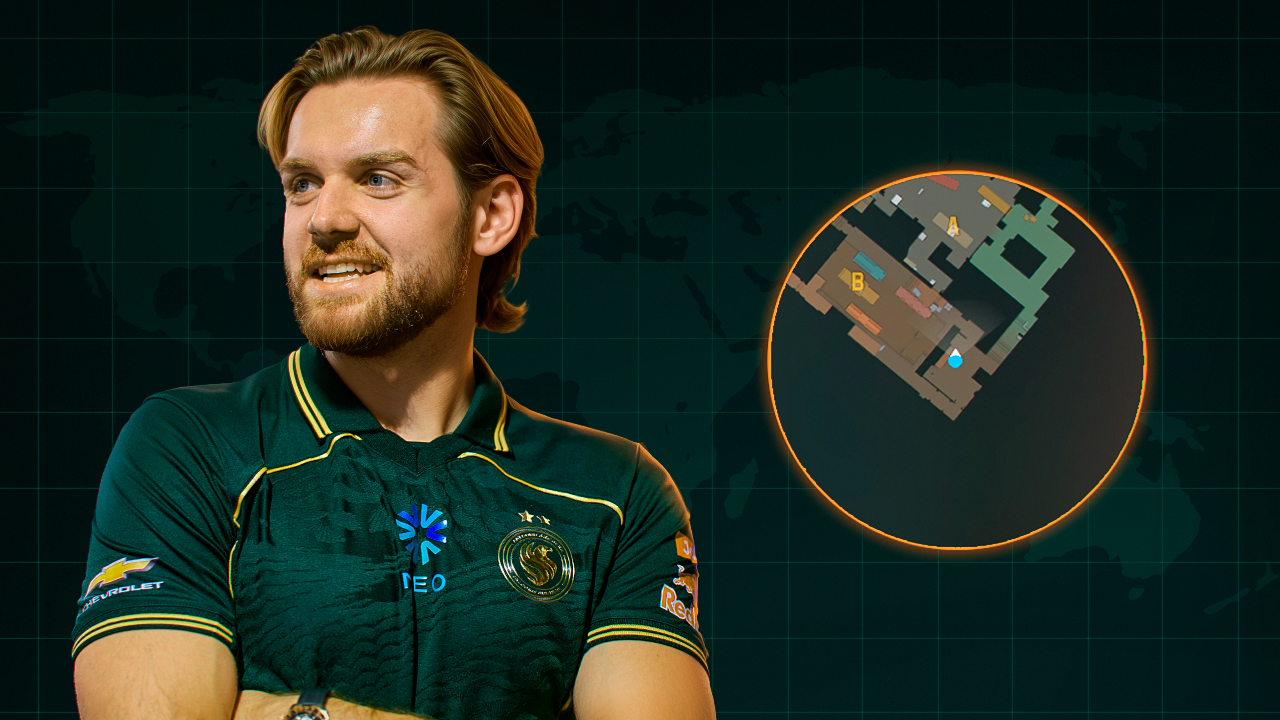
NiKo, Falcons
- cl_radar_always_centered 1;
- cl_radar_rotate 1;
- cl_radar_square_with_scoreboard 1;
- cl_hud_radar_scale 1;
- cl_radar_scale 0.35
NiKo plays as a rifler with frequent involvement in trades and late-round situations, so wider map coverage helps him keep track of teammate and enemy positions.
Radar Zoom Binds
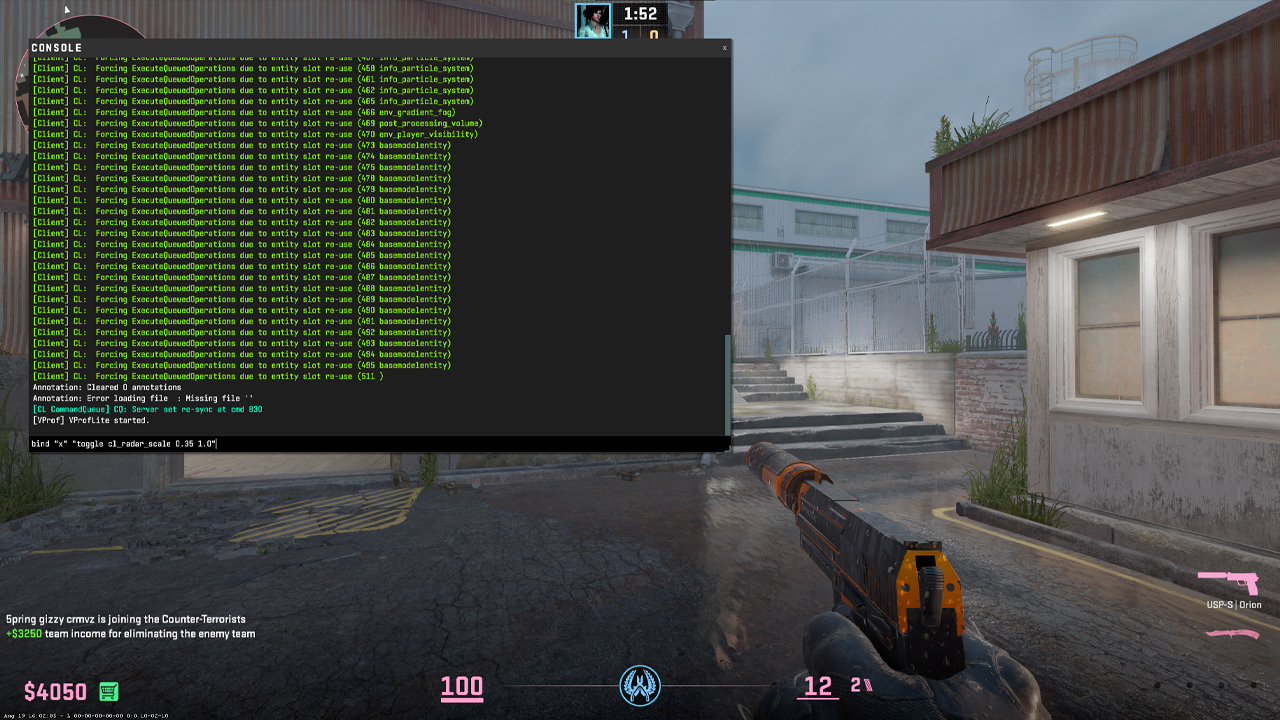
Toggle Between Two Zoom Levels
bind “x” “toggle cl_radar_scale 0.35 1.0”
Pressing X switches between a wide map view and a closer view of positions around the player, making it useful when different parts of a round require different radar coverage.
Step Through Radar Zoom Levels
bind “c” “incrementvar cl_radar_scale 0.25 1.0 0.25”
Each press of C changes the radar scale by 0.25, which gives several zoom levels for quickly choosing how much of the map should remain visible.
Hold to Zoom the Radar
alias “+radarzoom” “cl_radar_scale 1.0”; alias “-radarzoom” “cl_radar_scale 0.35”; bind “v” “+radarzoom”
Holding V zooms the radar in to make nearby positions larger, while releasing the key immediately returns to the wider 0.35 view.
Default CS2 Radar Settings
The default CS2 radar can be restored with the following values:
- cl_radar_scale 0.7;
- cl_hud_radar_scale 1.0;
- cl_radar_icon_scale_min 0.6;
- cl_radar_always_centered 1;
- cl_radar_rotate 1;
- cl_radar_square_with_scoreboard 1;
- cl_hud_radar_blur_background 1;
- cl_hud_radar_background_alpha 0.627;
- cl_radar_scale_alternate 1.0
The listed values restore the default radar without changing unrelated options. The Reset button in the settings menu can also restore defaults, but it resets all game settings rather than only the radar, so entering the default radar values manually is safer when only radar changes need to be undone.
Radar Not Showing: How to Fix
If the radar is missing in CS2, start with the following checks:
- Reset the radar draw state: Enter cl_drawhud_force_radar 0 in the console to restore normal radar behavior if it was previously forced off.
- Verify the integrity of game files through Steam: Open CS2 Properties, go to Installed Files, and select Verify integrity of game files to restore missing or corrupted game files.
- Check whether the entire HUD is hidden: If health, ammo, and other interface elements are also missing, the issue affects the whole HUD rather than the radar alone. Restart CS2 and check autoexec or other custom config files for commands that disable HUD elements if the problem returns.
FAQ
-
What are the best radar settings in CS2?
cl_radar_scale 0.4; cl_hud_radar_scale 1.1; cl_radar_icon_scale_min 0.7; cl_radar_always_centered 0. These settings provide a wide map view with clearly visible player icons, while disabled centering makes more efficient use of the available radar space.
-
How do I make the radar show the whole map?
Set cl_radar_scale 0.25 and cl_radar_always_centered 0. This gives the widest map view available through the radar scale command.
-
Should I use a rotating or static radar?
Use a static radar for fixed map orientation and easier callout reference. Use a rotating radar if following the direction of view feels more natural.
-
How do I change radar size in CS2?
Change cl_hud_radar_scale. Higher values make the radar larger on the HUD, while lower values make it smaller.
-
Why is my radar not showing in CS2?
Enter cl_drawhud_force_radar 0 to restore normal radar behavior. If the radar is still missing, restart CS2 and verify the integrity of the game files through Steam.
![Desert Eagle Heat Treated CS2 Guide & Patterns [2026]](https://community.skin.club/wp-content/uploads/2026/09/Main-x-Name-11-768x432.jpg)
![How to Get a Service Medal in CS2: Full Guide [2026]](https://community.skin.club/wp-content/uploads/2024/10/Main-x-Name-5-768x432.jpg)